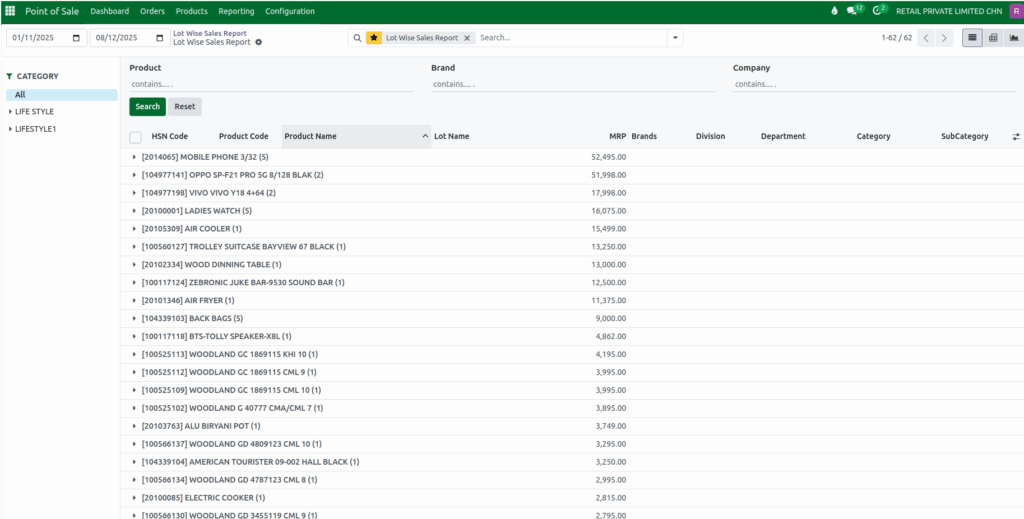
How to Filter, Search and Group the Lot Wise Sales Report Data in Odoo POS
The Lot Wise Sales Report in Odoo POS is a helpful tool for tracking the performance of different product lots across sales operations. Whether tracking sales for a specific product lot, analyzing brand performance, or reviewing product-wise movement within a certain period, this report provides clear and organized insights. Odoo makes it easy to access the report, apply filters, and group data to quickly find the needed information.
Accessing the Lot Wise Sales Report
To open the Lot Wise Sales Report, you simply need to navigate through the Point of Sale application. From the main menu, you enter the POS module and open the Reporting section, under the Advanced Reports select the Lot Wise Sales Report. The report displays detailed information about product lots and their sales activity.
Choosing the Date Range for Analysis
The report becomes meaningful when you define the time period you want to analyze. You can select a starting date and an ending date using the date range fields. After the dates are selected, Odoo automatically updates the report and displays all lot-wise sales that occurred during that period. This allows you to focus on sales performance for any specific timeframe, whether it’s a day, a month, or an entire quarter.
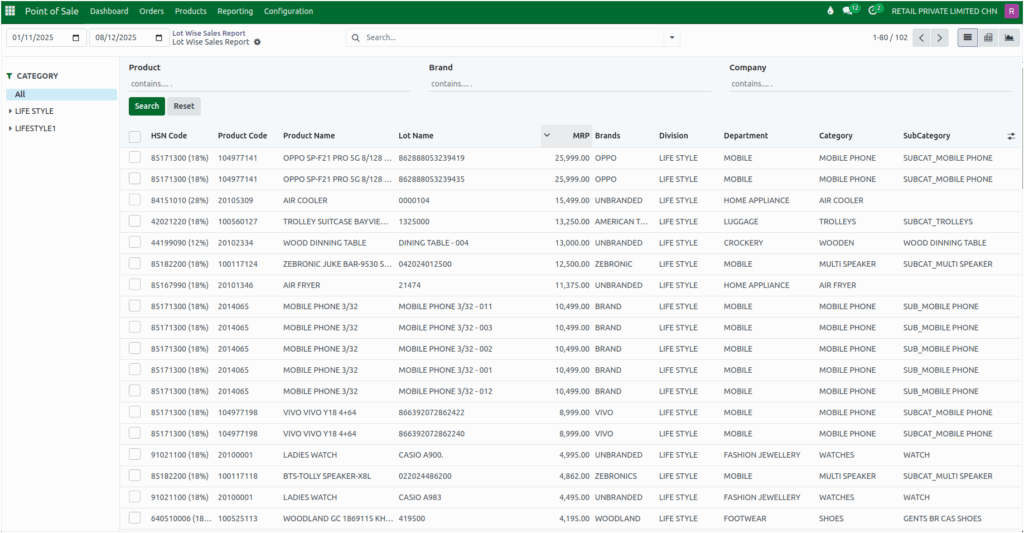
Using Quick Search Filters
Odoo provides quick filters that let you narrow down the report even faster. You can define the date range, choose a specific product, select the brand, or choose the company if you work with multiple companies in your Odoo database. After setting the filters, clicking the search button displays the results instantly. You can apply multiple filters at the same time for more precise analysis, and if you want to clear everything and start fresh, the reset button removes all selected filters.
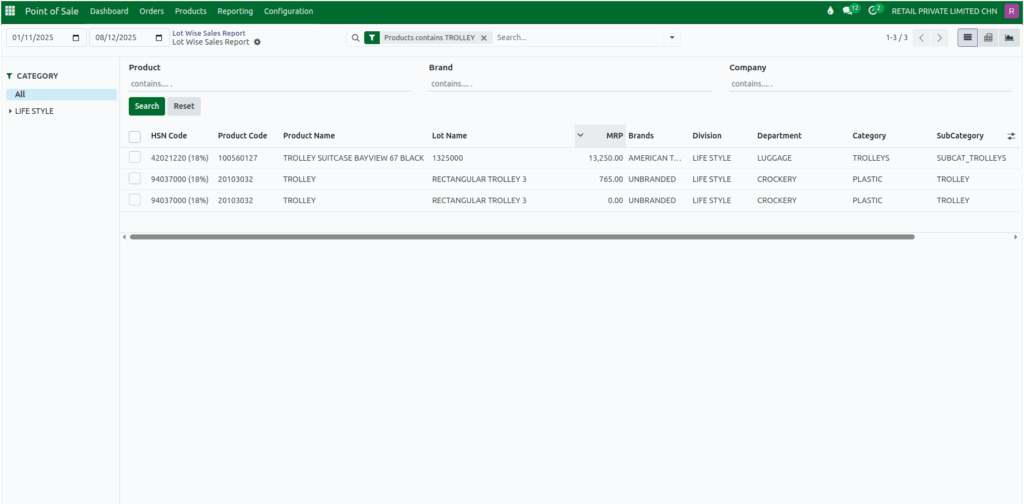
Using the Search Bar in the Lot Wise Sales Report
Odoo includes a powerful search bar that helps you locate records quickly. You can search for a product by its name, its product code, or its HSN code, which is used for tax classification. If you want to look up sales based on a particular lot, you can search using the lot name. You can also search for lot-wise sales using brand, division, department, category, or subcategory. If promotions are part of your POS setup, searching by promotion name helps you analyze how promotions affected sales for specific lots.
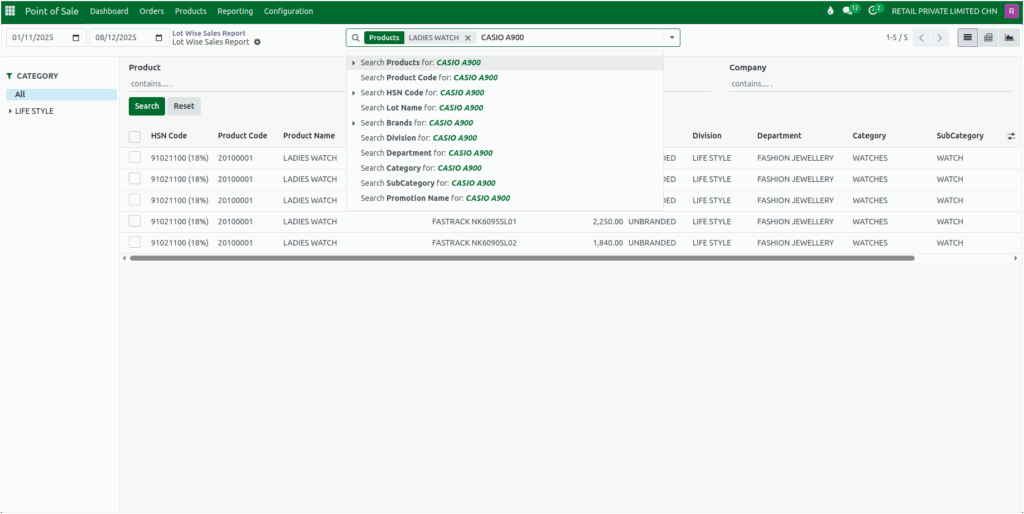
Filtering the Lot Wise Sales Report
Odoo also offers predefined filters through the dropdown icon in the search bar. Here, you can filter the data based on lifestyle or superstore categories if you categorize your products in that way. You can also filter by HSN code to view sales for a specific group of products based on tax classification. This method is useful if you want to apply commonly used filters without manually setting each rule.

Applying Custom Filters
For more detailed analysis, the system allows you to create your own custom filters. When you click the option to add a custom filter, a popup window gives you a rule that you can modify. You can select the field you want to filter by, such as MRP, choose how the filter should behave, such as matching or containing a value, and then enter the value itself. After clicking add, Odoo automatically updates the report to show only the data that meets your selected conditions.

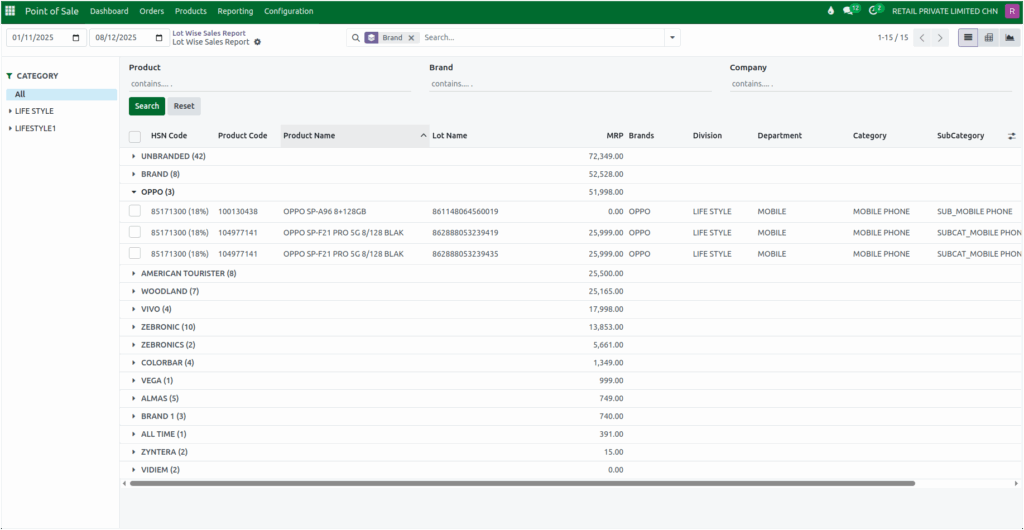
Grouping Data in the Lot Wise Sales Report
To organize your Lot Wise Sales Report more effectively, you can use the Group By options available in the search bar. By clicking the dropdown icon, you can open the Group By menu and choose how you want the report to be arranged. Odoo allows you to group the data based on several default fields. You can group sales by company to see which transactions belong to each business entity, or group by product to view the performance of individual items.
Grouping by brand helps you compare how different brands are selling, while grouping by HSN code lets you analyze sales based on tax classifications. If your business is structured into divisions or departments, you can group by division or department to understand how each unit performs. You can also organize the report by category or subcategory to analyze sales within specific product classifications. This grouping feature makes it easier to study trends and understand lot-wise sales from different angles.
Applying Custom Grouping
Odoo also allows creating custom groups. Clicking the option to add a custom group opens a list of additional fields you can use for grouping. Choosing one of these fields helps you organize the report in a way that fits your specific business needs. With custom grouping, you can view the data from different angles and get clearer insights into lot-wise performance.
Saving Favorites for Quick Reuse
Odoo lets filters be saved for quick use later. To save a filter, open the dropdown menu, choose “Save current search,” and give it a name. It can also be set as default or shared with others. Saved filters can be reused anytime, and unwanted filters can be deleted using the trash icon. This makes it easy to use the same filters again without setting them every time.