How to View the Invoice Analysis Report in Odoo Invoicing
The Invoicing Analysis Report in Odoo helps users understand their sales and billing performance by showing invoice details across customers, products, dates, taxes, and more. This report is useful for tracking business activity, comparing invoice trends, and supporting financial decisions. Here is a simple guide on how to view and use the Invoicing Analysis Report effectively.
Accessing the Invoice Analysis Report
To open the report, go to the Invoicing module from the main dashboard. Then click on Reporting, and select Invoice Analysis Report from the list. Once the report opens, users can view all invoice records along with important information such as customer details, invoice numbers, dates, product categories, quantities, taxes, and totals. This helps users get a complete view of their invoicing data in one place.
Search, Filters, and Grouping Options
Odoo gives several tools to explore data more easily. The Search Bar lets users quickly find invoices by typing any keyword. You can search by customers, salespeople, product names, and other related fields.

The Filter option helps narrow down the data. Users can also create their own custom filters by selecting a field, setting a condition, and entering a value. To make repeated tasks easier, users can save their favorite search settings using the Favorites option. Saved searches can be reused anytime or deleted when no longer needed.
The Group By feature organizes invoices into categories, while the Custom Group By feature lets you create specific groups for easier analysis.
Details Captured in the Invoice Analysis Report
Each invoice in Odoo comes with a unique Invoice Number, which helps identify and track it easily. The Partner field shows the name of the customer, while the Invoice Date indicates when the invoice was created. For businesses in India, the Buyer GSTIN records the customer’s GST number, and the Place of Supply tells where the goods were delivered. Other contact details such as Email and Address are also displayed for reference.
The report lists the Product Category, which groups similar items together, and the Products field shows the specific item sold. The Company field identifies the legal entity managing the invoice. You can also see the Quantity of items sold, the Unit of Measure (UOM), and the Unit Price for each product. This makes it easy to check sales volumes and pricing.
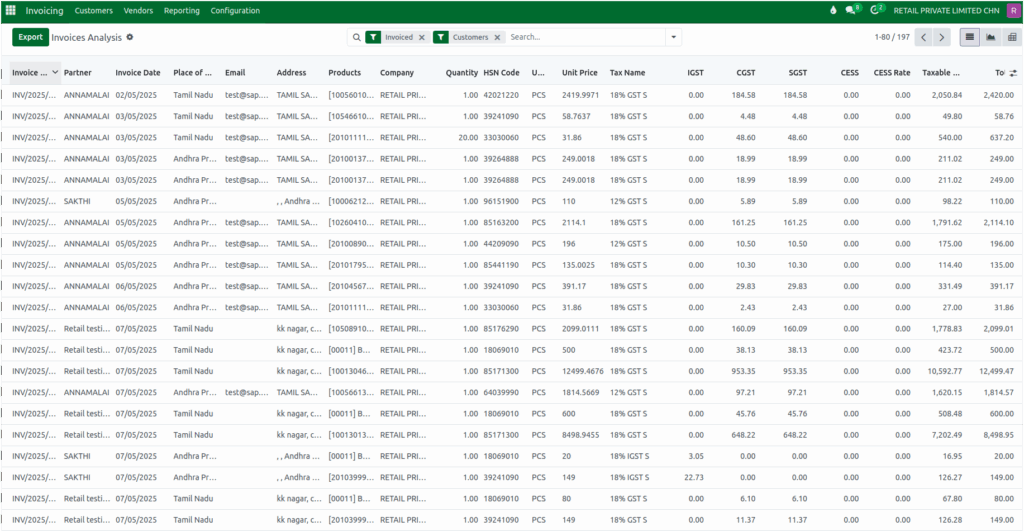
Odoo also displays tax-related information, including the HSN Code, Tax Name, IGST, CGST, SGST, and CESS along with its Rate. The Taxable Amount shows the total before taxes, and the Total gives the final invoice value including all taxes.
To monitor financials, the report includes the Invoice Status, which indicates whether the invoice is open, draft, or posted. The Payment Status shows if the invoice is paid, unpaid, partially paid, or reversed. The Move Type helps you understand the type of entry, such as Customer Invoice, Customer Credit Note, Vendor Bill, or Vendor Credit Note. Together, these fields provide a complete overview of invoice progress and financial position.
Viewing and Analyzing Report Data
Odoo offers different views to study the data. The List View shows all records in a simple table where columns can be resized and sorted. The Graph View visually displays invoices using bar, line, or pie charts, with options like stacked or cumulative views.
The Pivot View helps compare invoice data using drag-and-drop fields and supports multiple measures at once. Users can switch between views using the icons on the top-right of the report screen. In Graph View, only one measure can be selected at a time, while Pivot View supports multiple measures together.

For offline analysis or sharing, the report can be exported easily. By clicking the Export button at the top-left, users can download the invoice analysis data in Excel format. This helps with auditing, financial reviews, and reporting to management.

