How to view the Odoo Loyalty Point Report in POS
The Loyalty Point Report in Odoo POS provides a complete view of customers who are part of the loyalty program. It shows important details such as the customer’s name, when their loyalty account was created, their current points balance, and the loyalty program they belong to. This report is useful for monitoring customer rewards, tracking point usage, and understanding customer engagement.
Access and User Permissions
You can access the report by going to Point of Sale → Reporting → Loyalty Point Report. Only users with the Headcashier role have permission to view POS reports, including this one. Once the report opens, users can immediately see a list of customers along with their loyalty details in a clean and organized layout.

Search, Filter and Grouping Options
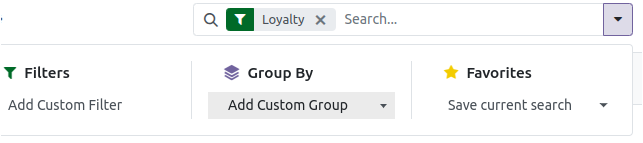
The report includes a search bar that allows users to quickly find customers by their name or any loyalty-related keyword.
To refine the results further, users can apply custom filters such as Partner, Points, or Order Reference depending on their needs. Odoo also supports grouping options that help categorize the report more effectively.
Users can group the data by fields like code, company, created by, created on, expiration date, last updated by, last updated on, order reference, partner, POS order reference, program, or the latest order ID. These options make it easy to analyze loyalty performance from different angles.
Details Shown in the Report
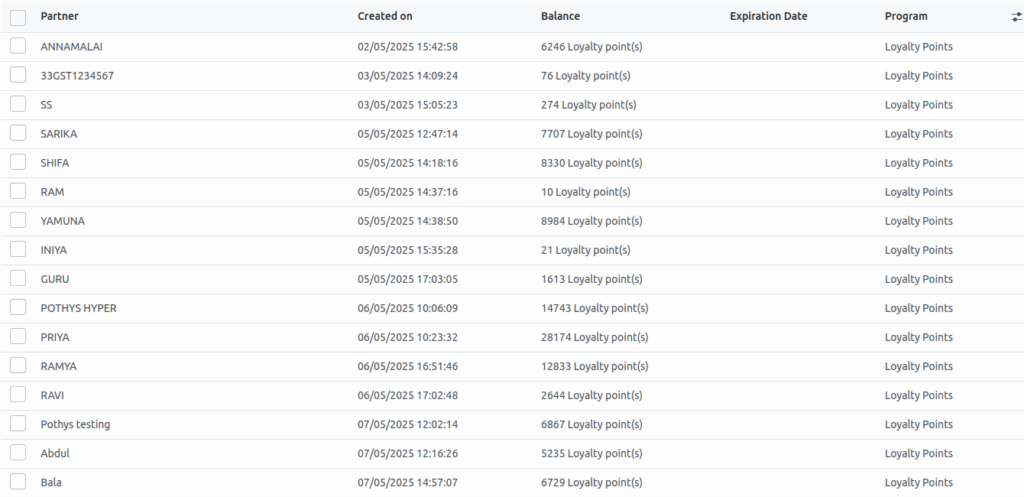
Each entry in the Loyalty Points Report displays key information about the customer and their loyalty activity. It includes the customer name, the date and time their loyalty account was created, their current loyalty point balance, and the expiration date of their points.
The report also shows the name of the loyalty program the customer is enrolled in. These details help businesses understand how customers are earning and using their points, and when points are due to expire.
Available Views and Export Options
The report is shown in a structured list view that presents loyalty data in a simple table. Users can switch between Kanban, Graph, and Pivot views using the icons in the top-right corner, depending on how they want to analyze the information. The report supports pagination for browsing long lists and allows sorting by clicking on column headers such as Partner or Created On.
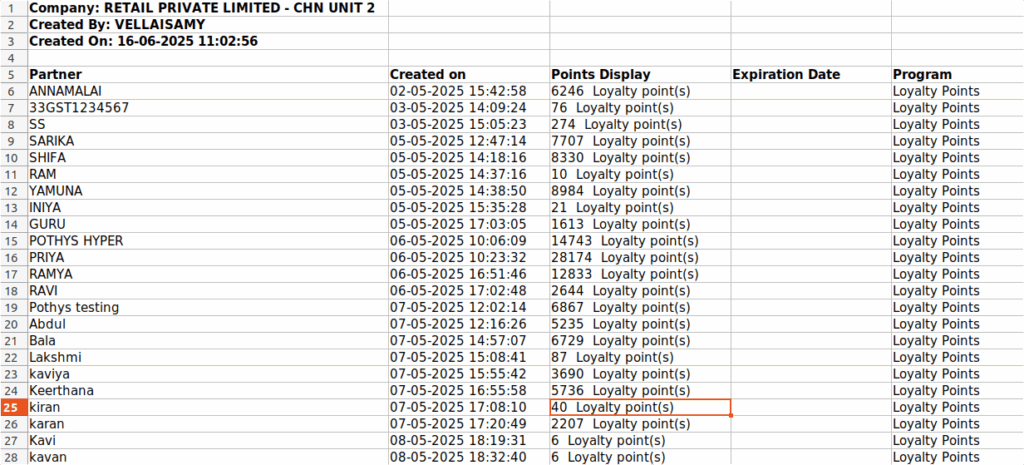
If users want to work with the data outside of Odoo, they can click the Export button to download the report in Excel or CSV format. Exporting allows teams to perform deeper analysis or use the data for loyalty campaigns and customer engagement activities.