How to view the Sales Details Print in Odoo POS
The Sales Details Print report in Odoo POS provides a complete overview of all sales and refund transactions processed through your POS terminals. It is a helpful tool for tracking sales, refunds and overall performance for a selected period. The report is generated in PDF format and includes detailed product-level information as well as summaries for easy analysis.
Accessing the Sales Details Print in Odoo POS
To access the report, go to the Point of Sale module from the main dashboard, click on Reporting, and select Sales Details Print.
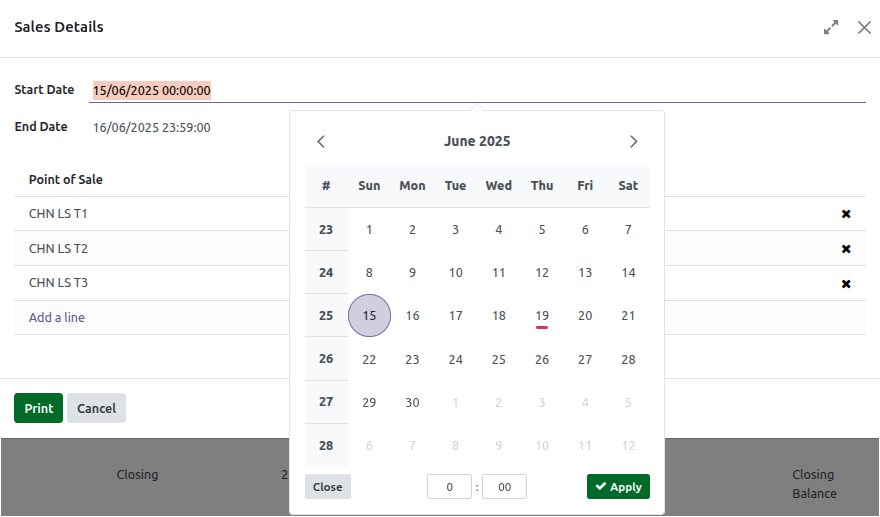
When generating the report, you can select a specific Date Range to define the period for which the report should be created. By default, all POS terminals are included, but you can choose specific terminals by adding them from the list and removing unwanted ones. This allows you to generate a report for one or more POS terminals as needed.
Filtering, Grouping the Sales Details Print
The report includes options to filter and group data for better analysis. You can filter terminals by type such as Bill Only, Pay Only, or Bill and Pay and group records accordingly to see sales performance for each terminal type.

Downloading and viewing the Sales Details Print
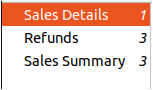
Once you select the date range and POS terminals and set any filters or grouping options, you can click the Print button to download the Sales Details Print as a PDF. The PDF contains sections for Sales Details, Refunds and a Sales Summary making it easy to navigate between these sections.
At the top, the label displays Product Sales and below the company name, GST number, the POS terminals included and the selected date range will be displayed. This helps you confirm that the report is generated for the correct period and terminals before checking the details.

Sales Details Section in Sales Details Print
In the Sales Details section, you will see product-wise information for all sold items from POS including Exchanges. Each line shows its product code, product name, tax percentage, sales price, quantity sold, taxable amount, and total amount.
If the same product is sold at different prices or from different lots, they will appear on separate lines. Discounts applied at line level or bill level are also shown in the taxable and total amount fields.
The products are grouped under their sub-categories, and each group shows totals for quantity, taxable value, and total sales amount. All service products are grouped under Not Categorized and their values are displayed within that section. At the bottom, overall sales totals are displayed as positive values.

Refunds Section in Sales Details Print
The Refunds section shows all returned products with negative quantities and amounts. It shows the Product Code, Product Name, Quantity, Taxable Amount, and Total Amount for each refunded item. The totals under each sub-category and the final refund totals also appear as negative numbers, helping you understand the amount returned during that period.

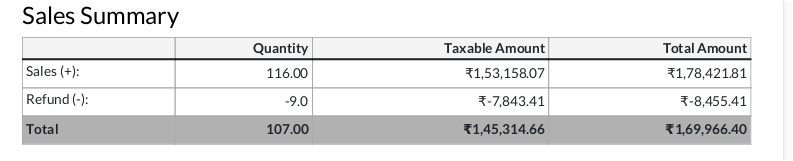
Sales Summary Section in Sales Details Print
In the Sales Summary section, the sales totals and refund totals are displayed together. You can match the values here with the totals shown in the Sales and Refund sections. The final row shows the net quantity sold and the final taxable and total amount after subtracting refunds from the sales. This gives a clear picture of the actual sales performance for the selected date range.