How to view the Stock Details Report in Odoo Inventory
The Stock Details report in Odoo Inventory helps users view complete information about all products stored in the warehouse. It shows quantities that are available, reserved, purchased, in transit, or already delivered. This report is useful for understanding stock levels and making decisions related to purchases, sales, and warehouse operations.
Accessing the Stock Details Report
You can easily open the Stock Details report from the Odoo Inventory module.
To access it, go toInventory → Reporting → Stock Details.
Only users with the Inventory Manager role can view this report. Once the report is opened, it will display all the available product information in a single screen.

Using Filters, Grouping, and Search Options
The Stock Details report provides several filters to help you narrow down your data. You can filter products based on options like Available in POS, Can be Sold, Can be Purchased, Favourites, Warnings, Archived, Available Products, Negative Forecasted Quantity, and Negative Quantity.
For example, the “Available in POS” filter shows products that can be sold in the POS system, while “Negative Quantity” shows products where the stock level is below zero.
You can also group the report using fields such as Brand, Product Type, Product Category, and POS Product Category. These groupings help you organize the report based on your business needs. For instance, grouping by Product Type will display products under categories such as Consumable, Storable Product, and Service.
If you need extra filtering or grouping options, the system allows you to create Custom Filters and Custom Groups by selecting additional fields like Pricelist, Tax Amount, Active status, Alert Date, and more.
A Quick Search option is also available, where you can search products by Brand or Category directly without applying filters.

Understanding the Fields in the Stock Details Report
The report provides detailed information about each product. It shows the Product along with its code and name, as well as the Brand associated with it. Both the Master HSN and Branch HSN codes are displayed as defined in the product master.
The Barcodes field shows the product’s EAN code for easy identification. Products are organized under Product Categories, which follow a four-level structure: Division, Department, Category, and Subcategory.
The report also displays the applicable Tax % for the product. Stock-related details include the Onhand quantity, which shows how much of the product is currently available, the Incoming quantity that represents items purchased and expected to arrive, and the Outgoing quantity indicating how much has been sold.
Forecasted: Predicts future demand, sales, and key performance indicators using historical data, market trends, and real-time business information.
Formula: Forecasted = Onhand + Incoming – Outgoing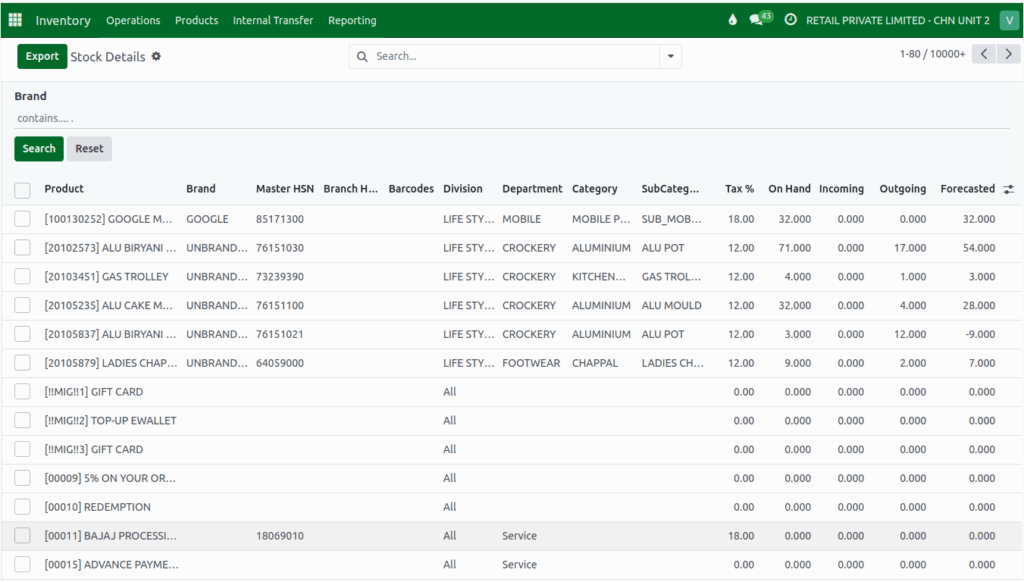
Exporting the Stock Details Report
The Export option allows users to download the Stock Details report in Excel format. Before exporting, users can apply filters, groupings, or search options to customize the data they want to download.
Once the desired view is ready, clicking the Export All / Export button will generate an Excel file based on the selected conditions.


