How to create a Category and Brand Wise promotion in Odoo Sales
Category-wise and brand-wise promotions in Odoo allow businesses to apply discounts to specific product groups, either by brand or by category. Brand-wise promotions target items from a particular brand, while category-wise promotions apply to all products within a chosen category.
Once configured, Odoo automatically applies the discount whenever a customer buys an item that meets the promotion criteria.
Navigating to the Promotion Screen
To view or configure promotions, go to the main dashboard and open the Sales module. From there, select Products and then click on the Discount & Loyalty option. This screen displays all the existing promotions created in your system.
You can also see useful details such as the program name, program type, and the start and end dates assigned to each promotion. These details help you keep track of active, upcoming, and expired promotional programs.
Creating a New Promotion
When you want to create a new promotion, click the +New button to open the promotion setup form. Odoo requires the promotion name, start date, and end date before you can save the record. If any of these fields are missing, the system will show an alert “Invalid fields: Program Name, Start Date, End date”
You should also ensure that the end date is not earlier than the start date, as Odoo will display “The validity period’s start date must be anterior or equal to its end date”. The dates you choose define the period during which the promotion will be active.
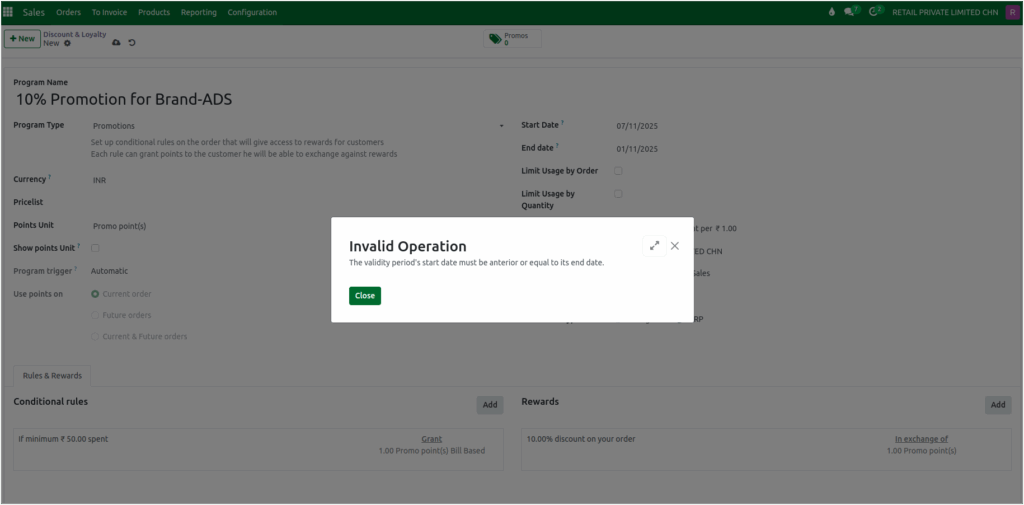
After adding the basic details, you can enter a meaningful program name for both brand wise and category wise and confirm that the program type is set to Promotion for both brand wise and category wise promotion.
Configuring Promotion Usage and Settings
Odoo provides options to limit how many times the promotion can be used. You can allow the promotion to be applied for a maximum number of orders or restrict it based on the quantity of items in a single order. Only one of these options can be selected at a time.
The company information is selected automatically, and the pricelist is taken from the POS configuration by default, though you can change it if needed. Additional settings allow you to control where the promotion will be available.

For example, you can apply it to POS, Sales, or both. If your business uses multiple POS terminals, you can choose specific terminals or leave the field empty so the promotion applies to all.
You can also choose whether the discount should be calculated based on MRP or the selling price. Default system settings, such as currency, program trigger, point unit, and point rate, are filled automatically.
Defining Conditional Rules
After setting the general configuration, you can move on to the Conditional Rules tab, where you define when the promotion should be applied. You can set a minimum quantity or specify a minimum purchase amount that the customer must meet.
The system uses line quantity as the basis for applying points or discounts, and this option is selected by default. Once you enter the required conditions, you can save the rule to proceed.
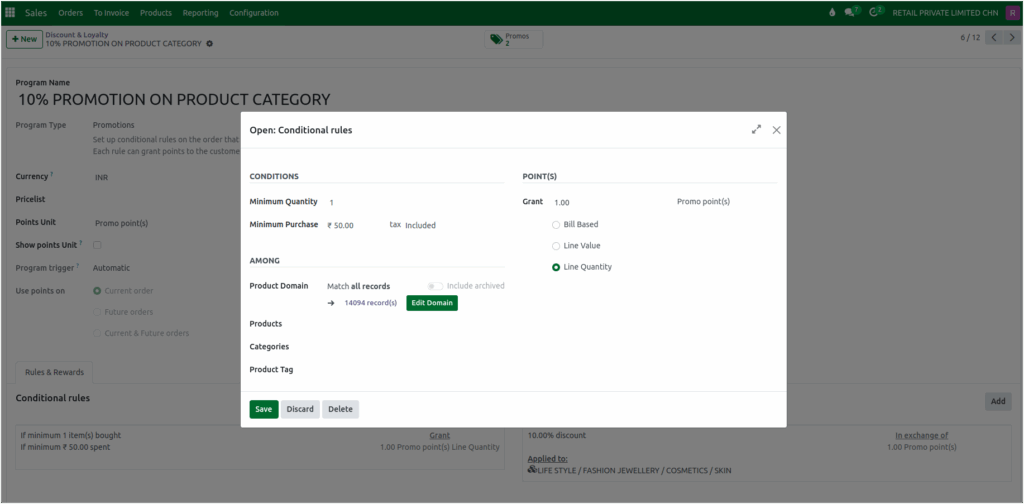
Adding Reward Details for the Promotion
In the Rewards tab, you define what benefit the customer will receive once they meet the promotion conditions. Odoo sets the reward type to Discount automatically. You can then enter the discount percentage you want to apply.
To make the promotion category specific, select the option for specific products for which the discount should apply.
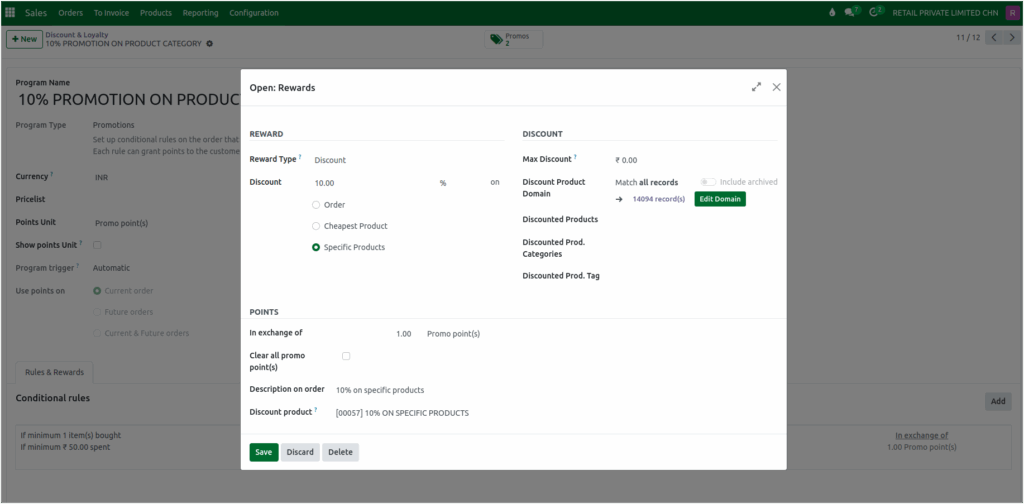
You may also enter a short description that will appear on the customer’s order, making it clear why the discount was applied. Once all details are completed, you can save your reward configuration.
Category-Wise Discount Settings in Rewards
To apply the promotion to a specific category, select the required category in the Discounted Prod. Categories field in the Reward’s Discount tab. Only one category can be chosen in this field for the promotion.
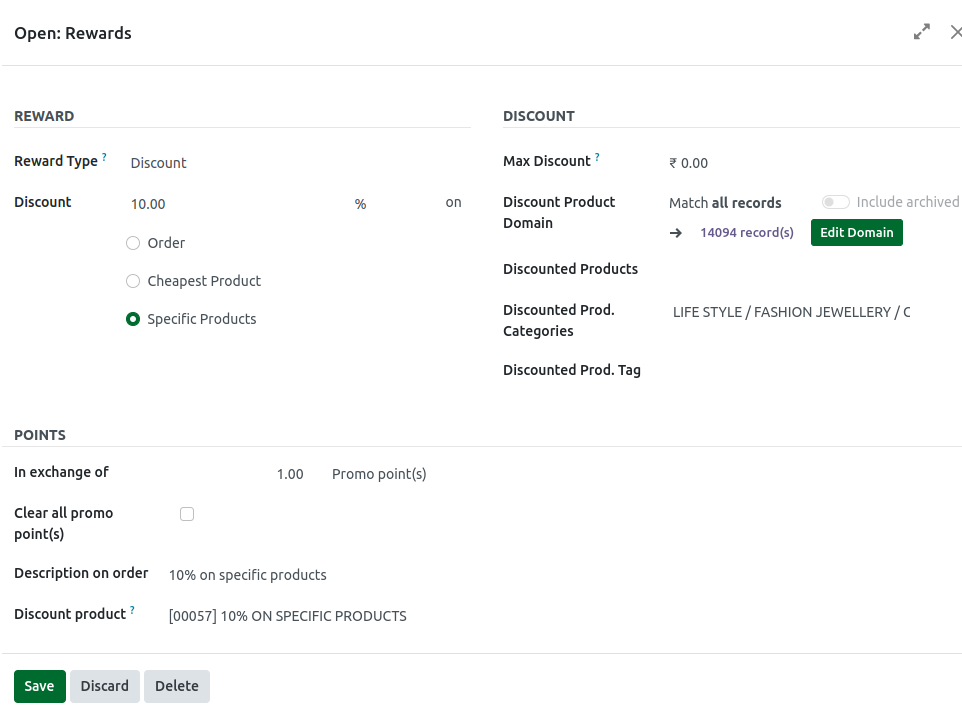
Brand-Wise Discount Settings in Rewards
To apply the promotion to a specific brand, select the brand’s products in the Discounted Products field. For brand-wise promotions, you can add more than one product to this field.

Saving the Completed Promotion
The final step is to save the promotion itself. Once you click Save, the promotion becomes active according to the date range you specified. It will now be available during POS transactions, and Odoo will apply the discount automatically whenever a product from the selected category or selected brand is
purchased by the customer.
