How to Create a Pricelist in Odoo Sales
In Odoo, the Sales module offers a powerful feature for businesses to manage dynamic and flexible pricing through pricelists. Setting up and managing pricelists in Odoo is straightforward, but the impact on your sales and customer relationships can be significant.
Getting Started with Pricelist in Odoo Sales
To get started, first enable the pricelist feature by navigating to Sales -> Configuration -> Settings. Under the Pricing section, enable the checkbox for Pricelists. For more advanced pricing rules like discounts and formulas, enable the radio button Advanced price rules option.

Once enabled, you will be able to create multiple pricelists for different customers , products, or specific conditions.
To access the pricelist screen, go to the Sales module, then navigate to Products -> Pricelists. All the existing pricelists will be displayed here, and you can modify them by clicking on any of the entries.
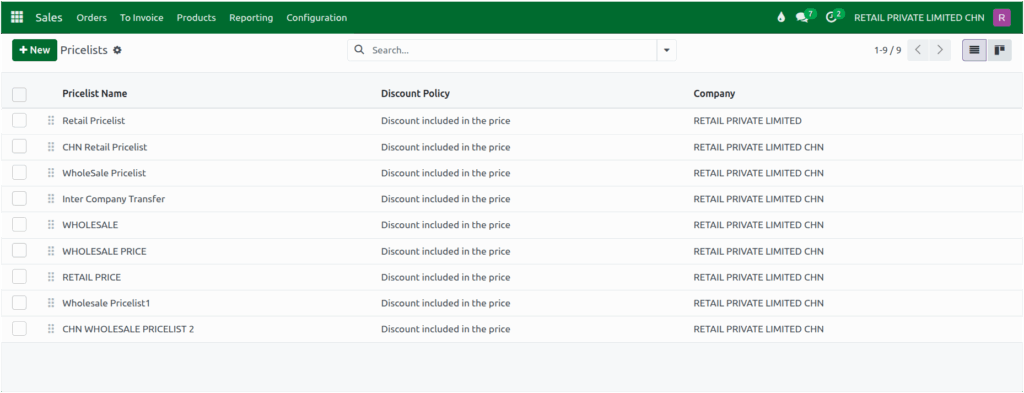
To create a new pricelist, click +NEW. On the creation screen, entering a name is mandatory, so choose a clear and descriptive name (Example: “RETAIL PRICELIST”). You will also see a Company field, where the default company is automatically set.
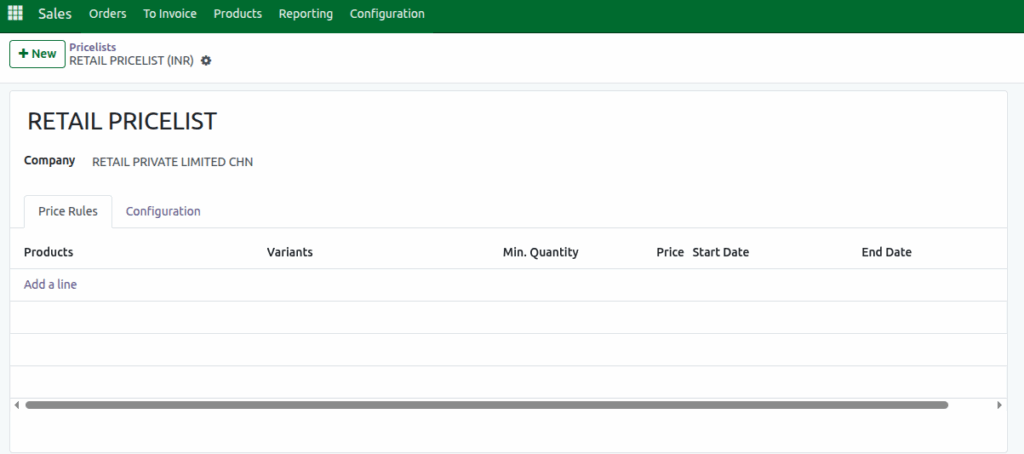
Under the Price Rules tab, you can add products using either the product code or product name. For all the products added here, the selected pricelist will be automatically applied, ensuring consistent and accurate pricing across sales transactions.

Next, Under the Configure tab, enable the Lot Price checkbox for the pricelist.This feature applies to products tracked by lot or by unique serial number.

Once enabled, after the Goods Receipt (GR) is completed, the system automatically updates the discount based on the configured pricelist discount for the lot.
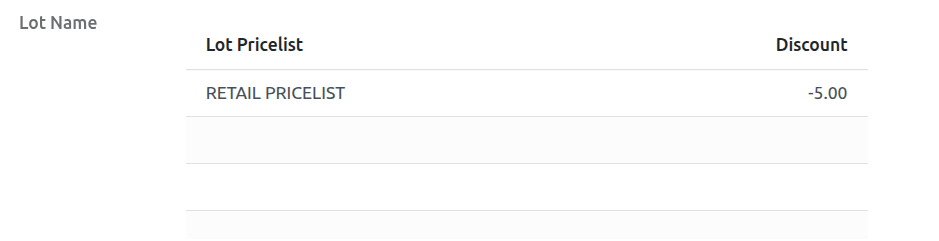
Once the pricelist is saved, you can view it in the Product Master for the products to which it has been applied. You can also assign the created pricelist directly to products.
By setting the pricelist rules, Odoo automatically calculates the selling price which ensures accurate and consistent pricing across all sales.
