How Inventory Out movements are managed in Odoo Sales
Managing Inventory Out movements in Odoo Sales module involves a simple flow that starts with a Sales Order and ends with the Delivery Order. This process helps businesses track products that leave the warehouse, especially for purposes like sales, advertising, or temporary use.
Sales Order Creation
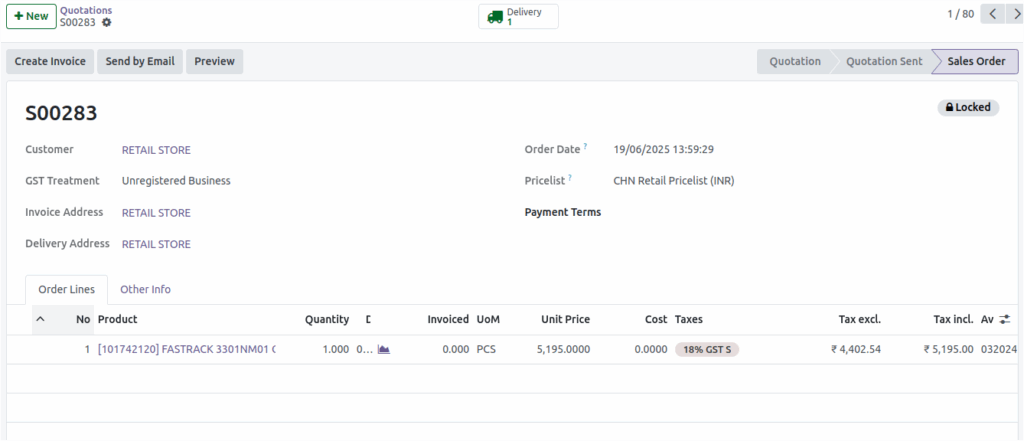
To begin the process, you need to create a Sales Order by navigating to Sales → Orders and clicking the “+ New” button. After choosing the customer, Odoo automatically fills in the GST Treatment based on the information already saved in the customer’s profile, so you don’t have to update it manually.
You can then select the required Price List, such as the CHN Retail Price List. Once the Sales Order is saved, Odoo generates the Sales Order number automatically.
Products can be added to the Sales Order by entering the product code, typing the name, or scanning the barcode or lot barcode, which makes the process quick and accurate. If the product requires lot tracking, you can select the correct lot number from the available list.
Odoo automatically displays the correct Unit of Measure and shows real-time stock availability through the forecast symbol. Quantity starts at one by default but can be changed easily. The Unit Price appears automatically based on the selected lot, and taxes are applied according to the product’s tax settings.
Odoo calculates the taxable amount, tax included amount, and applies IGST or CGST+SGST depending on the customer’s location. Once all details are correct, clicking Confirm finalizes the Sales Order, though stock is not reduced at this stage.
Delivery Order Processing
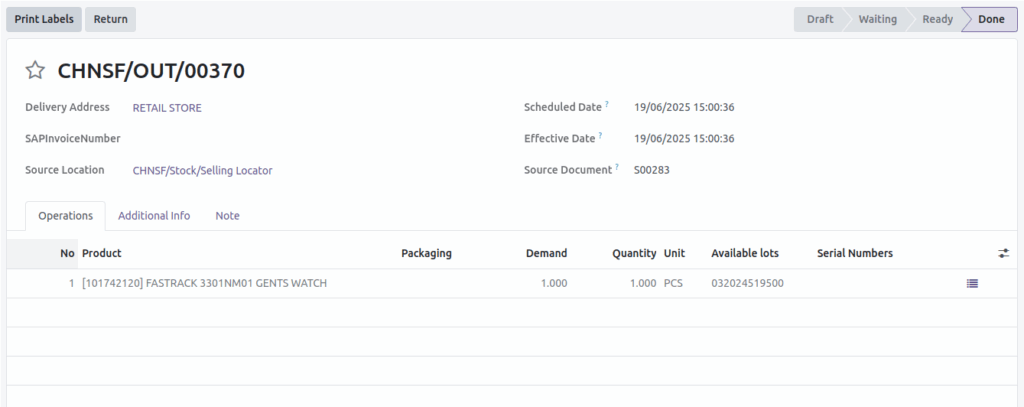
After confirming the Sales Order, you can move to the Delivery Order by clicking the Delivery button. Odoo creates the Delivery Order document number automatically and displays all the important details such as the delivery address, product selected, lot number, and quantity.
To ensure correct stock availability, you must choose the right source location where the lot is physically stored. If the location and the stock both match, the system will show the product as “Available,” or else it will show “Not Available.” You can also set the deadline date and the scheduled date as required for planning and logistics.
Once all details are verified, clicking Validate completes the Delivery Order. At this moment, the stock is officially reduced from the selected lot in the warehouse, marking the product as moved out.
Stock Movement and Inventory Out
After validation, the items are recorded as moved out of the warehouse. This is especially useful for tracking materials used for temporary purposes . Odoo immediately updates the on-hand quantity, ensuring that stock levels remain accurate at all times and preventing discrepancies in reporting or planning.
Returning Stock After Use
If the products sent out are returned to the warehouse , Odoo makes the process simple. You can open the same Delivery Order and click the Return button. This action creates a return entry that reverses the Inventory Out movement. The returned items are added back to the warehouse, and the on-hand quantity is updated automatically, keeping your inventory records clean and accurate.
