How to Process a Sales and Delivery Order for Lot Products in Odoo Sales
Processing sales and delivery orders for lot-based products in Odoo requires careful attention to ensure accuracy in inventory and order fulfillment. Lot products are often branded or unbranded items, and Odoo provides specific validations and workflows to handle them efficiently.
Configuring Lot Tracking for Accurate Inventory
Before creating a sales order, ensure the product is configured as “By Lots”. This setting makes Odoo require lot details during both the sales and delivery processes, helping maintain accurate inventory tracking.

Creating a Sales Order
To begin, navigate to Sales → Orders → Orders from the main menu. Click New to create a sales order and select the appropriate customer. Once the customer is added, click Save to automatically generate the sales order document number. This forms the foundation for adding products and processing the order further.

Adding Lot Products to the Sales Order
Lot products can be added to the sales order using the product code, product name, barcode or EAN code, multi-barcode/EAN code, or lot-specific barcodes. Odoo enforces specific validations for lot-managed products to maintain inventory integrity.
For example, branded products can only be added once within the same sales order. If the same product is added multiple times, the system displays a validation error stating, “Same Product cannot be added in the same order, please remove Product”. After adding the product, the required quantity must be entered before proceeding.
On the other hand, unbranded products are more flexible. You can add them multiple times on different lines within the same sales order, which can be useful if you’re dealing with bulk or generic items. This approach ensures that your sales order remains accurate and organized, while still allowing for flexibility where needed.
Lot-Based Products Behavior
For branded or lot-based products, selecting a lot is mandatory. The lot must be chosen from the Available Lot field for each product. If a lot is not selected, Odoo shows an ‘Invalid Operation: You need to supply a lot/serial number for + “Product Name”’validation indicating that a lot is required. The sales order can only be confirmed once all lot selections are made, ensuring traceability and proper inventory tracking.

Once the appropriate lot is selected, the Cost field displays the product’s average cost, while the Unit Price shows the selling price according to the selected pricelist and lot. Odoo then automatically calculates the taxable amount, tax, and total, providing a complete and accurate pricing breakdown for the sales order.
Completing the Sales Order
After filling in all required fields and selecting the appropriate lots, click Confirm to finalize the sales order. Once the sales order is confirmed, the Delivery option becomes available, allowing the shipment process to begin.

Processing the Delivery Order
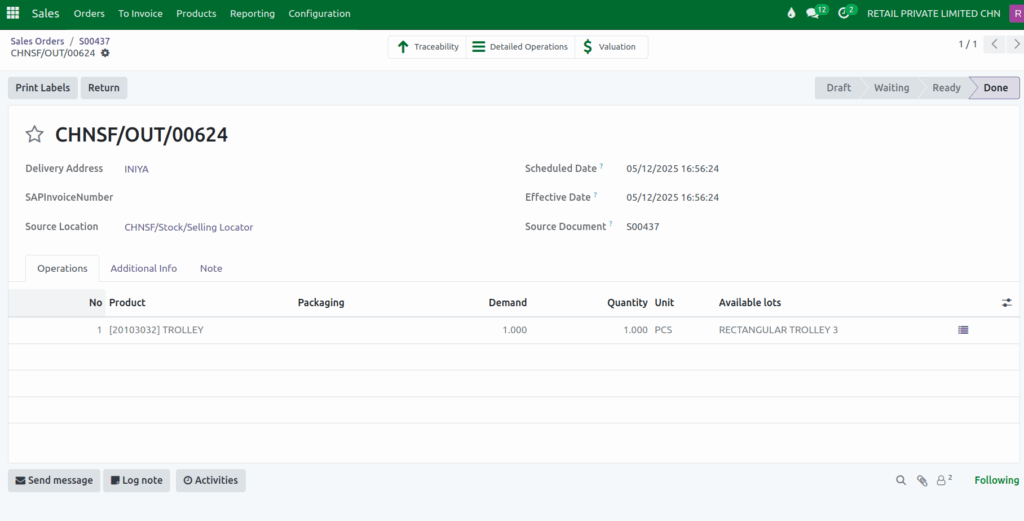
Clicking Delivery opens the delivery order screen, where a new document number is automatically generated. Odoo fills in key details such as the delivery address, scheduled date, and deadline date. The source location of the products can be selected to reflect the warehouse or storage location, and product availability is updated accordingly. The sales order number is displayed in the Source Document field, linking the delivery to the original order.

Delivery Order for Lot Products
Products added to the sales order appear in the Product field on the delivery order. The quantity entered in the sales order is reflected in both the Demand and Quantity fields. For lot products, the lot selected in the sales order is displayed in the Available Lot field on the delivery order, ensuring accurate tracking and fulfillment.
Finalizing the Delivery Order
Before completing the delivery, review all details including the product, quantity, lot, and source location. Once verified, click Validate to complete the delivery order. This finalizes the delivery, updates inventory, and ensures that all lot-managed products are correctly tracked throughout the process.