How to Process a Sales Order for Advance Payment in Odoo
Advance payments are commonly used when a customer needs to pay a part of the amount upfront while placing an order. This helps confirm the customer’s commitment and allows the seller to begin production or preparation, especially for items like furniture or made-to-order products. Odoo supports this process smoothly through its Sales module.
Understanding Advance Payment
An advance payment is the initial amount a customer pays when placing a sales order. It serves as confirmation of the order and gives authorization to start preparing the product or service. This ensures that the seller receives a portion of the payment before delivery or final completion, reducing risk and helping manage production costs.
Creating a Sales Order for Advance Payment
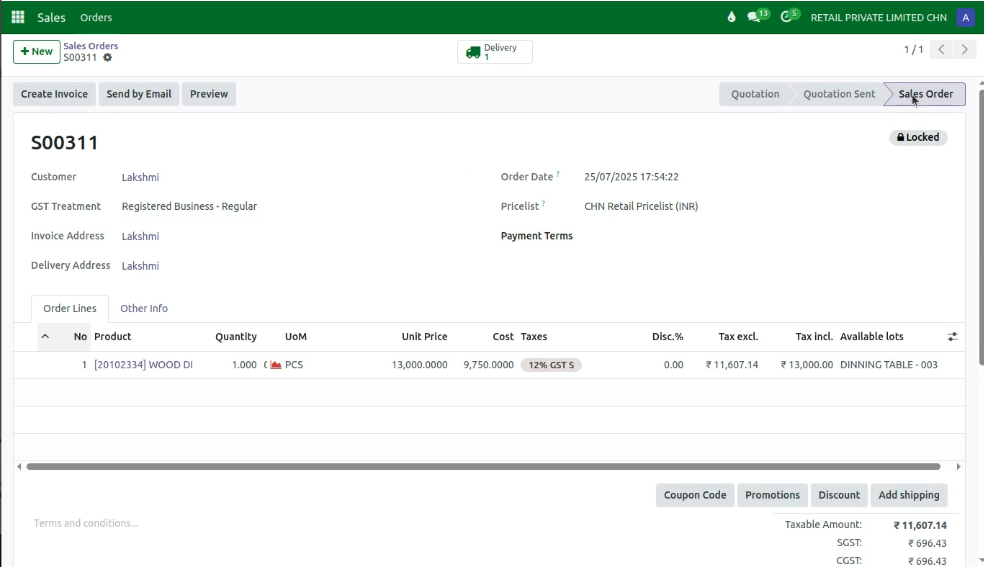
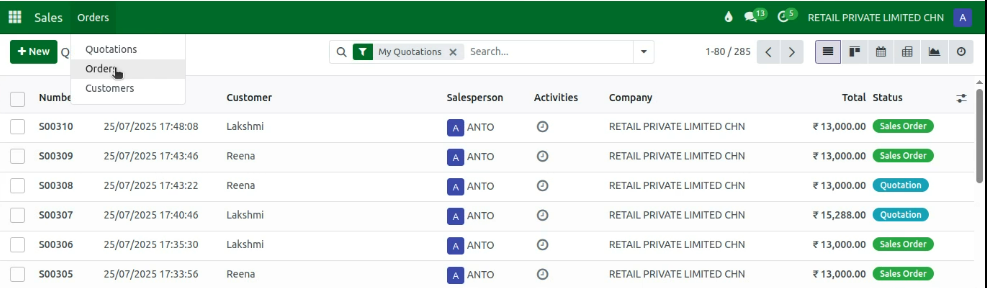
To begin, navigate to Sales → Orders → Orders, then click New to create a new sales order. The key fields required—Customer, Invoice Address, and Delivery Address—are automatically filled based on the selected customer. Odoo also pulls related details such as GST Treatment, invoice and delivery addresses, and other customer-specific configurations. The quotation date is set automatically to the current date, while the expiration date is calculated based on the quotation date.
The system displays the default pricelist configured for the customer, but change it if needed. If payment terms are already set for the customer in the Customer Master, they are auto-filled; otherwise, choose them manually from the dropdown.

Adding Products and Reviewing Pricing
Products can be added using the product code, name, barcode, or lot barcode. Once a product is selected, then choose the lot, enter the required quantity, and review the unit of measure and sales price, which come directly from the Product Master. Odoo automatically calculates the tax-excluded and tax-included amounts based on the product price, tax rate, and the quantity entered.

Finalizing the Advance Payment Sales Order
After entering all the required details and reviewing the product information, click Save to generate the document number. Once confirmed that everything is correct, click Confirm to finalize the sales order with advance payment. Odoo then prepares the order for the next steps in invoicing or production, depending on the workflow.