How to Configure GL Account and Tax Code for Tax in Odoo
Taxes are an important part of any business, and recording them accurately is crucial for smooth financial management. In Odoo, the tax engine allows you to handle all kinds of tax calculations for both purchases and sales. Setting up taxes correctly ensures that your accounting records are accurate and compliant with regulations.
Accessing the Taxes Screen in Odoo
To view the Taxes Screen, navigate to the Invoicing module from the main dashboard, then click on Configuration and select Taxes.This screen displays all the tax rates created in the system, which you can open and edit as needed.
Configuring GL Accounts and Tax Code
From the Taxes screen, search and select a tax from the list, for example, 5% GST. Inside the tax details, you will find a field to enter the GL Account number, usually labeled as SAP GL Profit Account. Enter the account number and save the changes to link the tax to the correct GL account, allowing Odoo to post tax transactions accurately.
At the same time, a Tax Code in Odoo defines the specific tax rate that applies to sales or purchases. Each tax code represents a particular percentage, such as 3% or 5%, and is used in sales or purchase documents to calculate taxes automatically.
Tax codes are also linked to GL accounts to ensure proper posting in accounting. Enter the appropriate code in the SAP Tax Code field and save the changes so the system applies the correct tax rate and posts it to the right GL account during transactions.
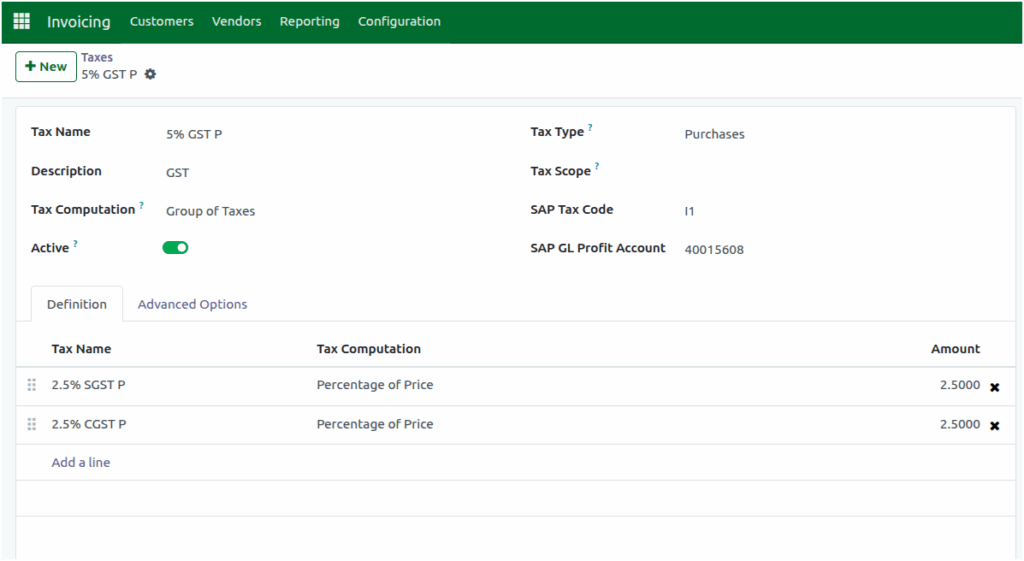
The SAP Tax Code “I” represents Purchase, while the tax code “O” represents Sales.This account and code will be synced with SAP and will be displayed in the logs to help you track all tax-related integrations clearly.

GL accounts must have a correct account type and be linked to the right company code and tax codes. Tax codes should reflect the correct tax rate for sales or purchases and must be mapped to the appropriate GL accounts.
