How to View the Loyalty Points History Report in Odoo
The Loyalty Points History Report in Odoo helps track every change made to customer loyalty points. It shows how many points were available before a transaction, how many were added or used, and the final total after the update. This report gives a clear view of point movements and helps maintain transparency in all loyalty-related activities.
Accessing the Loyalty Points History Report
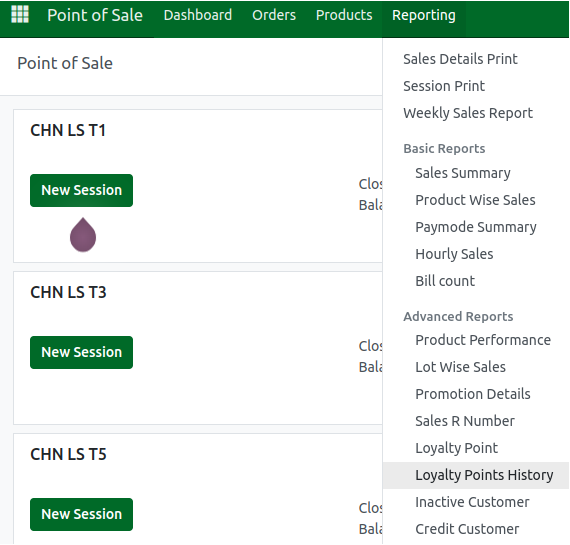
The report can be opened by going to Point of Sale → Reporting → Loyalty Points History. This screen lists all loyalty point transactions linked to customers. Only the Head Cashier has permission to view Point of Sale reports, including this one. Through this page, the entire history of earned and redeemed points is displayed in a simple and structured way.
Search, Filter, and Group Options
Several options are available to make it easier to find the needed loyalty point information. A search box allows quick searching by customer name or order reference. A date filter helps narrow down transactions to a specific time period, while a customer filter makes it possible to focus on the loyalty history of a particular customer.
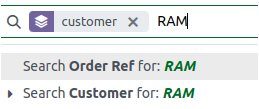
Additional filters can be added when required, such as Customer, Date, Gain Points, ID, Message, New Points, Old Points, and Order Reference. Grouping options help organize the data in different ways. By default, the report groups entries by order date, but it can also be grouped by customer, date, new or old points, gain points, messages, or order reference.


Field Details in the Report
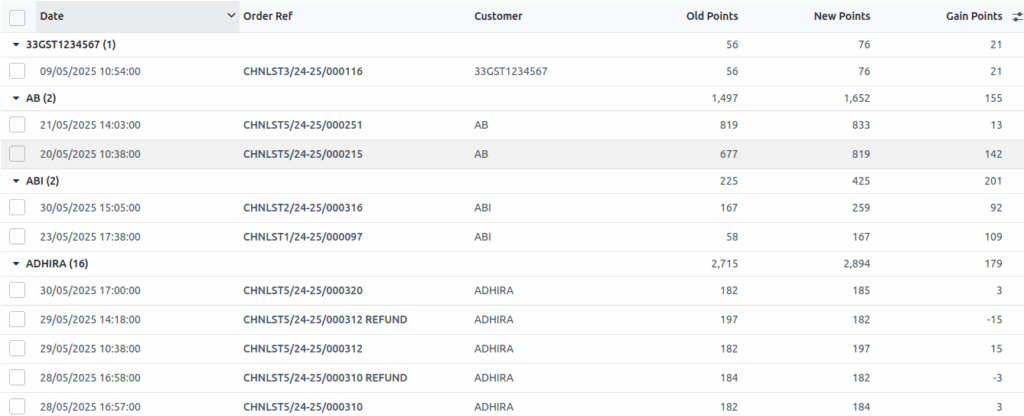
Each record in the Loyalty Points History Report provides important information. The Date field shows when the points were updated. The Order Reference indicates the order responsible for the point change. The Customer field displays the customer linked to the transaction. The Old Points field shows the points available before the transaction, while New Points shows the updated balance after the transaction. The Gain Points value shows the difference between new and old points, where a positive value means points were earned and a negative value means points were redeemed or adjusted.
Viewing and Exporting the Report
The report is presented in an expandable list view. Customers appear in grouped rows with a count of their transactions, and clicking the arrow next to the name expands the list to show detailed entries. For sharing or further analysis, the data can be exported using the Export button at the top-left of the screen. The report can be downloaded in formats such as Excel or CSV, making it useful for audits, reviews, and management reporting.


