How Lot values are updated after completing a Stock Adjustment in Odoo Inventory
Managing inventory accurately is important for any business, and Odoo makes this easier with features that automatically adjust lot values after a stock correction. When you complete a stock adjustment, Odoo updates the lot’s on-hand quantity, total value, and average cost so that your records always match the real physical stock.
Accessing the Lot Details in Odoo Inventory
Whenever a stock adjustment is validated in Odoo, the system refreshes the information stored in the related lot. This includes the latest on-hand quantity, the total value of the items in that lot, and the average cost. These updates ensure the lot always shows correct and current inventory data.
Before this process works correctly, two important prerequisites must be met. The product must be tracked either by Lots or Unique Serial Numbers, and the Product Category must be configured with the Average Costing Method. These settings allow Odoo to compute and update the average cost within each lot accurately.
For example, a lot has a Current On-Hand Quantity 2 PCS (after sales & returns) with a average cost of 102.90 and a Total value of 205.8. The System uses this information to keep your inventory valuation accurate.
You can check these details anytime by opening the Lot/Serial Number Master inside the Inventory module. Here, all the lot information, such as quantity and cost is displayed in one place.

Creation of Stock Adjustment in Odoo Inventory
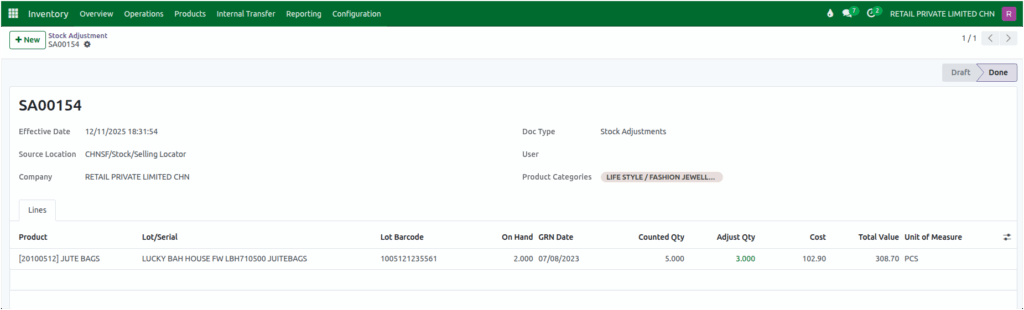
To create a stock adjustment in Odoo, click +New to start a new document. The Document Type will automatically appear as Stock Adjustments. Select the Source Location where the products are stored and choose the appropriate Product Category from the dropdown. Once you click Save, Odoo will generate a unique Stock Adjustment Document Number to track the adjustment.
After creating the document, add the products that need adjustment. Select the product and choose the correct Lot or Serial Number. The system will then automatically fill in key details like the Lot Barcode, On-Hand Quantity, and GRN Date.
You then enter the physically counted quantity — for example, 5 PCS. Odoo compares this with the system quantity and shows the difference as Adjust Quantity which in this case is 3 PCS.
Validating the Stock Adjustment Document
When all entries are correct, you can click Validate. As soon as the adjustment is validated, the System immediately updates the lot values. The on-hand quantity changes based on the new count, and the total value and average cost are recalculated. These changes help maintain accurate inventory valuation.
Viewing the Updated Lot Details
To see the updated results, you can return to the same lot in the Lot/Serial Number Master. For example, if the new on-hand quantity after adjustment is 5 PCS and cost taken from the stock adjustment document is 102.90 this cost is used for calculating the Total Value, which is determined using the formula:
Total Value = Cost × On-Hand Quantity
Total Value = 102.90 × 5 = 514.5
The Average Cost is then displayed using the formula:
Average Cost = Total Value ÷ On-Hand Quantity
Average Cost = 514.5 ÷ 5 = 102.90
With every stock adjustment, Odoo keeps your lot values accurate and up to date. This automatic update process ensures your inventory always reflects the real quantities and costs. It helps maintain smooth, reliable, and error-free stock management.
