How to View Purchase Report in Odoo Purchase
Odoo’s Purchase Analysis report helps businesses understand everything related to their purchase orders. It gives a clear picture of order dates, vendors, product details, and quantities ordered, received, and billed. It also helps track costs, taxes, categories, and other important information. This report is very useful for purchase teams who want to analyze buying patterns, vendor performance, and overall purchase efficiency.
Accessing the Purchase Analysis Report
To open the Purchase Analysis report in Odoo, go to Purchase > Reporting > Purchase. Only users who have the Purchase Manager role can access this section. Once inside, Odoo displays all purchase-related data in an organized format.

You can use the search bar at the top to find information quickly. The search works by matching any part of the text you type. You can search using the vendor name, product, order date, confirmation date, company, category, or the person who created the purchase order. Even partial words will show results. This makes it simple to locate specific purchase orders without browsing long lists.
Filters help narrow down the data further. Odoo provides ready-made filters such as “Purchase Orders (confirmed)” to show completed orders or “Requests for Quotation” to show draft or unconfirmed orders. You can also filter by month, quarter, or year.
Custom filters can be added if you need more control—for example, filtering by status or product category.
Multiple custom filters work together using AND logic. For organized viewing, you can group the data by fields such as vendor, product, company, division, category, dates, or status. If needed, you can save your search settings as a favourite so that you can reuse them whenever required.

Understanding Important Fields in the Report
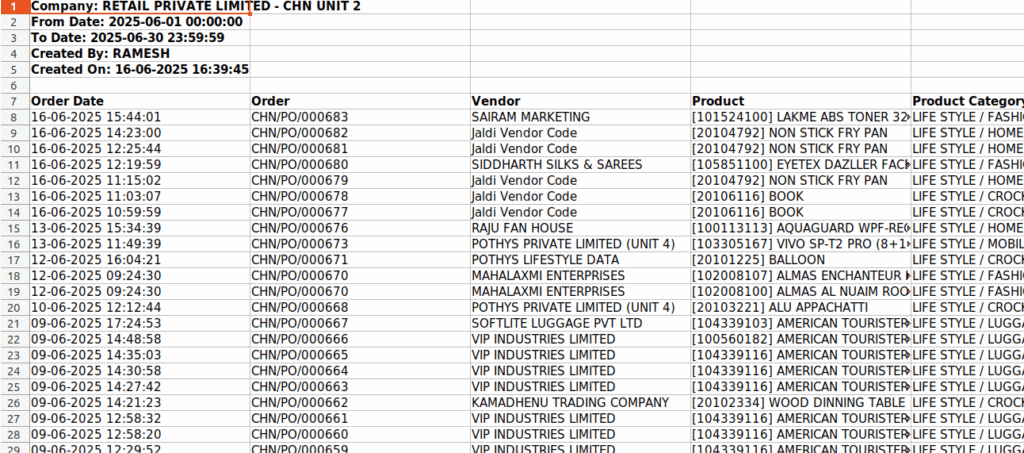
Every row in the Purchase Analysis report contains helpful details about the purchase order. The Order Date shows when the PO was created, and the Order number helps you track the specific purchase. The Vendor field shows who supplied the goods, while the Product field displays the item that was bought along with its internal code.
Odoo also shows the full Product Category hierarchy, including division, department, category, and subcategory, to make product classification easier. Other fields like Tax Name and HSN Number help in GST compliance. The Purchase Representative shows the staff member who handled the order, and the Company shows which business unit made the purchase.
Quantity fields give a clear idea of order progress: Qty Ordered is how much you requested, Qty Received is what the vendor delivered, and Qty Billed is what they invoiced. Financial fields like Untaxed Amount and Total show the cost before and after tax. The Status field tells whether the order is a draft, confirmed, unlocked, or cancelled.

Different Ways to View Data
Odoo provides multiple views to help users analyze purchase information. The List View displays all records in a table layout with columns you can resize and sort. This view is best for reviewing detailed data line by line.
The Graph View presents information in charts such as bar, line, or pie charts. It helps visualize trends and compare values easily. You can switch between stacked, cumulative, or sorted versions of the graph.
For deeper analysis, the Pivot View allows you to drag and drop fields to summarize data by vendor, category, product, or date. This view supports multiple measures at once, unlike the graph view, and can be exported to Excel for further analysis outside Odoo.

The Measures option lets you choose what numerical data you want to study—such as quantities, totals, average costs, volume, or number of order lines. In Graph View, you can use only one measure at a time, but in Pivot View, you can select multiple.
Exporting Purchase Data
If the data needs to be shared or analyzed outside Odoo, you can export it easily. The Export button at the top-left lets you download the Purchase Analysis report in Excel or CSV format. This is useful for financial audits, business reviews, or management meetings where offline reports are needed.