How to View the Lot Wise Sales Report in Odoo POS
The Lot Wise Sales Report in Odoo POS helps businesses track sales based on specific batches or lots of products. This is very useful for companies that need to monitor items with expiry dates, packaging batches, or serial-tracked products.
By checking sales at the lot level, businesses can manage stock more accurately and make better decisions on purchasing, production, and replenishment.
Accessing the Lot Wise Sales Report
To open the Lot Wise Sales Report, go to Point of Sale → Reporting → Lot Wise Sales. This report is accessible only to the Head Cashier, ensuring that sensitive sales and batch information is viewed only by authorized users.
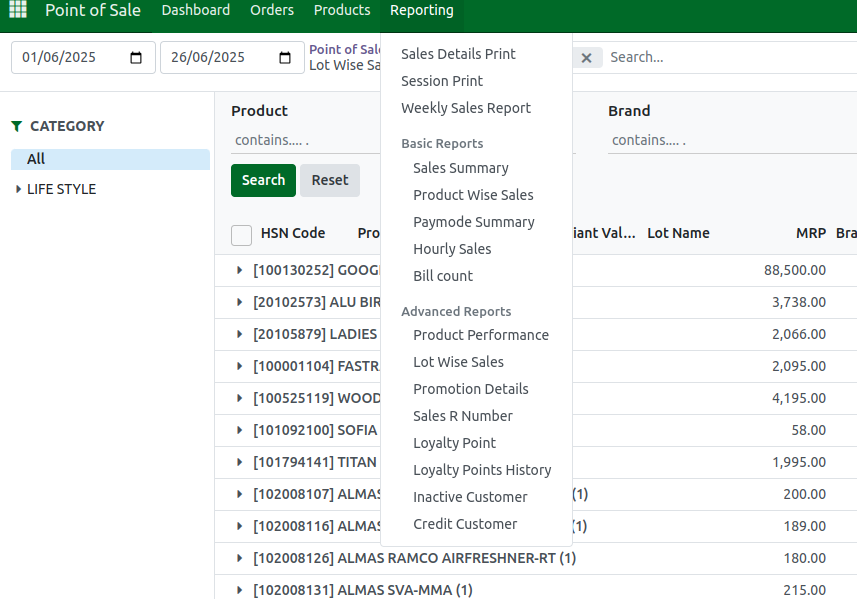
The filtering options make it easy to find the right data. You can filter by Lifestyle or Superstore categories, or search using HSN Codes. Grouping options allow you to organize the data by Company, Product, Brand, HSN Code, Division, Department, Category, or Subcategory. For example, choosing Brand will show sales grouped by each brand.
If additional filters are needed, you can use the Add Custom Filter option to include more fields such as tax amounts, taxable values, or pricelists. The Add Custom Group feature works the same way, letting you include fields like GST Number or Sales Team for more detailed grouping.
Quick search options allow you to find data by Categories, Brand, or Company. The date field helps you filter transactions within a specific period, making it easier to track sales trends or check performance for a particular day or month.

Understanding the Fields in the Report
The Lot Wise Sales Report displays several important fields that help you analyze product performance. The Product Code shows the unique identification of the item, while the HSN Code displays the tax classification along with the applied tax percentage.
The Brand name of the product is also shown, along with the Sold Quantity, which indicates how many units were sold through the POS.
    • Taxable Amount: The total amount before tax, calculated as:
Total Amount / (1 + Tax %)
    • Tax Amount: The tax amount, calculated as:
Taxable Amount × Tax % / 100
    • Total Amount: The POS bill amount, calculated as:
Taxable Amount + Tax Amount
Discount information is also available, showing both the discount percentage and the discount amount applied during the POS sale. Product category details are displayed in four levels: Division, Department, Category, and Subcategory, the Company involved in the sale, and the Lot Name, which identifies the specific batch.
    • Margin: The profit earned, calculated as:
Margin = Gross Total – Cost
    • Markup %: The percentage increase on Cost, calculated as:
Markup % = (Margin / Cost) × 100
    • Markdown %: The percentage reduction from Gross Total, calculated as:
Markdown % = (Margin / Gross Total) × 100
You can also view Promotion Discounts, the Promotion Name, and the Order Count, which shows how many POS orders were completed for that item or lot.

Viewing the Report in Different Formats
Odoo offers three different views for the Lot Wise Sales Report.
The List View displays each record in a table format with rows and columns, making it easy to read detailed data.
The Pivot View allows you to summarize information by dragging and grouping fields such as Cashier, Date, Company, or Brand, making comparisons easier.
The Graph View presents the information visually using bar charts, line charts, or pie charts, helping users quickly understand trends or patterns in sales across lots.

Exporting the Lot Wise Sales Report
If you need to analyze the data in Excel or share it with others, Odoo allows you to export the report. After applying the necessary filters or groupings, you can click the Export All button, and the report will be downloaded in Excel format. The exported file will reflect the filters and date ranges you selected, making it convenient for offline reporting or further analysis.


