How to View the Promotion Details Reports in Odoo POS
The Promotion Details Report in Odoo POS provides a clear overview of all promotional and service products used in sales transactions. It helps businesses track which promotions are applied, monitor their usage, and evaluate their impact on overall sales.
Accessing the Promotion Details Report
The Promotion Details Report can be accessed by navigating to Point of Sale → Reporting → Advanced Reports → Promotion Details. This report provides access to all relevant details of promotional products in POS transactions and sales orders.
Search, Filters, and Grouping Options
The report includes powerful search and filtering options, allowing users to search by order date, product, customer, Point of Sale, or product category. Quick search lets users filter records by specific dates or companies, while custom filters allow more detailed searches by selecting specific fields, conditions, and values. Multiple filters can be applied together to customize results for detailed reporting.
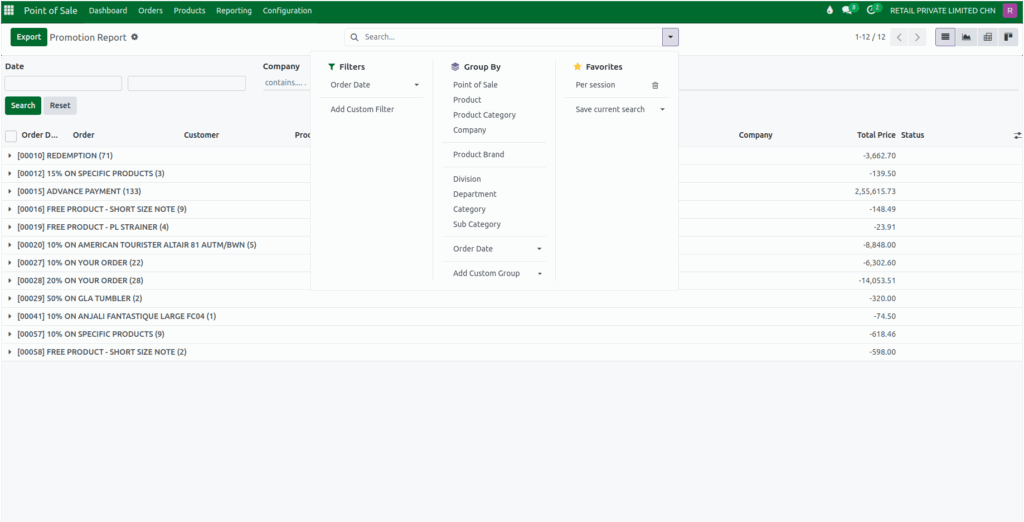
Grouping options in the report help organize promotion data in a meaningful way. Data can be grouped by Point of Sale, product, product category, company, brand, division, department, customer, employee, or other fields like session, order type, and promotion status. Users can save these filter and grouping configurations for future use and easily reuse or delete them as needed.
Details Captured in the Promotion Details Report
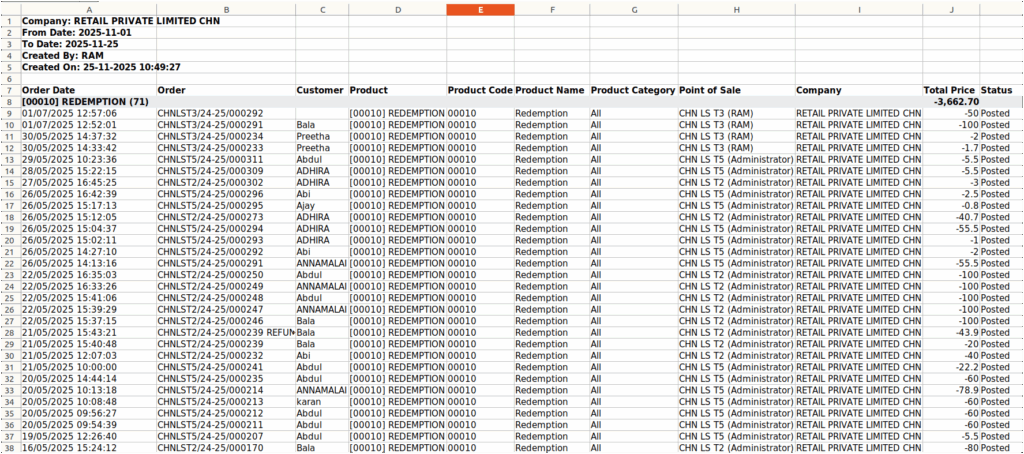
The Promotion Details Report in Odoo POS provides comprehensive information about each promotional transaction and gathers data primarily from POS and Sales orders. The Order Date shows when the order was placed, while the Order Number displays the unique identifier for that transaction. The Customer field indicates the name or ID of the person who made the purchase.
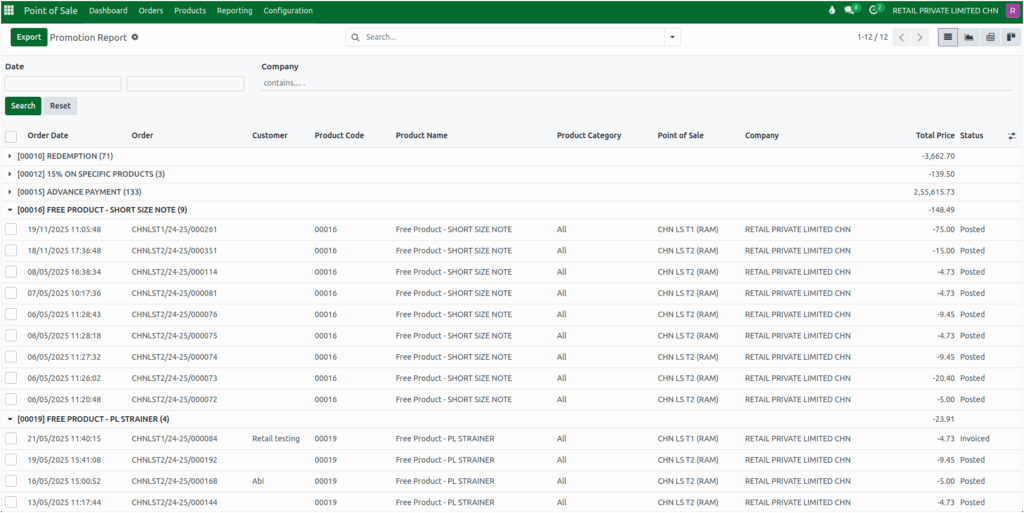
For the products sold, the Product Code provides the unique code assigned to each item, and the Product Name displays the product’s name. The Product Category helps classify the item under the correct category. The Point of Sale shows the terminal where the transaction occurred, and the Company field displays the organization responsible for the sale.
The Total Price reflects the order amount after applying any discounts or promotions, and the Status indicates the current state of the promotion order, such as active, completed, or expired. This detailed breakdown ensures that businesses can track promotional usage accurately and analyze the impact of promotions on sales.
Viewing and Analyzing Promotion Report Data
Odoo provides multiple views to examine promotion data. The List View displays all records in a table format with sortable and resizable columns. The Graph View visually represents data using bar, line, or pie charts, allowing users to analyze trends, compare categories, and view cumulative or stacked data.
The Pivot View enables summarizing and comparing data across multiple dimensions. Users can drag and drop fields to group by promotion name, product, order date and view aggregated data such as total price, product quantity, and promotion usage counts.
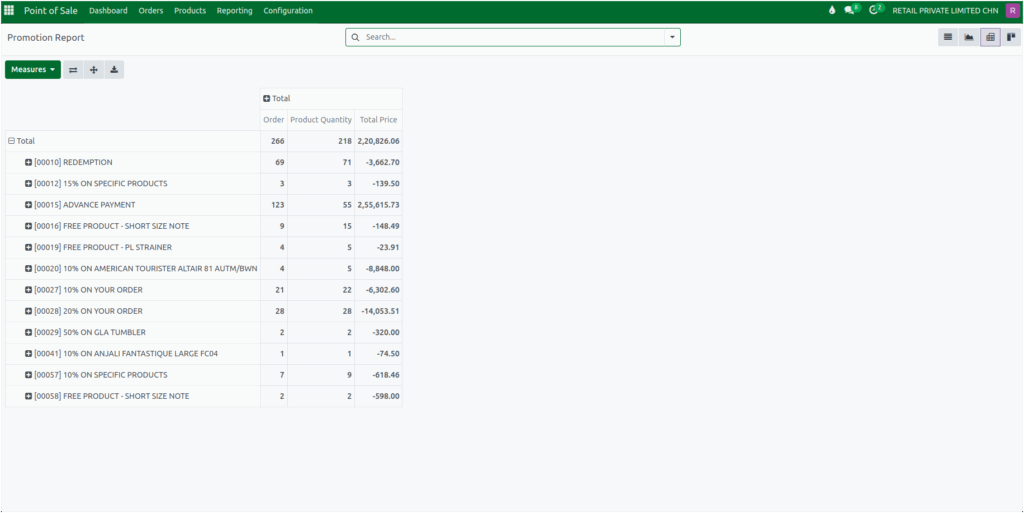
Measures like average price, cost, discount percentage, margin, total price, and product quantity help assess promotion effectiveness. The Pivot View supports multiple measures at once, while the Graph View allows selecting one measure at a time.
The report can also be exported to Excel, enabling offline analysis, sharing, and record keeping. Exported data provides a detailed view of promotion usage, customer and product information, discounts applied, and the financial impact of promotional activities, helping businesses make informed decisions about their promotional strategies.