How Weighing Scale Integration Works in Odoo
Weighing scale integration in Odoo POS helps measure products like fruits and vegetables directly through a connected digital scale. The system reads the weight automatically and calculates the price based on the product’s rate. This setup improves billing speed, accuracy, and handling of products sold by weight.
Configuring the Weighing Scale in POS
The weighing scale can be enabled in the POS terminal settings. When the option is activated, the POS becomes capable of connecting to an electronic weighing scale. Key communication settings such as baud rate, buffer size, data bits, and stop bits must be configured based on the scale model. These settings control how the POS and the scale exchange information.
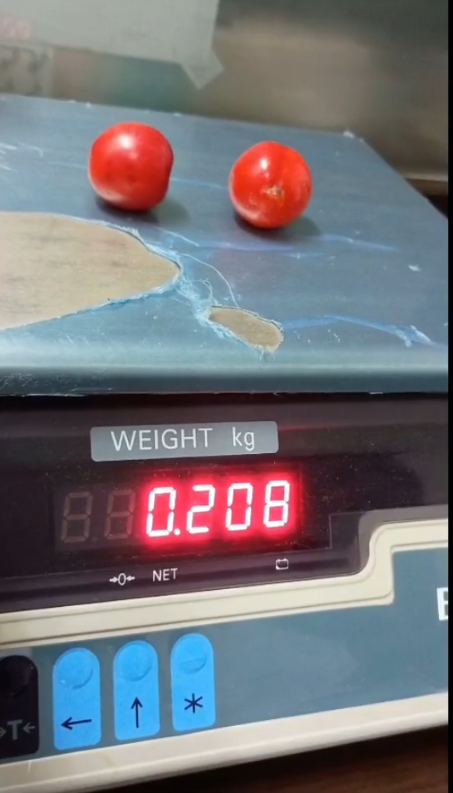
Once the configuration is completed, a Weight tab appears in the POS screen. This tab allows connecting to the correct port and receiving weight data from the device. After adding a product in POS and placing it on the weighing machine, the system measures the weight and updates the quantity automatically. The Weight option displays the reading exactly as shown on the scale. A shortcut, Alt + W, is available to open the Weight tab faster.

Handling Decimal Quantities and Multiple Products
For items measured in kilograms, the system supports decimal quantities. This is useful for non-tracking products like fruits and vegetables. If an item weighs 2.750 kg, the POS records the full decimal value and uses it for billing.
The same weighing device can be used to measure several products in a single order. Each product is added in POS, placed on the scale, and the weight is recorded using the Weight tab or Alt + W. After recording the first product, it can be removed from the scale, and the next item can be placed. This process can be repeated for any number of products, with each weight captured correctly in the cart.
If more quantity of an already-added product is required, the cashier can keep the same product line selected, place the updated weight on the scale, and press
Alt + W. The system replaces the old quantity with the new weight. For non-tracking products, the same item can appear in multiple lines, or the existing line can be updated directly.
Price Calculation and Display in POS
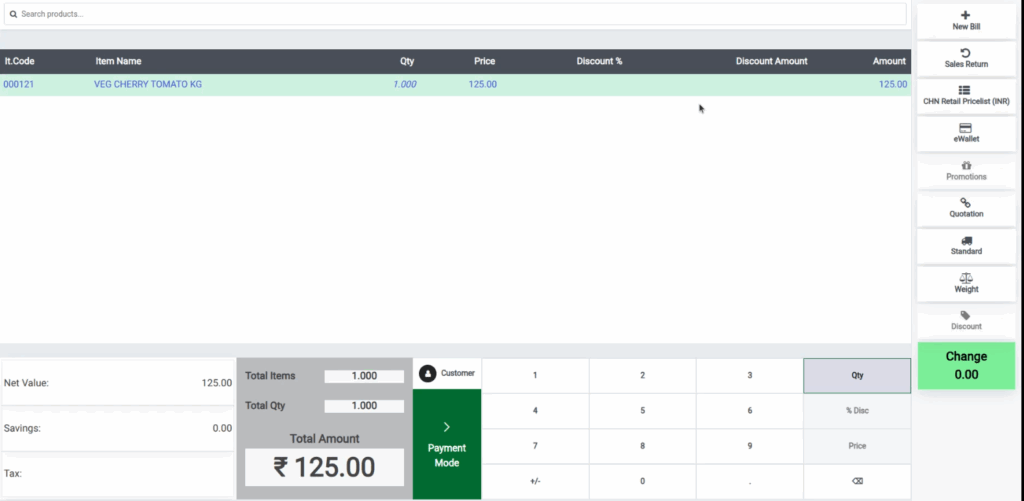
Once the weight is captured, the POS automatically calculates the price based on the product’s selling price. For example, if the rate is ₹125 per kg and the weight is 0.208 kg, the total becomes ₹26. For 0.208 kg, the total becomes ₹26.00. If the weight changes, the system recalculates the amount instantly.
All quantities measured in decimal units appear in decimal format in the Total Quantity field in the POS cart. Customer selection can be done at any stage of billing, and payment modes include options like Door Delivery for customers who want items delivered.
Weight Display in Bill Receipt
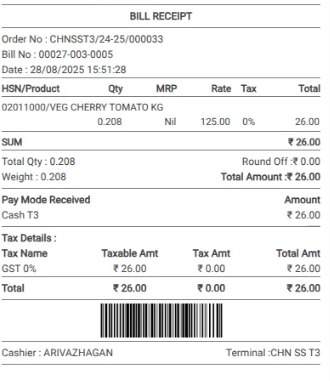
If the “Weigh with Device” option is enabled for a product in the product master, the bill receipt shows the exact measured weight for that item. This applies mainly to non-tracking items like fresh product. Each time the scale captures a quantity, it is printed in the Weight column on the bill. Reprinted bills also show the same weight details, ensuring accuracy and transparency for all weighed products.