How Auto Allocation Works in iDempiere
Auto Allocation is the mechanism iDempiere uses to automatically match completed payments/receipts with open invoices for the same business partner. Its goal is to close the financial loop cleanly—ensuring invoices move to paid status without manual line-by-line allocation.
Process Flow Diagram
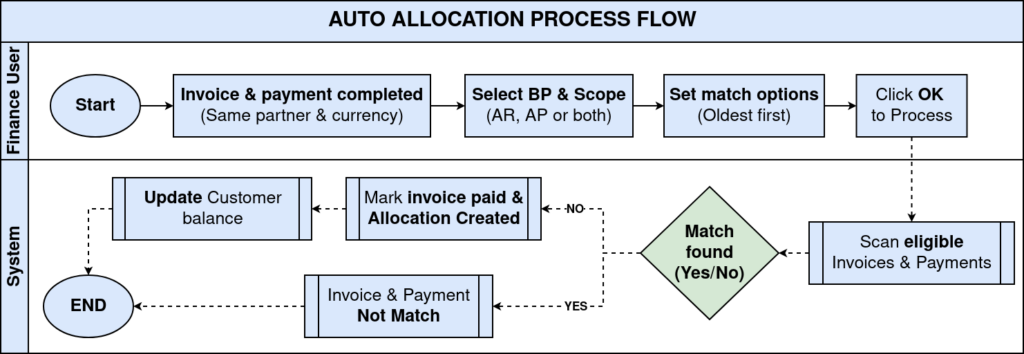
Starting Point (Preconditions)
Auto allocation only works when financial documents are already in a stable state.
A Sales invoice (AR) must be completed & posted, and a corresponding payment / receipt must also be completed & posted. Both must belong to the same business partner and be in the same currency.
At this stage:
- The invoice shows open / unpaid
- The payment exists but is not yet allocated
Launching Auto Allocation
Auto allocation is triggered from payment and receipt → auto allocation.
Here, the user defines how the system should search and match documents.
Key inputs guide the allocation logic:
- Business partner group or specific business partner
- AP / AR scope (Receivables only, Payables only, or both)
- Optional allocate oldest first
- Optional run as job for background processing
Once confirmed, iDempiere scans all eligible invoices and payments under those rules.

Allocation Logic (What the System Does Internally)
The system applies a deterministic matching sequence. It does not guess.
First, it checks whether the payment explicitly references an invoice.
If not, it then matches by exact amount between open invoices and available payments.
If allocate oldest first is enabled, invoices are consumed chronologically.
Important behaviors:
- Allocation is amount-based, not line-based
- Partial allocations are allowed
- Over/Under payments are recorded explicitly (no silent adjustments)

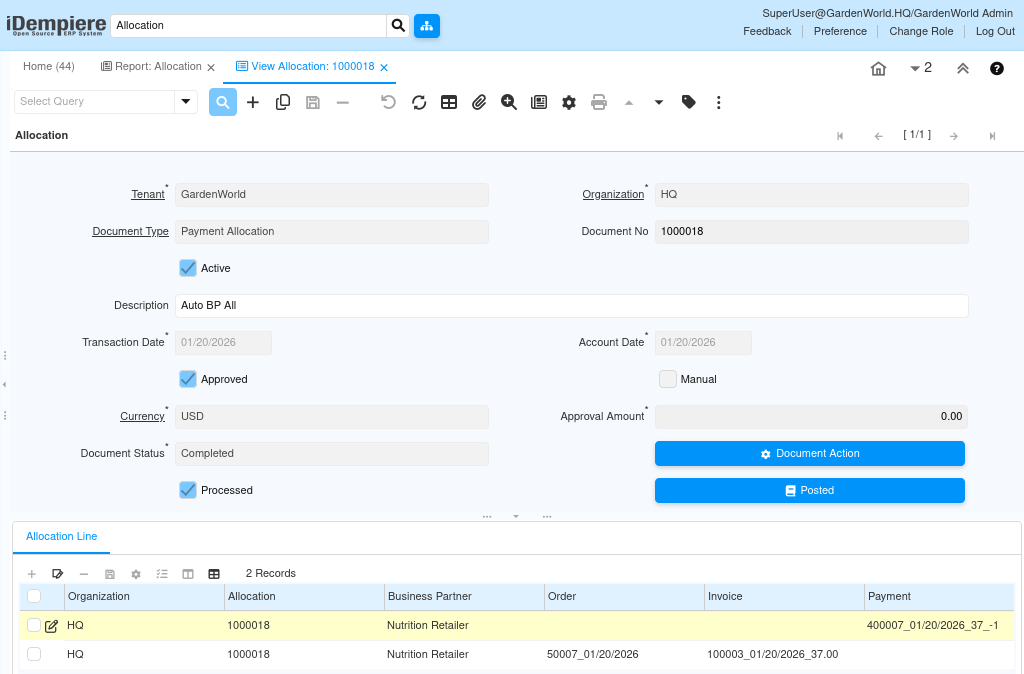
Allocation Document Creation
When matching succeeds, iDempiere automatically creates a payment allocation document.
This document:
- Has its own document no
- Is completed & posted
- Contains allocation lines linking:
- Business Partner
- Payment
- Invoice
- Allocated Amount
This allocation document becomes the audit bridge between invoice and payment.
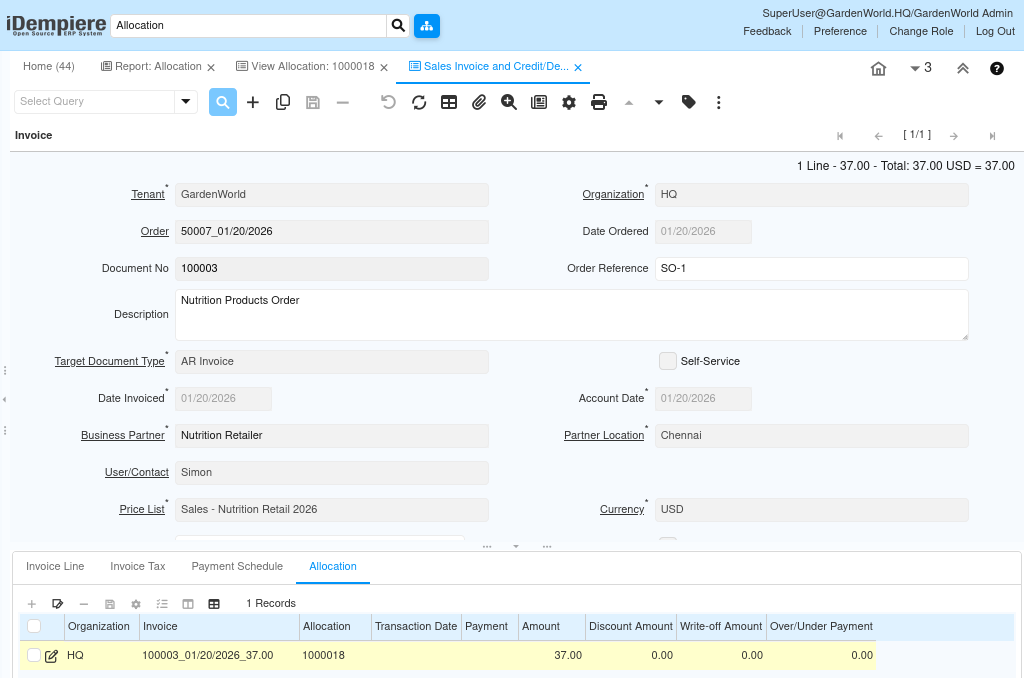
Impact on Invoice and Payment
After allocation:
- The Invoice is marked paid
- The Payment shows allocation references
- The Allocation tab in the Invoice displays the linked payment and amount
Financial integrity is preserved—no balances disappear, everything is traceable.
Sales Order (50007) → Shipment (500006) → Invoice (1000003) → Payment (4000007) → Auto allocated to invoice.
Accounting & Controls
From an accounting perspective:
- AR clearing is resolved
- Customer balance is updated correctly
- No extra journal entries are created beyond the allocation logic
If allocation cannot be completed (amount mismatch, currency mismatch, missing documents), the system fails safely and leaves documents untouched.
Why Auto Allocation Matters
Auto allocation removes repetitive finance work while enforcing strict accounting rules.
It is especially critical in high-volume environments where manual allocation would be error-prone and slow.
Used correctly, it ensures:
- Faster month-end closing
- Accurate customer balances
- Clean audit trails
Summary Flow
- Invoice completed → payment received
- Auto allocation executed
- Allocation document created
- Invoice marked paid → books stay balanced