How Task Lines Work in iDempiere (Materials & Services)
Task lines define the execution level of project management in iDempiere. They specify the materials and services actually consumed during execution. All purchase orders, material issues, receipts, and invoices are recorded against task lines, making them essential for accurate cost tracking.
Ensure the Task Is Ready
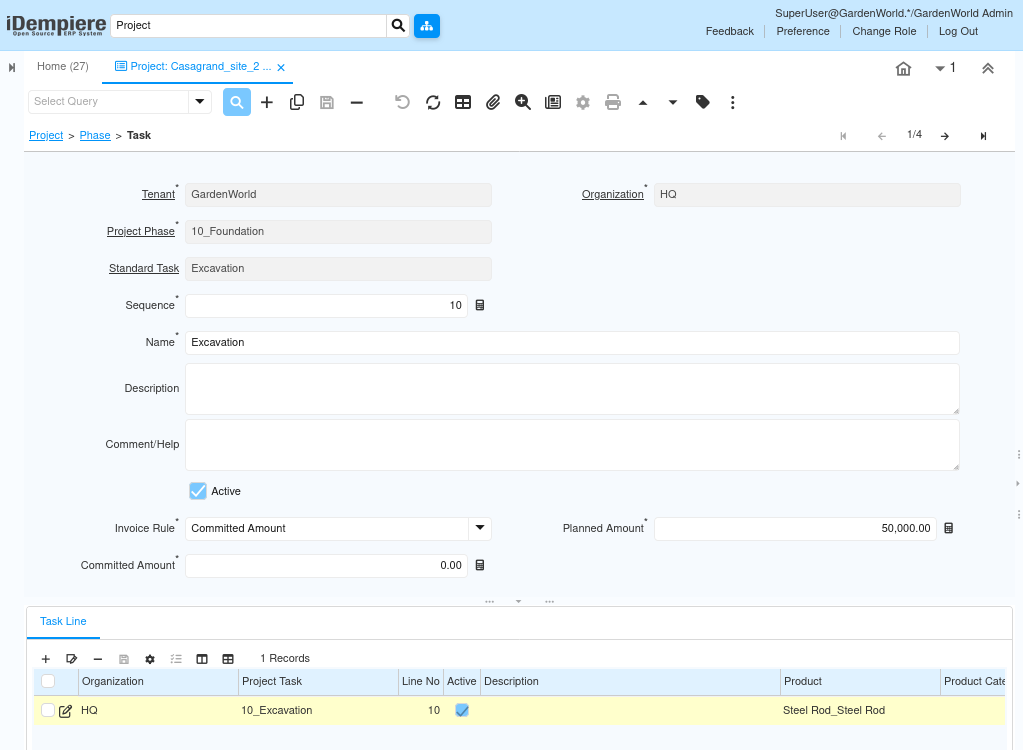
Before working with task lines, the task must already exist within the correct project and phase. Open the project, navigate to the relevant phase, and then open the task.
Make sure:
- The task is active
- The task belongs to the correct phase
- The task is intended to receive materials or services.
Once this is confirmed, the task is ready to accept task lines.
Open the Task Line Tab
Within the task window, navigate to the task line tab. This is where materials and services are planned.
At this stage:
- Task lines may already exist if they were copied from the project type
- If no task lines are present, they can be created manually for this task
Review or Create Task Lines
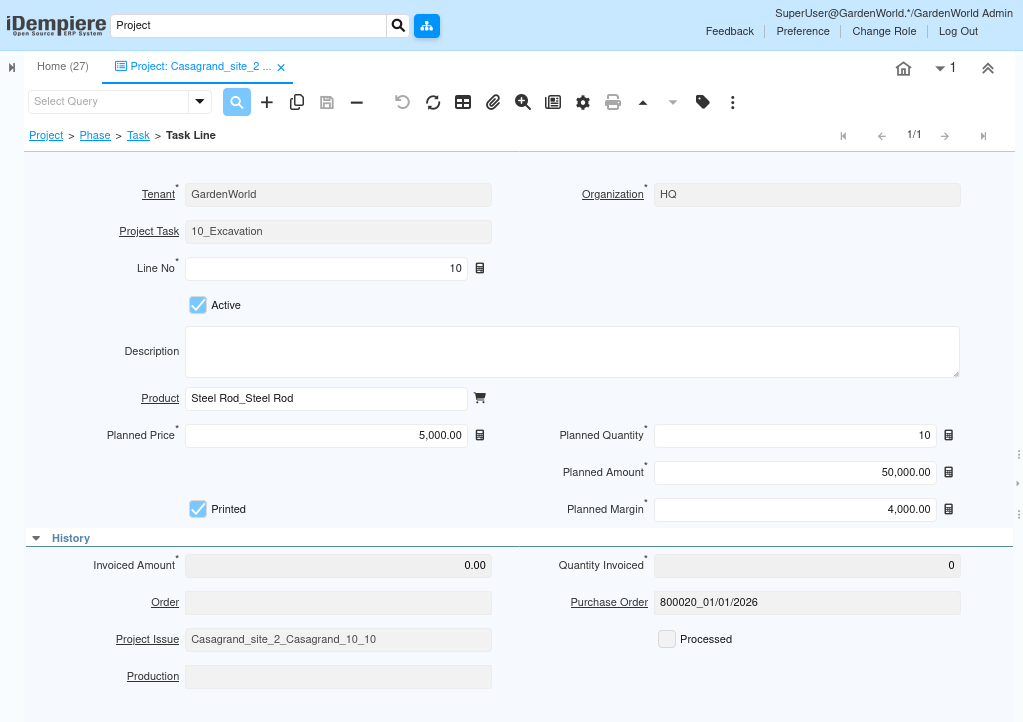
Each task line represents one material or one service required to complete the task. If task lines already exist, review them carefully and ensure they match actual execution needs. If additional items or services are required, new task lines must be created.
When creating or reviewing task lines:
- Keep task lines specific and granular
- Avoid mixing multiple materials or services in a single line
- Create new task lines for additional scope
Select the Material or Service
For each task line, select the appropriate product. This selection determines how the system behaves during execution.
Use:
- Stocked products for physical materials such as cement, steel, or bricks
- Service products for labor or subcontracted work
Once the product is selected, iDempiere automatically understands whether inventory movement or service cost posting is required.
Define Planned Quantity and Cost
Enter the planned quantity required for the task and confirm the planned price. The system calculates the planned amount automatically. These values act as the baseline for execution and are later compared against actual consumption and cost.
Planned Amount = Planned Quantity * Planned Price
These values represent the expected requirement, not actual usage. They form the baseline for:
- Budget control
- Variance analysis
- Forecast vs actual comparison

Save and Validate the Task Line
Click save after entering all required details. Once saved:
- Planned values roll up to the task
- Task totals roll up to the phase
- Phase totals roll up to the project
The task line is now ready for transactions.
Procure Materials or Services
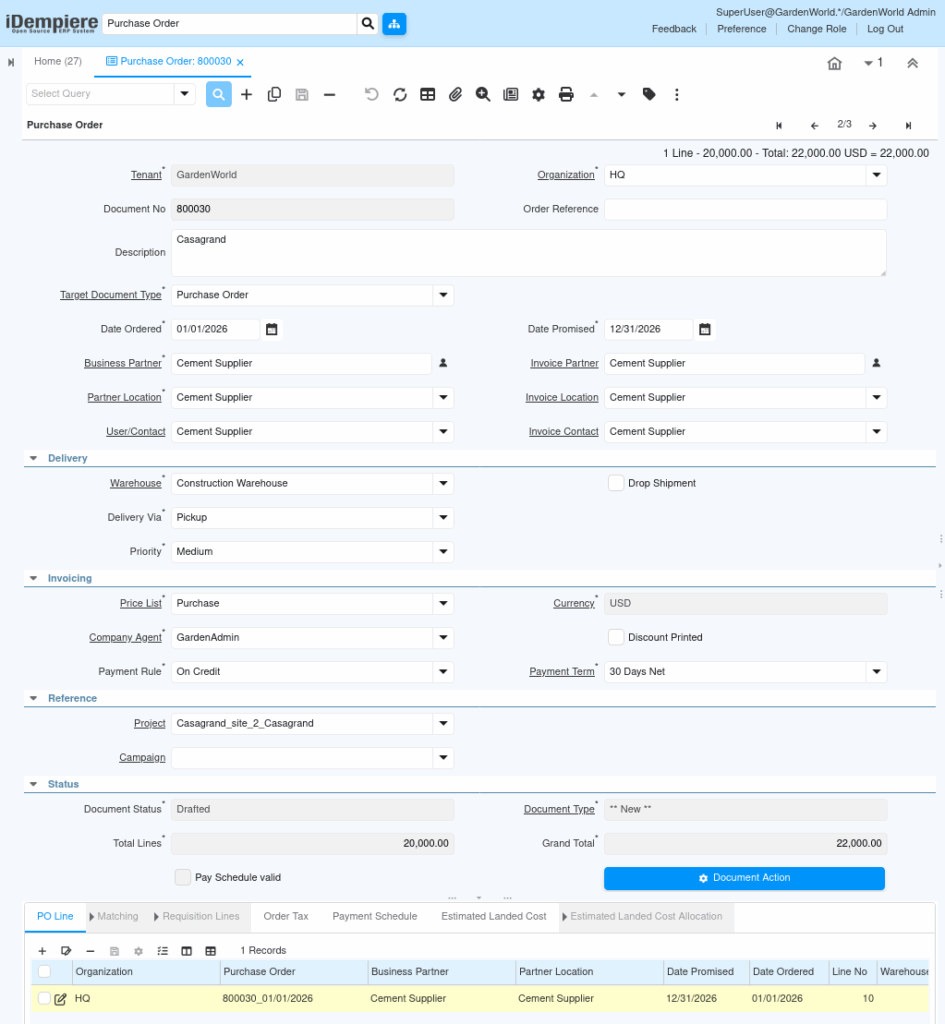
If the task line represents items that must be purchased, procurement can be initiated by creating a purchase order and linking it to the relevant project structure (Project, Task, and Task Line).
This ensures commitments are tracked correctly, costs remain linked to the correct task line, no manual reconciliation is required later.
Receive Materials or Record Services
Once procurement is completed, materials or services must be recorded using the appropriate process.
- Material receipts update inventory for stocked products
- Service receipts or Invoices record service completion
Each transaction automatically updates:
- Committed amounts
- Actual costs
- Consumed quantities

Issue Materials to the Task (For Stock Items)
For stocked materials, issue items from inventory to the project.
When issuing material:
- Select the project, task, and task line
- Enter the issued quantity
- Complete the issue
This reduces warehouse stock, records actual consumption, and posts accounting entries automatically.

Monitor Task Line Consumption
Return to the task line tab regularly to monitor execution.
Here, users can review:
- Planned vs consumed quantity
- Planned vs actual cost
- Remaining balance
This visibility allows early identification of deviations and supports better cost control.
Task Line Completion
Task lines do not require manual closure. Once quantities are fully consumed or services are fully invoiced, the task line naturally completes and contributes to:
- Task completion
- Phase progress
- Overall project cost accuracy
Key Rules to Remember
- One task line = one material or service
- Task lines drive real transactions, not just planning
- All costs flow: Task Line → Task → Phase → Project → Accounting
- Incorrect task lines lead to incorrect cost tracking
Outcome
By using task lines correctly, iDempiere ensures that materials and services are tracked at the execution level, with all procurement, inventory movements, and service costs automatically linked to the project. This results in real-time and accurate project cost visibility, automatic accounting postings, and consistent progress tracking, eliminating manual reconciliation and reducing the risk of cost overruns or reporting errors.