How to Create Project Cycle in iDempiere
iDempiere ERP offers comprehensive project management and reporting tools, allowing you to efficiently track and manage project cycles, steps, and phases. Whether you’re working on a large-scale project or breaking down smaller tasks, iDempiere’s Project Reporting feature streamlines the process. Below, we guide you through how to create, manage, and report on the key elements of your project.
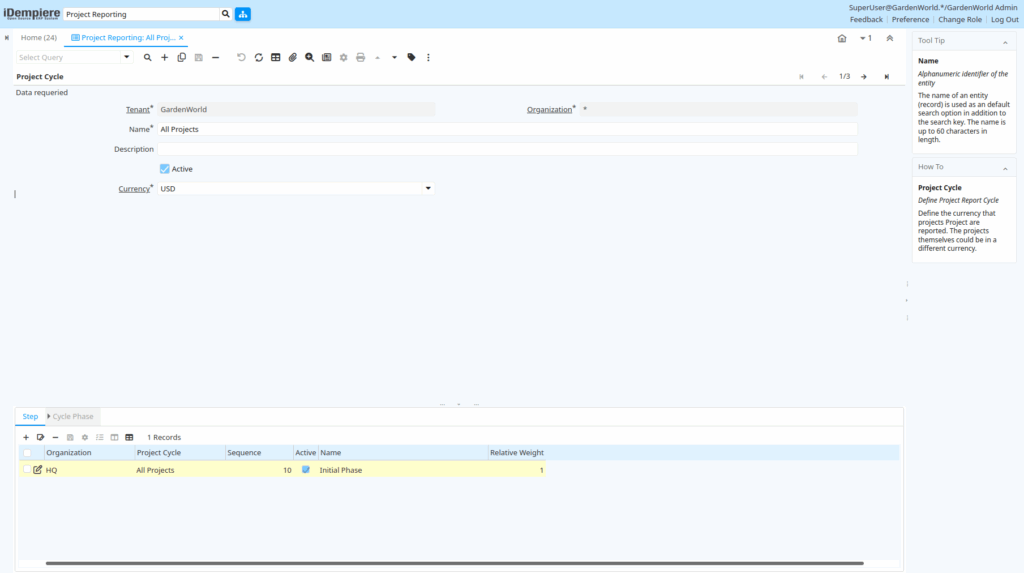
Project Cycle
A Project Cycle is a high-level structure within iDempiere that represents the entire duration and sequence of activities in your project. It’s essentially a timeline that organizes various project phases and steps, enabling efficient tracking of progress and milestones. Creating a Project Cycle is the first step in managing a project.
Project Cycle Creation
- Access the Project Management Module:
- From the iDempiere dashboard, navigate to the Project Management module.
- Select Project Reporting from the available options to start.
- Initiate a New Project Cycle:
- Click on the New button to create a new project cycle.
- Fill in the necessary project details such as Name, Description (optional), and Currency.
- Save and Confirm:
- Once all details are filled in, click Save to finalize the creation of your project cycle.
Project Cycle Steps
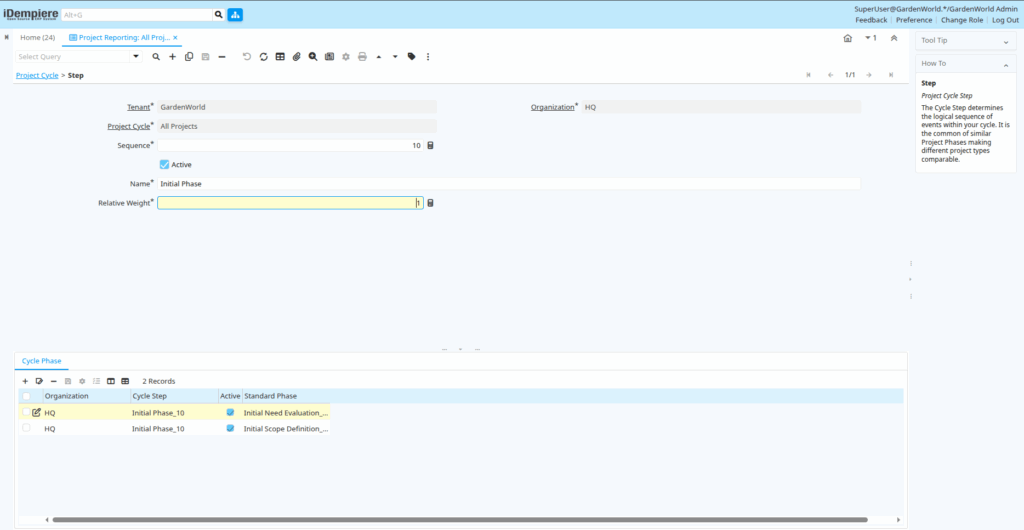
After setting up your project cycle, the next logical step is breaking it down into steps. A project cycle can have multiple steps, each representing a specific task, sub-project, or milestone. These steps help organize the project into smaller, more manageable portions, making it easier to track progress and identify any roadblocks.
Create a Step in a Project Cycle:
- Access Project Cycle:
- Navigate back to the Project Management module and locate the previously created Project Cycle you wish to add steps.
- Add a Step:
- Click on the Save and Create New button to create a new step within the project cycle under Step tab.
- Define the Step Name and a Relative Weight outlining the purpose of this step.
- Relative weight of the step (0 = ignored)
- The relative weight allows you to adjust the project cycle report based on probabilities. For example, if you have a 1:10 chance of closing a contract when it is in the prospect stage and a 1:2 chance when it is in the contract stage, you may assign a weight of 0.1 and 0.5 to those steps. This allows sales funnels or measures of completion of your project.
- Save and Track:
- Once you’ve filled in all required information, click Save. The step is now part of your project cycle and can be monitored for progress.
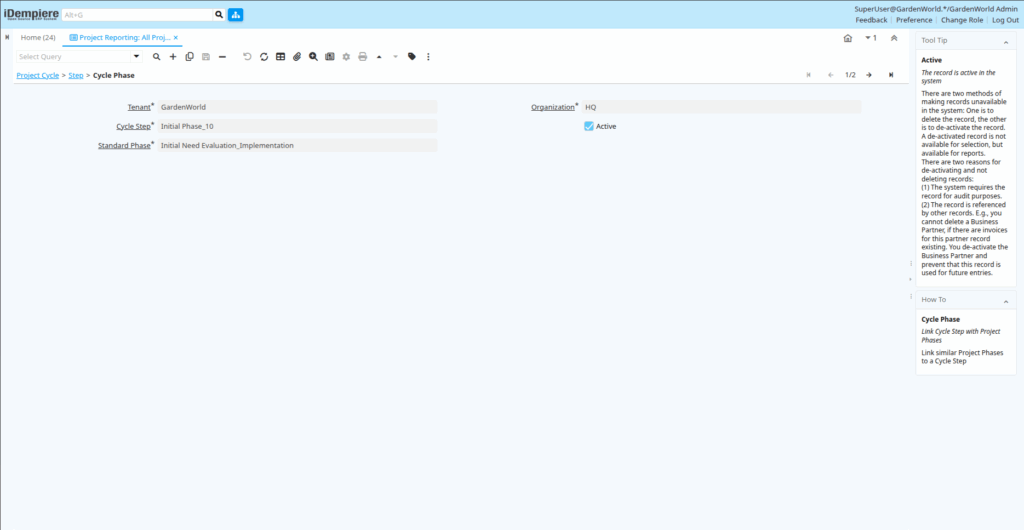
Cycle Phase
A Cycle Phase is a subdivision of your project cycle, designed to organize and track a series of related steps within the larger project. Each phase can contain multiple steps, which helps break down complex projects into phases that are easier to oversee and control.
Cycle Phase Creation
- Navigate to the Project Cycle:
- From the Project Management module, open the relevant Project Cycle where you want to define phases.
- Create a New Cycle Phase:
- Click on the Save and Create New button to define a new cycle phase within the project cycle.
- Select a Standard Phase using dropdown that lists project type standard phases (e.g., “Planning Phase,” “Development Phase”).
- Link Steps to Phase:
- Identify which Steps within the project cycle should be part of this phase. You can associate multiple steps to a single phase, helping organize the work into logical sections.