How to Create Project Lines and Issues in iDempiere
The Project Lines and Issues window in iDempiere v12 is essential for managing tasks, activities, and problems that arise during the course of a project. This feature enables you to define detailed project lines for each activity or resource, as well as track any issues that might delay or hinder project progress.
Process Flow Diagram

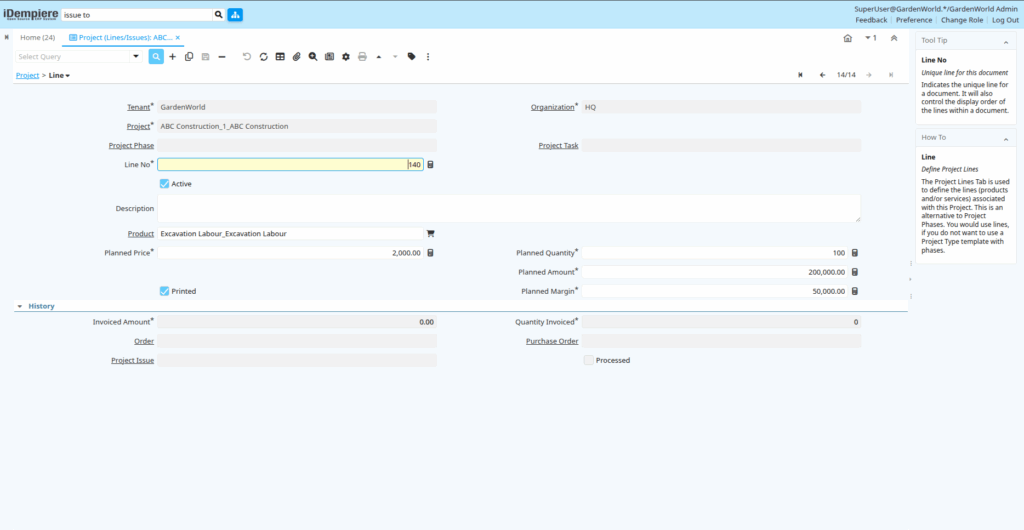
Project Lines Creation
- Navigate
- Go to the Project Management module.
- Select Project Lines/Issues.
- Create New
- Click New Record to create a new Project Line.
- Fill in key details such as:
- Project: Select the specific project this line belongs to.
- Product: If this line is related to a product or resource, select the Product.
- Quantity: Define how much of the resource or task is needed.
- Save
- Once all fields are filled, save the record.
- The new project line and issue will now be visible under the project’s lines and issues window under Line tab.
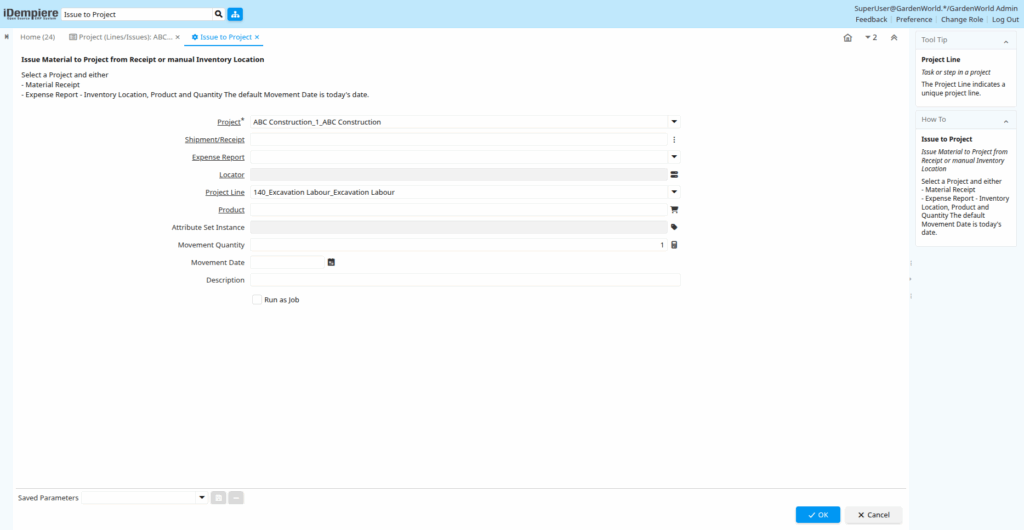
Project Issue Creation
- Navigate
- Go to the Project Management module.
- Select Issue to Project.
- Select corresponding values in the field like Project Line and Project etc..,
- Then click Start Button at the bottom to issue the lines.
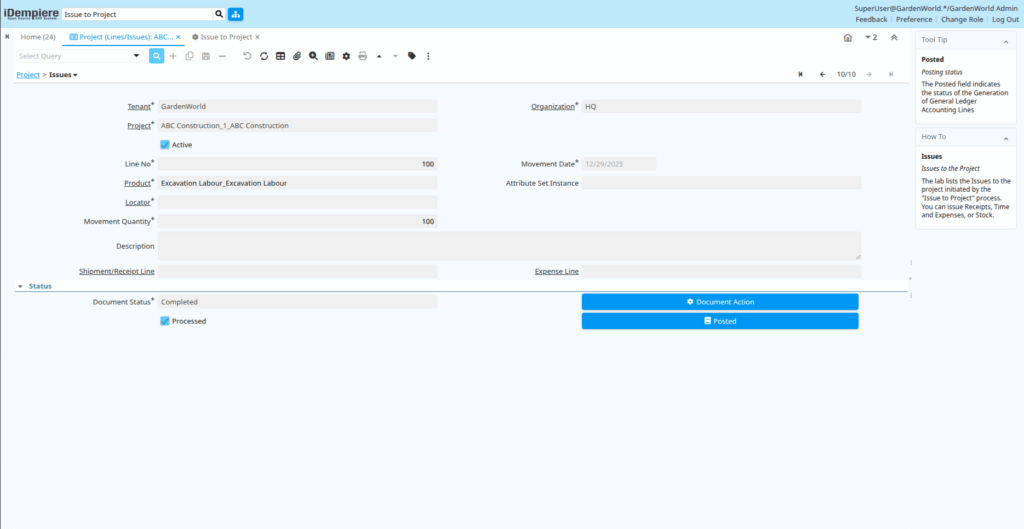
Issue Verification
- Navigate
- Go to the Project Management module.
- Select Project Lines/Issues.
- Open and verify the issued line in the Issues tab.