How Transaction Detail Report Works in iDempiere
The Transaction Detail Report in iDempiere provides a complete, line-by-line history of all material transactions associated with a product.
The Transaction Detail Report focuses on the individual movements that produced those balances. It captures every receipt, shipment, production issue, inventory adjustment, or internal movement, displaying them chronologically along with the associated product, locator, movement type, lot/serial information, and the document that generated the transaction.
How the Transaction Detail Report Works
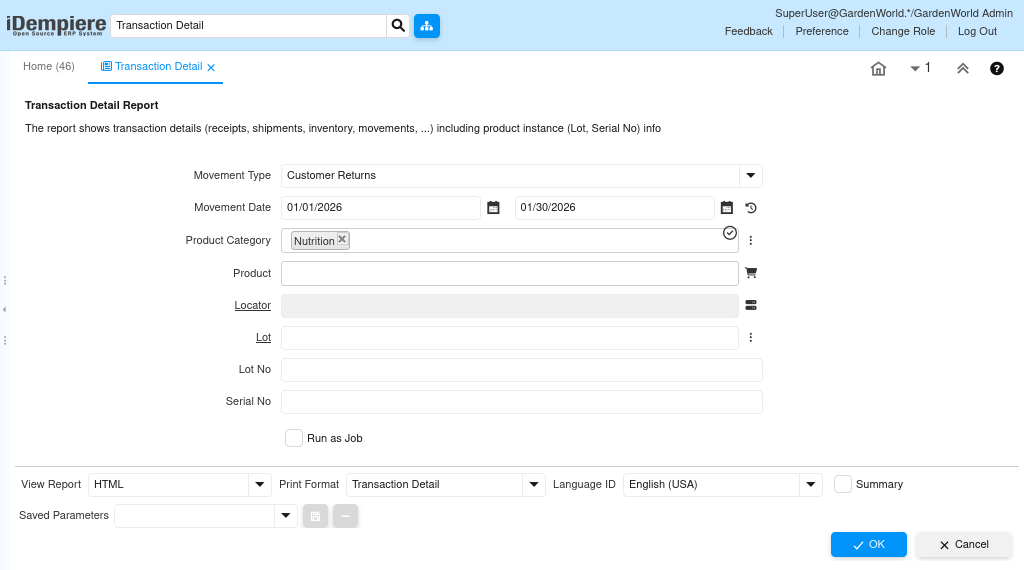
When a user opens the transaction detail report, they can filter results by movement type, date range, product category, product, locator, lot, lot number, or serial number. Each material movement in iDempiere creates a transaction entry, and the report displays these entries exactly as stored.
Each row represents a single movement of a single product in a specific locator, for a specific quantity, tied to a specific document and line. Because the system records every increase and decrease in stock, the report becomes a complete audit trail that can be followed from the earliest record to the most recent.
Every transaction line shown in the report includes
- The product and its descriptive information such as category, classification, and description.
- The attribute set, lot, serial number, and attribute instance, allowing full traceability for batch-tracked or serialized products.
- The locator where the stock was moved from or into.
- The movement date, which determines when the transaction affects stock and costing.
- The movement type, such as customer shipment, material receipt, production, internal use inventory, movement, or physical inventory.
- The quantity moved, shown as positive for receipts and negative for issues or shipments.
- The document reference, linking back to the transaction source, such as:
- Material Receipt
- Customer Shipment
- Inventory Count
- Production Order
- Movement Document
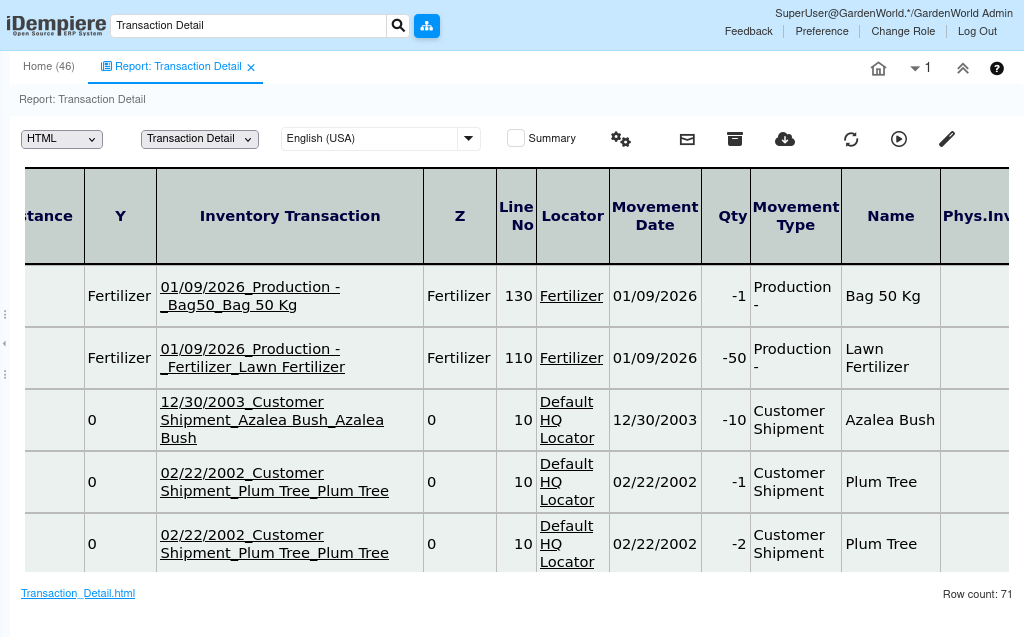
How Quantities Are Interpreted
The quantity (Qty) column uses a simple rule:
- Positive quantities indicate increases in stock
- Negative quantities indicate decreases in stock
By reading the report line by line, users can reconstruct the stock history exactly as the system recorded it.
How the Report Connects to Other Modules
Every movement listed in the report originates from one of iDempiere’s operational processes:
- Purchasing → Material Receipts
- Sales → Customer Shipments
- Warehouse operations → Inventory Moves, Physical Inventories
- Manufacturing → Production Issues and Receipts
- Internal consumption → Internal Use Inventory
Because the report links each line back to its originating document, it becomes a bridge between inventory, costing, sales, purchasing, and production.