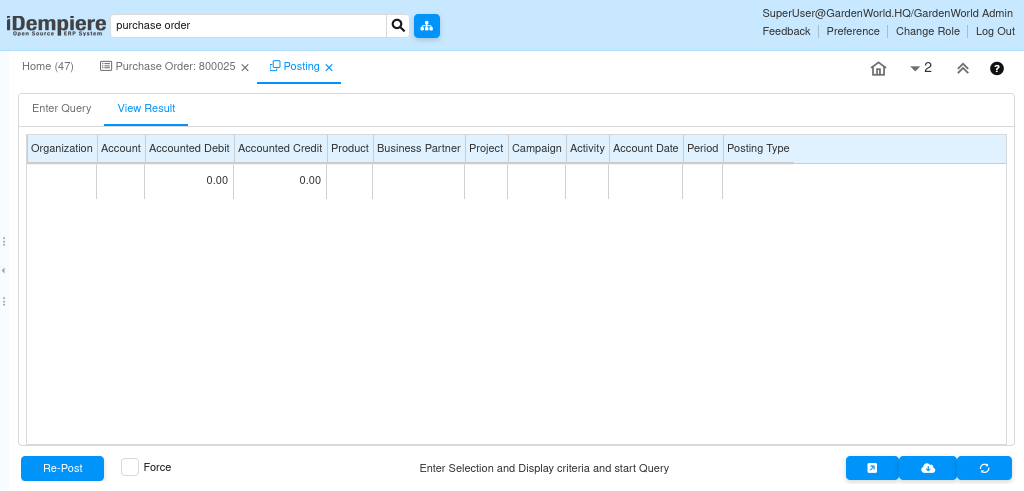
How to Create a New Purchase Order and Add Products or Services to It
The Purchase Order in iDempiere is used to formally request goods or services from a vendor.
A Purchase Order captures supplier details, ordered items or services, quantities, prices, and delivery information. Once completed, it becomes the base document for material receipt, vendor invoicing, and payment.
Creating a New Purchase Order
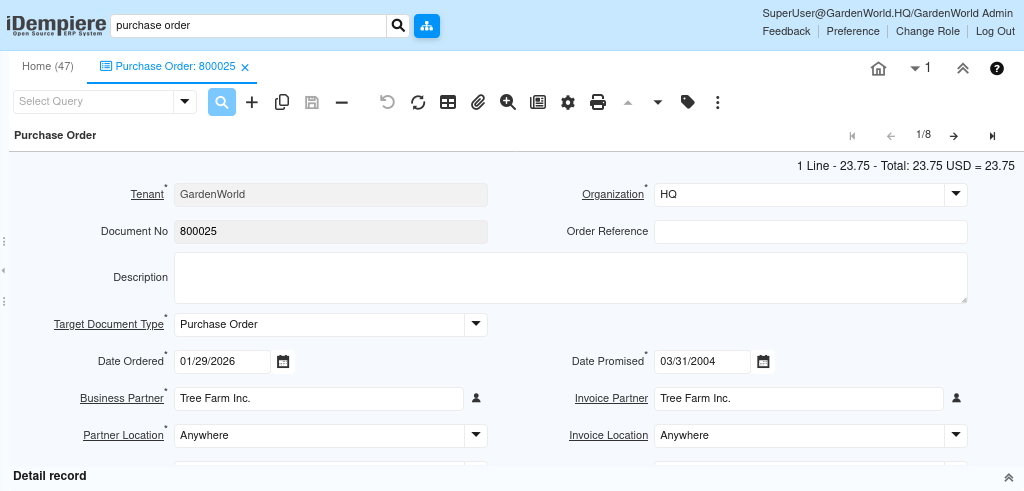
To begin, the user opens the Purchase Order window and creates a new record. The Purchase Order header defines the overall context of the purchase, including who the supplier is and where the goods or services are expected.
At this stage, the user
- Selects the Vendor (Business Partner)
- Chooses the Organization and Warehouse
- Confirms the Purchase Order date and Price List
- Reviews or updates payment terms and currency if required
This information applies to all products or services added to the Purchase Order.
Adding Products or Services to the Purchase Order
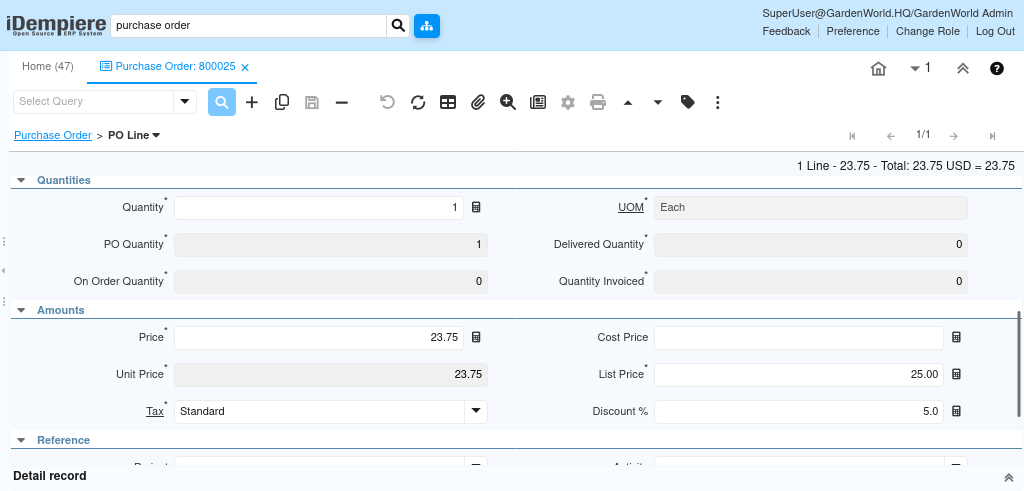
After the Purchase Order header is created, items are added using Purchase Order Lines. Each line represents a specific product or service being purchased.
For each Purchase Order line, the user
- Selects the Product or Charge (for services)
Note: The selected product must be present in the price list used for the business partner.
- Enters the Ordered Quantity
- Reviews the Unit Price
- Confirms the line amount calculated by the system
Multiple lines can be added to a single Purchase Order to represent different materials or services required from the same vendor.
Reviewing and Completing the Purchase Order
Once all required products or services are added, the user review the Purchase Order to ensure quantities, prices, and vendor details are correct. After verification, the document is completed using the Document Action process.
Completing the Purchase Order
- Locks the document to prevent accidental changes
- Makes the Purchase Order available for material receipt and Purchase Invoice