How to Change Product Sales Price in Odoo POS
Changing product prices in Odoo POS is often needed to offer special pricing or run promotions. It helps adjust prices based on stock levels, market trends, or seasonal demand. This flexibility ensures accurate billing and smooth sales operations.
Starting a POS Transaction
The process begins by adding the product to the POS cart, which can be done by typing the product code, scanning the lot barcode, or scanning any of the product’s multiple barcodes. Once the product appears in the cart, the cashier can enter the required quantity before proceeding.
Modifying the Price of a Product
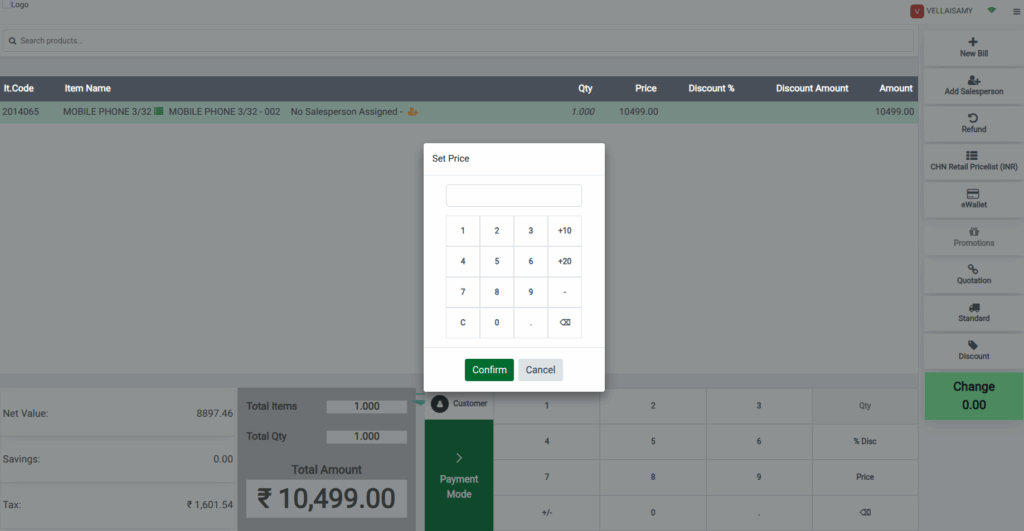
To update the price, the user must switch to the Head Cashier role. From there, clicking the Price button or pressing the p key opens a pop-up window where the new price can be entered.
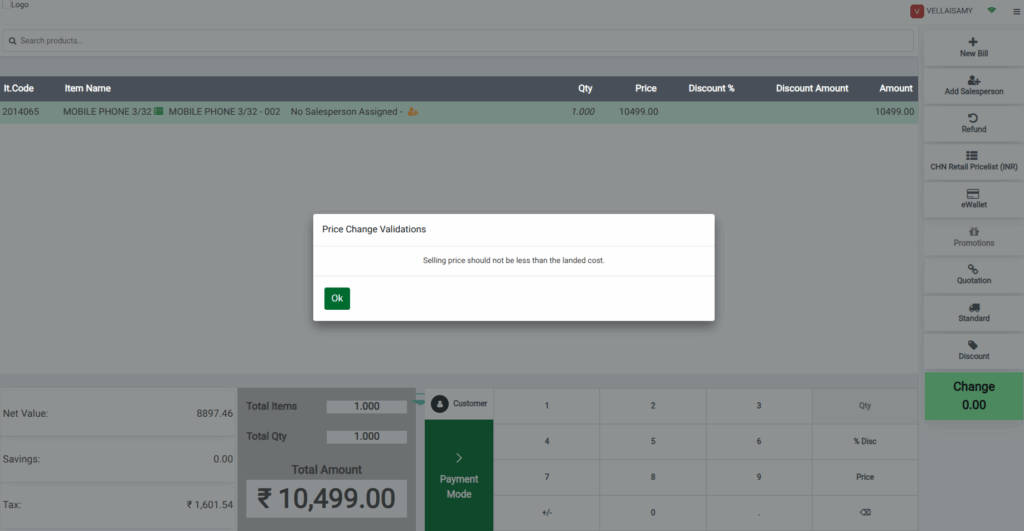
Odoo POS includes built-in alerts to ensure pricing accuracy. If the updated price exceeds the product’s MRP, then system displays a validation that “Selling price should not be exceeds the MRP”.
Similarly, if the new price is lower than the landed cost of the selected lot, a validation message that “Selling price is less than the landed cost”. These notifications help prevent pricing errors that could lead to losses or compliance issues.
Viewing Updated Pricing Details
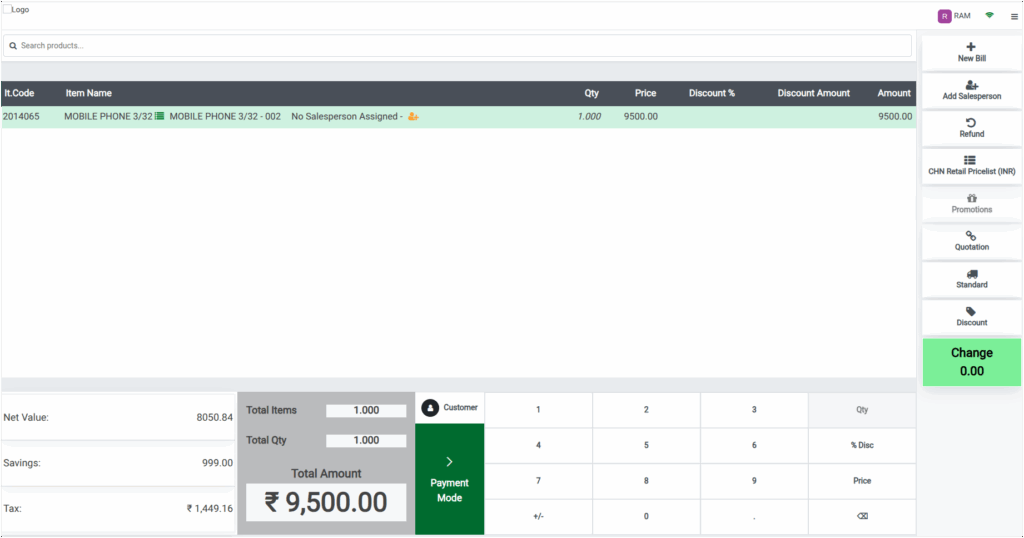
After entering the new price and clicking Confirm, the updated price immediately appears in the Price field. Odoo automatically recalculates the net value and tax amount based on the modified price.
For example, if the updated selling price is Rs. 9500 (inclusive of tax), the system shows a net value of Rs. 8050.84 and a tax amount of Rs. 1449.16, based on an 18% tax rate. This ensures that both the staff and the customer can clearly view the revised pricing.
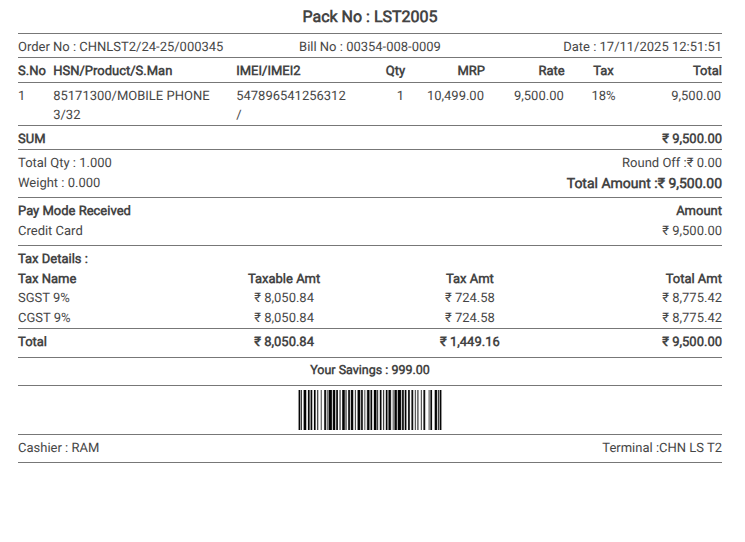
When the selling price of the product is changed in Odoo POS, then the discounted amount is added to the Savings section in both the POS cart and the final bill receipt. Savings are also calculated when there is a difference between the product’s MRP and its actual selling price. This helps customers clearly see how much they are saving during the purchase.
Completing the Transaction and Billing
Once the price is updated, the cashier can review the cart to make sure all pricing details are correct. After switching back to the Cashier role, the payment method can be selected, and the transaction can be validated to complete the sale.
The final bill generated after payment will include the updated product price in the Rate field, along with accurate tax calculations based on the modified price. This ensures the customer receives a correct receipt and the system maintains accurate sales records.