How to create a Slab Discount Promotion in Odoo
A Slab Discount Promotion is a promotional offer that provides discounts based on specific payment ranges, where the discount applies only if the customer’s bill amount falls within a defined slab or range. Each slab includes a minimum and maximum amount along with a corresponding benefit such as a discount or loyalty points.
Navigating to Slab Discount Promotion
To create a Slab Discount Promotion, navigate to Sales → Products → Discount & Loyalty from the main menu and click the New button.
In the Basic Promotion Details section, enter the mandatory fields including the Promotion Name, Start Date, and End Date. If any of these fields are missing, the system will display an alert. Additionally, if the end date is earlier than the start date, an error message will appear stating: “The validity period’s start date must be anterior or equal to its end date.”

General Configuration for Slab Discount Configuration
For the slab discount Configuration, the Program Type defaults to Promotion, the Currency defaults to INR, and the Point Unit is set automatically when “Promotion” is selected. Need to select the Pricelist that the promotion applies to.
Usage Limit
In the Usage Limit Options, restrict the promotion’s usage either by order or by quantity, but not both. To do so, enable the corresponding checkbox and specify the limit.
Next, in Additional Settings, enter the Point Rate and select where the promotion will be available-POS, Sales, or Both. You can also choose a Point of Sale Terminal if required and define the Promotion Price Type as either Selling Price or MRP.
Configuring Condition Rules
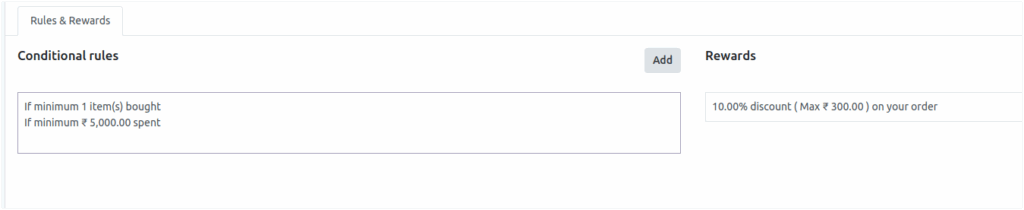
To configure Condition Rules, specify the Minimum Quantity (default is 0) and the Minimum Purchase Amount required for the promotion. The Promotion Basis is set to Bill Based by default, and Points Granting is set to Based on Line Quantity. After setting these conditions, click Save and Close.
Configuring Rewards
In the Rewards tab, configure the reward details where the Reward Type defaults to Discount. Enter the desired Discount %, define the Max Discount, and keep it as Order-Based by default. Then, in the Final Reward Configuration, specify the number of points required for the reward in the In Exchange Of field, and add a brief Description on Order to display during checkout. Click Save and Close to complete this setup.
Finally, after all configurations are done, click the Save button to activate the promotion. Once saved, the Slab Discount Promotion becomes available in the POS system for use.