How to Create and Configure Odoo POS Terminal?
Point of Sale is mainly used in retail stores and is a combination of hardware and software. It is the location where customers pay for goods or services and helps manage inventory, with stocks being automatically updated. Therefore, we want to configure the POS Terminal.
Navigate to POS Terminal Setup
To configure the Point of sales to open the Point of Sale module and click the configuration tab to click the point of sales menu, and the Point of sales will be open and your can see the existing Point of sales terminals. Click new button to configure or create a new POS Terminal.
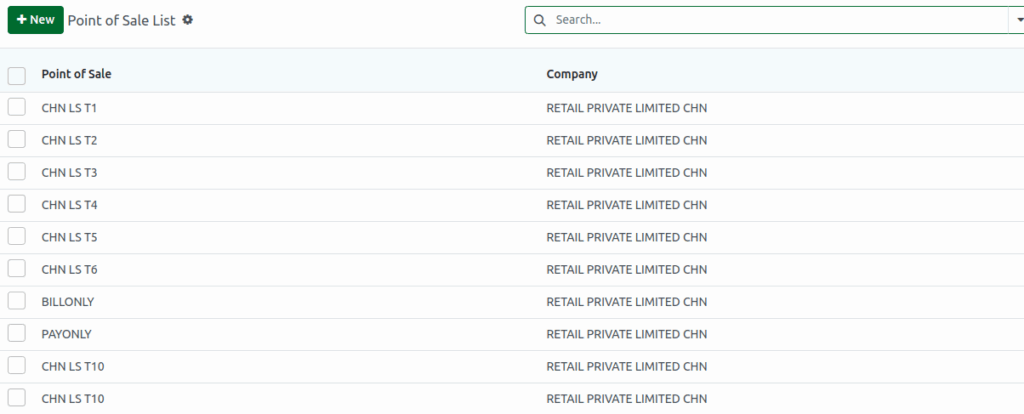
Create a POS Terminal
- Click the ‘New‘ button to create a new POS Terminal.
- Enter the POS Terminal Name.
- Terminal name is mandatory to create a POS Terminal.
- Click the save option.

Set Multi Employees per Session
Once the terminal name is configured, there is an option called as multi employees to access multiple employee to access the POS Terminal. Enable the Multi Employees per Session checkbox. This will reveal the ‘ Basic Rights ‘ and ‘Advanced Rights ‘ sections. Assign multiple cashiers to a POS terminal for user switching and tracking.
Basic Rights: In the Basic Rights section, choose the cashier’s name from the dropdown list.Basic Rights grant cashiers access to standard POS functions.
Advanced Rights: In the ‘Advanced Rights’ section, select the Head Cashier’s name from the dropdown list. Advanced Rights give head cashiers control over Settings and Key Operations.

Set Print Format
In the ‘Print Format’ field, choose the desired print size for POS receipts from the dropdown list.
Options include:
- 3-inch Thermal Print :Super Stores & Food Court
- 4-inch Thermal Print : Life Styles
- A4 Print : Mobile Products and Home Appliances.

Set Token Print
Enable the ‘Token Print’ checkbox to print a token for each POS order. Allowing customers to easily
identify and collect their orders using the unique token number. It helps with order pickup in food service locations and is mainly used in Food Count terminal.

Apply Table View: Enable the ‘Apply Table View’ checkbox. This will display products in a table layout instead of the default grid view.
Set Terminal Type
In the ‘Terminal Type’ field, select how the terminal functions based on the workflow from the dropdown list.
Options include:
- Bill Only
- Pay Only
- Bill and Pay
Set Pack Number
Enable the ‘Pack Number’ checkbox to display and track the pack number for each POS order. This will reveal the ‘Prefix for Pack Number‘ section. Enter a custom prefix or code to be added before the pack number.
For example, if the prefix is ‘PKN/’, the pack numbers will appear as PKN/001, PKN/002, and so on.

