How to Create and Use Banks in Odoo POS
Banks in Odoo POS are used to track payments received through card or UPI when they are linked to specific bank accounts. During the POS session closing, Odoo records how much money was collected for each bank. This helps match the daily sales with the actual bank deposits. The settlement report also shows the amounts recorded for each bank, making it easy to verify the details.
Creating a Bank in Odoo POS
To create a new bank, open the Point of Sale module and go to Configuration → POS Banks. This page shows all the banks already added to the system.
To create a new one, click the + New button. Enter the bank name, such as HDFC, ICICI, or Axis. The system automatically fills the company field with the current company. After entering the details, click Save.

Using Banks During Close Session
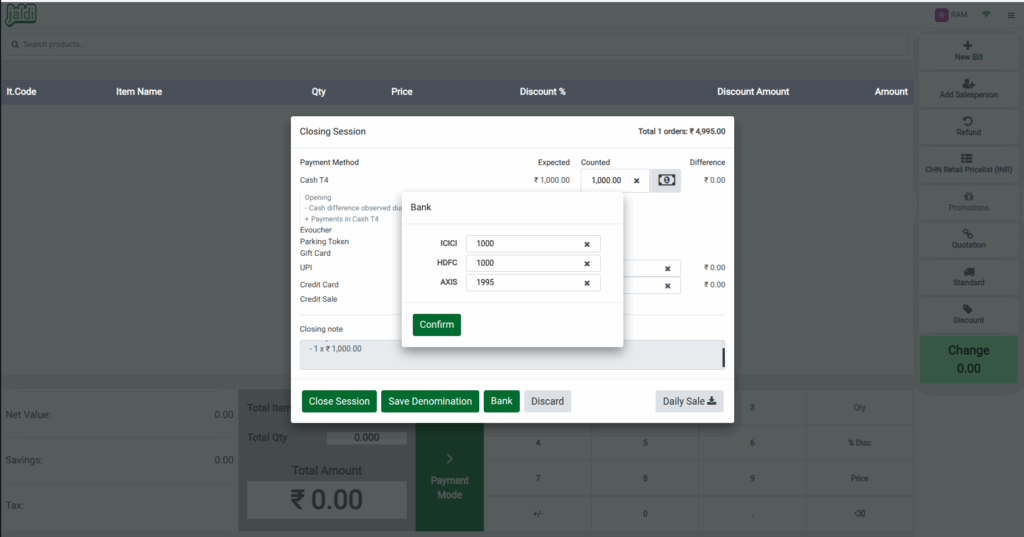
When you finish a POS session, open the POS terminal and click Close Session in the top menu. In the closing form, enter the denomination values for each payment method used and click Save Denomination.
At the bottom of the form, you will find the Bank button. Click this button to see all the configured banks. Enter the amount received through each bank and click Confirm. After entering the details, click Close Session.
Verifying Banks in the Settlement Report
To check the recorded bank amounts, go to Point of Sale → Reporting → Session Report. Select the session name in the POS Session field and click the Settlement button. Download the report and verify that the bank amounts entered during the session closing are displayed correctly.

