How Cashier Manage Sessions in Odoo POS?
Managing cashier sessions effectively is essential for maintaining accurate cash flow and ensuring smooth operations in any retail environment. Odoo POS offers a comprehensive session management system that helps cashiers handle opening balances, track payments, record denominations, and securely close their sessions.
Setting the Opening Balance
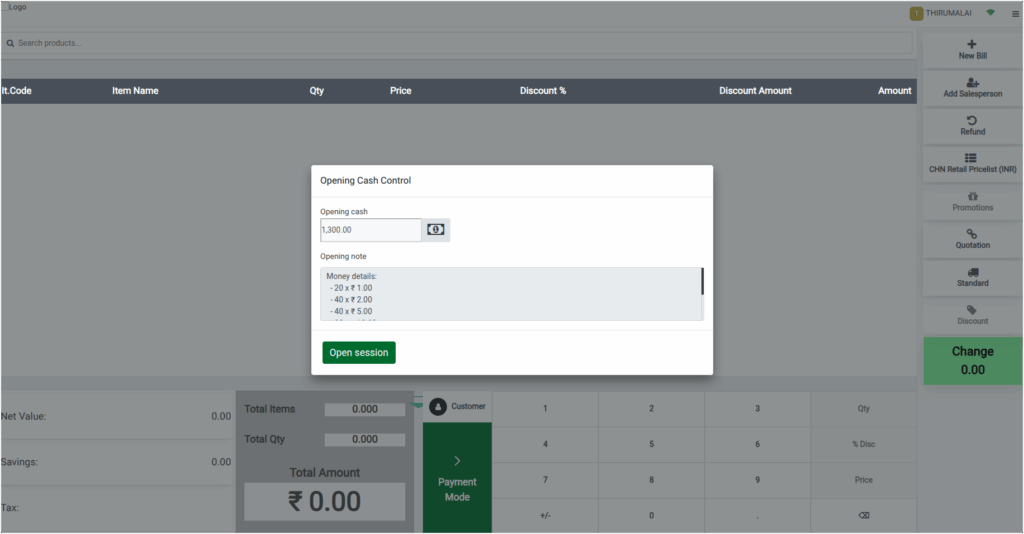
At the beginning of a cashier session, the cashier can enter an opening balance into the cash drawer. This initial amount serves as the starting point for the session and is later used to calculate the final balance when the session is closed. Ensuring the correct opening balance is recorded is essential for accurate cash reconciliation.
Initiating Session Closure
When it is time to close a session, the cashier can begin the process by clicking the menu icon in the upper-right corner of the POS screen and selecting the “Close Session” option from the dropdown. This opens the Closing Control pop-up, which guides the cashier through each step of the closure process, ensuring all required information is recorded correctly.
Managing Cash and Other Payment Details During Session Closure
The cash counting feature allows the cashier to record the actual cash in the drawer at the end of the shift or during cash balancing. When the process starts, a money details pop-up window prompts the cashier to enter the number of coins and bills for each denomination.

After reviewing the amounts, the cashier can confirm to save the counted denominations or discard to cancel the process. Once confirmed, the total cash is updated in the system, and a detailed breakdown of denominations is automatically logged in the Notes section for future reference.
Cashiers need to manually enter the amounts received through E-Voucher, Gift Card, UPI, and Credit Card payment modes. For parking tokens, the amounts can be updated directly in the money details pop-up, making it easy for the cashier to include all types of payments in the session before closing.
Entering Bank-Wise Payment Details
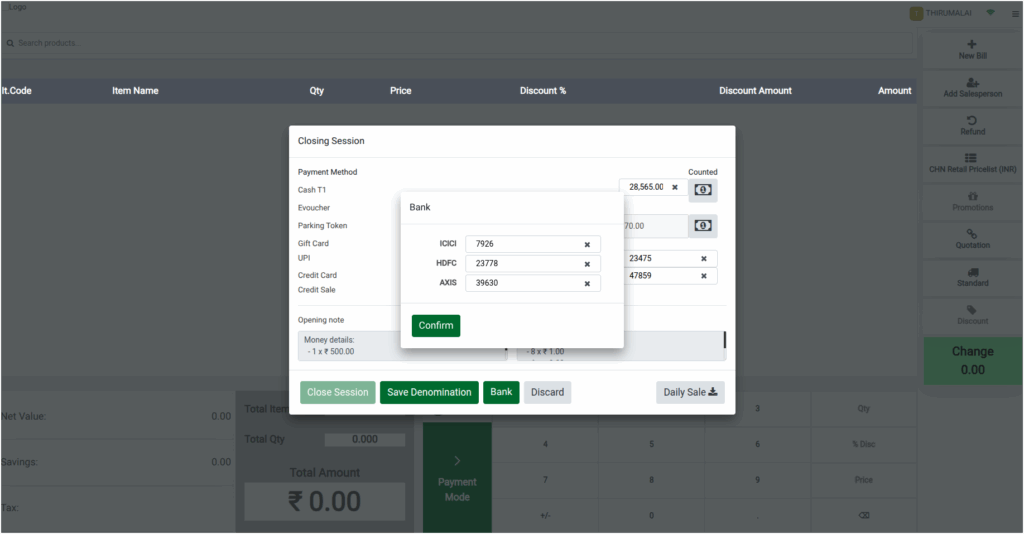
During session closure, the cashier can also enter bank-wise payment details by clicking the Bank button. Payment amounts for each configured bank can be entered in the respective fields. Confirming these entries saves the bank-wise details, which are included in the Settlement Print and contribute to the final total amount of the session.
Saving Denomination and Confirmation
After entering all denomination details, the cashier must click Save Denomination to finalize the count. A confirmation pop-up will appear stating, “Denomination saved successfully” which can then be acknowledged by clicking OK or Cancel. This step ensures that all cash counting information is safely recorded in the system.

Accessing the Backend
If a cashier needs to cancel the session closure at any point, clicking Discard on the Closing Control pop-up will abort the process. Additionally, if backend access is required before completing the closure, the cashier can open the menu and select Backend to navigate the system without closing the session.
