How Dynamic Tax is applied in Odoo POS
Dynamic Tax in Odoo POS enables businesses to define multiple tax rates for specific product categories within designated price ranges. This setup ensures that different tax percentages are applied automatically to products depending on their category and sale price. For example, lower-priced items in a category can have one tax rate, while higher-priced items in the same category have another.
Enabling Dynamic Tax in POS
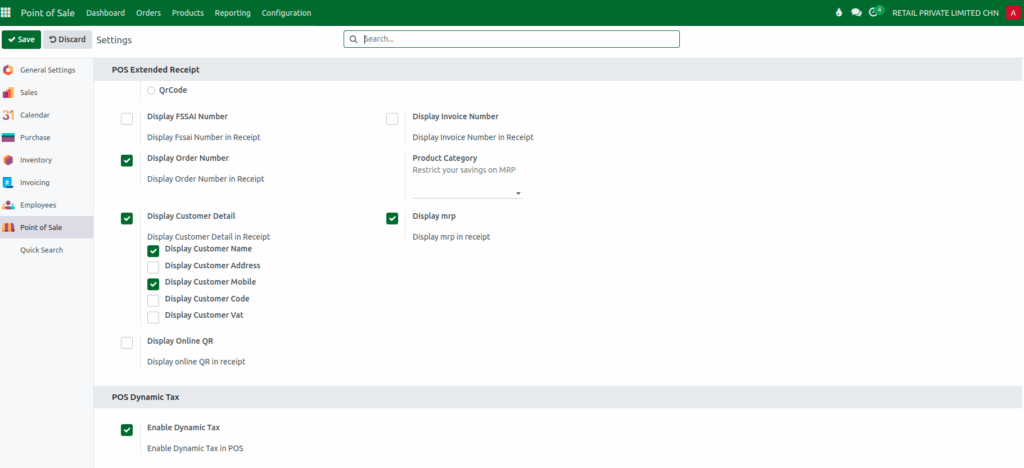
Before you can use dynamic tax, you need to enable it in the POS configuration. Navigate to Point of Sale → Configuration → Settings, and select the relevant POS terminal from the Point of Sale dropdown.
Scroll down to the POS Dynamic Tax section and ensure that the Enable Dynamic Tax checkbox is selected. Once activated, Odoo POS will automatically apply dynamic tax rules to eligible products during each transaction.
Applying Dynamic Tax to Products
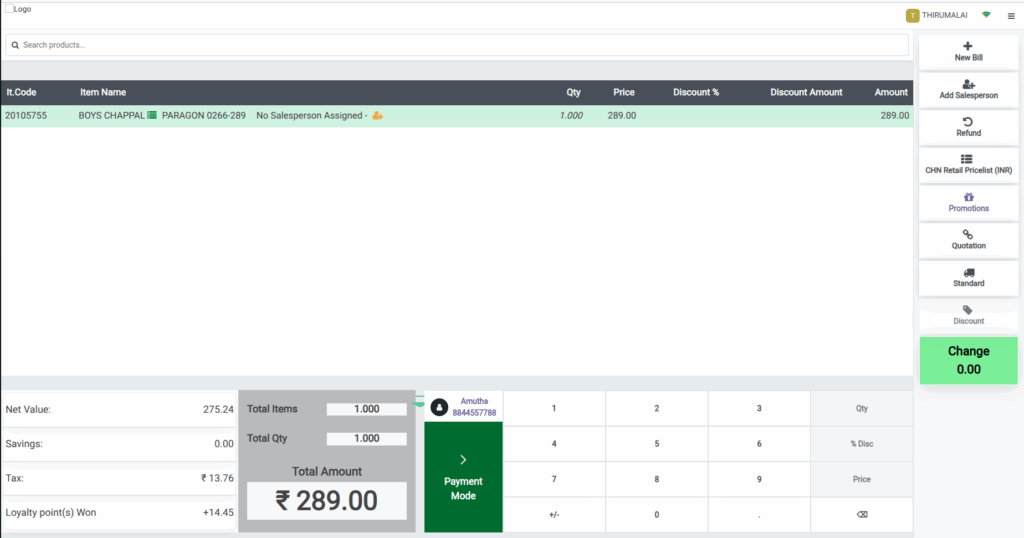
To apply dynamic tax, start by adding eligible products to the POS cart. Products can be added using the POS search bar by entering the product code, barcode/EAN, or lot barcode.
After selecting the product, entering the required quantity and select the customer ,the system automatically calculates the applicable tax.The net value represents the price to be paid before tax, while the total amount includes the dynamic tax.
Odoo POS ensures that the correct tax rate is applied based on the product category and price range defined in the configuration, streamlining transactions and minimizing errors.
Dynamic Tax Calculation
Consider a product, “BOYS CHAPPAL”, under the LIFE STYLE → FOOTWEAR → CHAPPAL → BOYS CHAPPAL category. Suppose the dynamic tax is configured as follows:
- Price Range 1 (0.00 – 999.00): 5% GST for both purchase and sale
- Price Range 2 (1,000.00 – 9999.00): 18% GST for both purchase and sale
If the sales price of the product is ₹289, it falls within the first price(0–999) range. Even if the product’s default tax rate is 12% GST, Odoo POS applies the dynamic tax rate of 5% GST, ensuring accurate taxation based on the pricing tier.

Dynamic Tax Details on the Bill Receipt
Verify all cart details, Click Payment. Choose the appropriate payment method, and click Validate to finalize the transaction.
The printed bill receipt will display detailed tax information, including:
- Tax field showing the dynamic tax applied to each product
- Tax details section displaying how the dynamic tax was calculated
This transparency ensures that both the customer and business have a clear understanding of the tax applied to each transaction.

