How Multi-User Access Works in Odoo POS
Odoo POS allows businesses to efficiently manage multiple cashiers on the same terminal, making it ideal for high-traffic stores or shared point-of-sale setups. This functionality ensures that all transactions are accurately tracked, accountability is maintained, and sales activities remain transparent, helping businesses stay organized and maintain precise financial records.
Configuring Multiple Users in Odoo POS
Odoo POS allows multiple cashiers to work on the same terminal, which is useful for busy stores or shared POS setups. To enable this feature, from the POS dashboard, selects the terminal and clicks the Edit button.
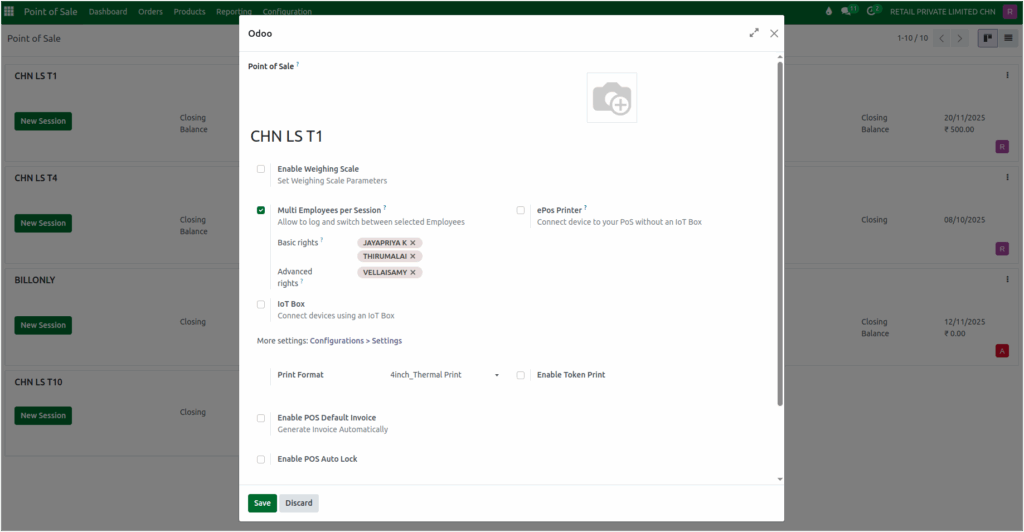
In the Multi Employees per Session option, the appropriate cashiers can be selected from the Basic Rights dropdown. This setup ensures that multiple users can operate the terminal while maintaining accurate session tracking for each cashier.
Logging in as a Cashier
After the configuration, a cashier logs in to the POS and starts a new session. During this step, the cashier selects their name in the Change Cashier popup, enters the opening cash amount, and confirms it to begin the session.

Only the cashier who opened the terminal can see and use the Close Session option, while other cashiers working on the same terminal will not have access to close the session. This ensures accountability and clear record-keeping for all transactions.
Processing Sales and Completing Payments in Odoo POS
Within the POS cart, the cashier can switch between users if needed. Products can be added by entering the product code or scanning the lot barcode. The quantity of each product can be adjusted as required. Once all products are added, the cashier proceeds to the payment screen by clicking the Payment mode button or using the F4 shortcut key.
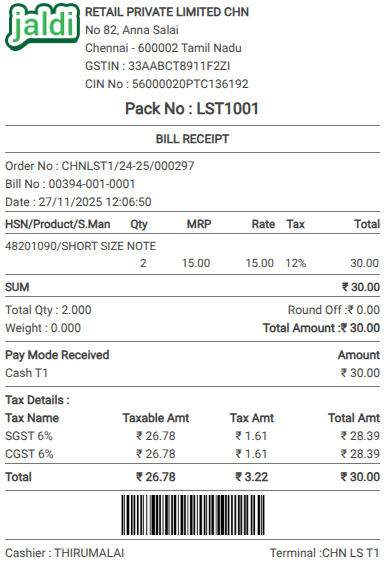
Odoo POS supports multiple paymode, including cash, UPI, and other modes. After selecting the preferred payment method, the cashier can click Validate or uses the Ctrl + V shortcut to complete the transaction. The bill receipt clearly displays the name of the cashier who processed the transaction in the Cashier field, providing transparency and accurate tracking of sales for every user operating the POS terminal.