How the Order Details Displayed in the POS Cart in Odoo
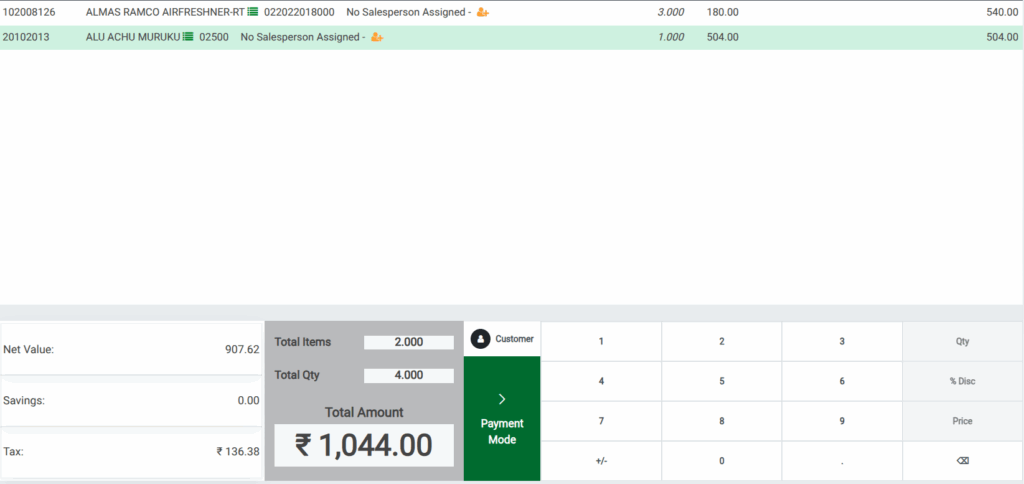
In the Point of Sale, the cart generally works as follows: the user can add products, change the quantity, modify the product cost, select the customer, and choose the order type. The Order screen displays the net cost, tax amount, total items, and total quantity of the products.
Adding Products to the POS Cart
Products can be added to the POS Cart in three ways:
- Type the product code(e.g., /2010058)
- Scan the lot barcode
- scan any of the multi barcode
Once added, the product appears in the POS Cart automatically.

Product Information Shown in POS Cart
- Product Code of the selected item is displayed in item code field.
- Product name + Lot/serial number are show together in item name field.
- Quantity is set 1 by default when added.
- You can change the quantity before completing the order.
Sales Price Display in POS Cart
Display the sales price of the product for the selected lot in the price field. Reflects the price of one unit of the item. The price shown is the amount the customer will pay for that quantity.

Amount Calculation in POS Cart Amount shows the total for the product line.
It is calculated as: Amount = Price * Quantity
Example
Price = Rs. 100.30
Quantity =3
Amount = 300.90 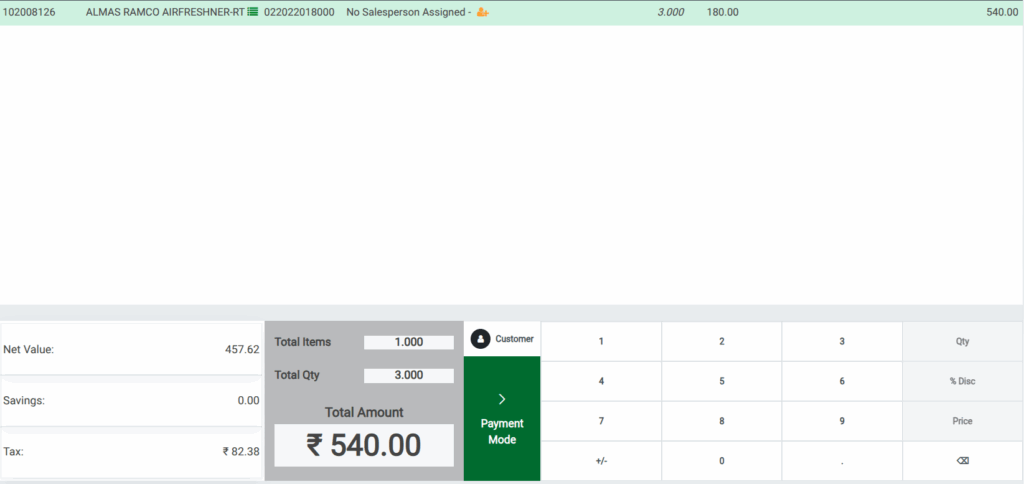
Total Items in POS Cart
Displays the total number of product lines added to the POS Cart.
Example: If a customer purchased 2 different products. Then Total items will be displayed as 2.
Overall quantity in POS Cart
Displays the Total Quantity of all products added in the POS Cart.
Example
    • If a Customer purchased:
    • [102008126] ALMAS RAMCO AIRFRESHNER-RT -3
    • [20102013] ALU ACHU MURUKU -1
    • Then Total quantity will be displayed as 4.
Net Value in POS Cart
Net Value fields shows the taxable portion of the total amount.
Net Value is calculated as:
Net Value=Total Amount -TaxExample:
Total Amount : 1044.00
Tax :136.38
Net Value=1044.00 – 136.38 =907.62Tax in POS Cart
- The Tax field displays the total tax amount for all products in the cart.
- It shows the combined tax across multiple products.
- Even if products have different tax rates, the total tax is correctly calculated.
Savings in the POS Cart
By default, savings are shown as 0 for products. Savings appear when there’s a difference between MRP (Maximum Retail Price) and SP(Selling Price).
Savings=MRP-SP.Applies to MRP-based products where SP is lower than MRP.
Total Amount in POS Cart
Shows the total value of all products in the cart. The total is based on the selected quantity and their sales price.
Total Amount = Sum(Amount).Example:
Total Amount= sum(540+504)
Total Amount=1044.