How to apply Brand-Wise Promotion in Odoo POS
Running effective promotions is crucial for increasing sales and encouraging customers to explore more products. In Odoo Point of Sale, the Brand-Wise Promotion feature allows businesses to automatically apply discounts to all products of a specific brand. This makes promotions easier to manage and ensures consistency across all products from the selected brand.
Apply a Brand-Wise Promotion in POS Cart
Before using a brand-wise promotion in Odoo POS, make sure the promotion has already been created and configured in the back end. Once the promotion is set up, you can simply add products to the POS cart. There are three convenient ways to do this: by entering the product code manually, scanning the product barcode, or scanning any associated multi-barcode.
As soon as items from the selected brand are added, Odoo automatically applies the promotion.The promotion appears as a discount line in the cart, reducing the total price of all eligible products. If you increase the quantity of a product, the promotion will automatically adjust to reflect the updated total amount.
After applying the brand-wise discount, Odoo determines the net value, which is the actual amount the customer needs to pay. Taxes are then calculated based on this net value to ensure accuracy.
Ultimately, the final bill presented to the customer clearly reflects the taxes and the discount applied through the brand-wise promotion, offering complete transparency during checkout.
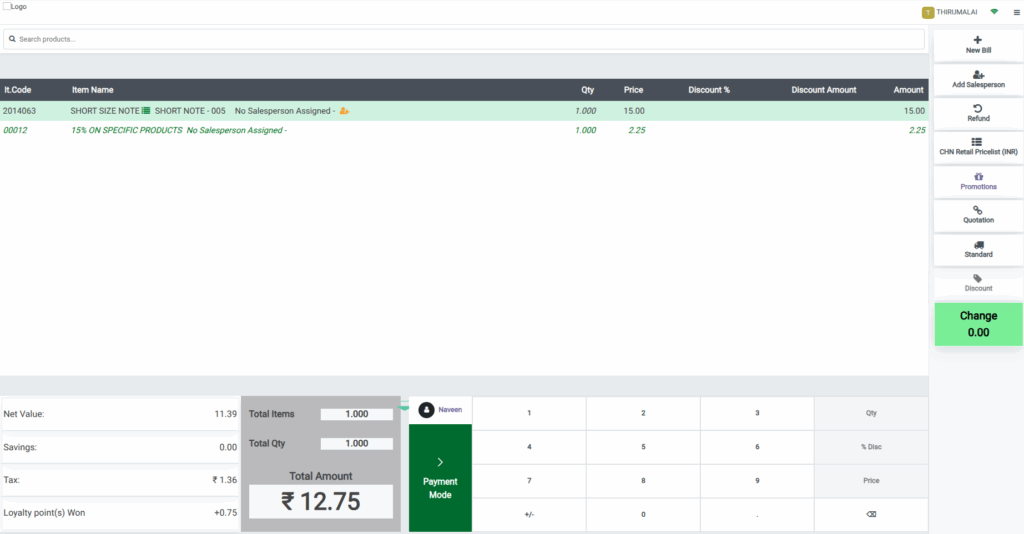
For example, if a 15% discount is created for the “ZYNTERA” brand and a product priced at ₹15 is added to the POS cart, Odoo will automatically apply the discount. A 15% discount on ₹15 reduces the price by ₹12.75, bringing the net value to ₹11.39. Next, if a tax of 12% is applicable, the system calculates the tax based on this discounted net value, which amounts to ₹1.36 (12% of ₹11.39). Therefore, the final amount payable by the customer is ₹12.75 will be displayed in the POS cart.
Promotion Line Validation in POS
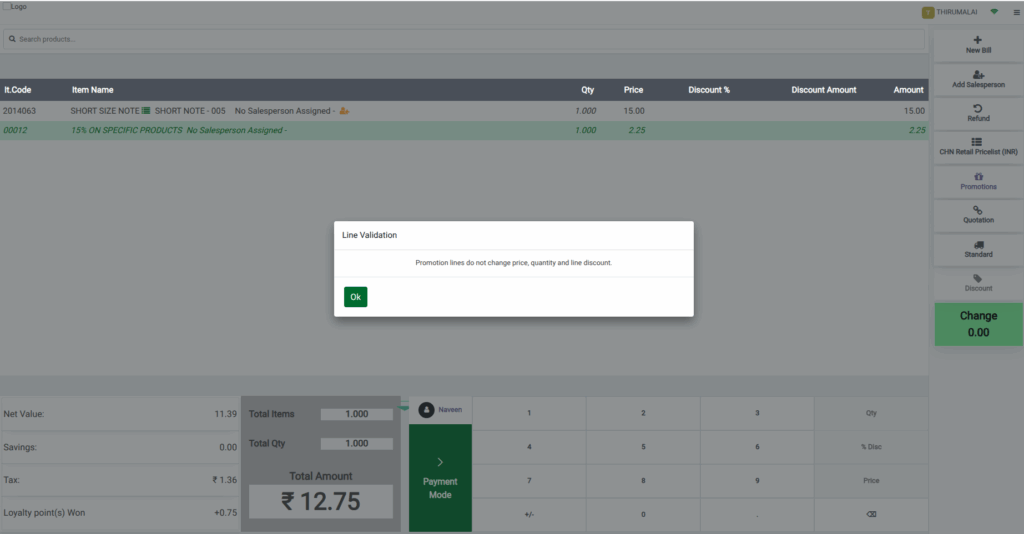
To maintain consistency, the system restricts manual adjustments to promotion lines. If you try to change the quantity, price, or line discount of the promotion in the cart, an error message will appear: “Promotion lines do not change price, quantity and line discount.”
This ensures the discount applied to the brand remains accurate and avoids errors during transactions.
Brand wise Promotion details on the Bill Receipt
Once the sale is completed, the cashier selects the customer, reviews the cart with the applied promotion, chooses a payment method, and validates the order.
The printed receipt clearly displays all product details, including quantity, MRP, Rate, tax, and total amount. The discount line for the brand appears as a negative value, making it easy to see the deduction applied through the brand-wise promotion.

