How to Complete an Order using Door Delivery in Odoo POS
Door Delivery in Odoo POS makes it easy for businesses to send products directly to a customer’s home. It is especially helpful for people who cannot visit the store and for orders placed through online platforms or What’sApp. With this option, businesses can offer fast and safe deliveries beyond their physical store.
Enabling Door Delivery in Odoo POS
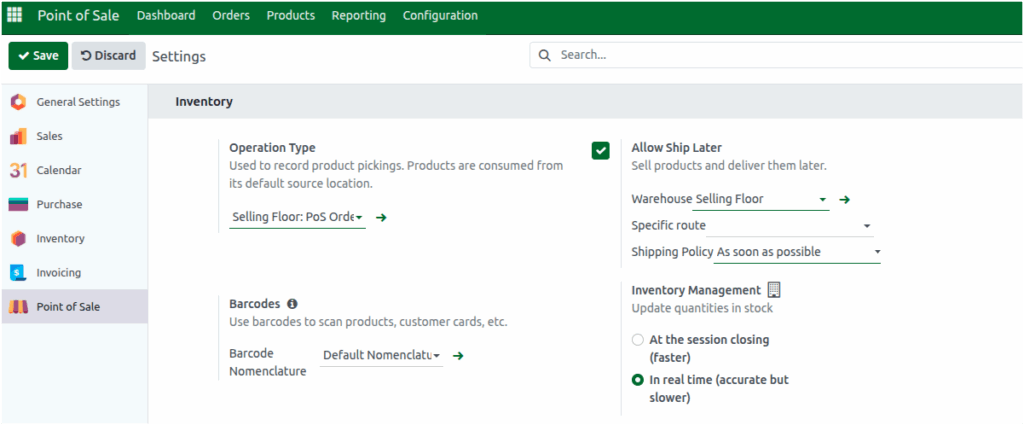
To begin, open the Point of Sale module and click the Configuration and select Settings. In the Point of Sale section, select the appropriate terminal from the drop down. Under the Inventory section, enable the checkbox for Allow Ship Later.
Once activated, this option will enable the Delivery Date option on the POS payment screen, allowing you to schedule deliveries for your orders.
Processing an Order in Odoo POS
Begin by opening the POS and adding products to the cart. You can add items by typing the product code, scanning the barcode, or scanning any related multi-barcode. After adding the product, adjust the quantities if required and choose the order type, such as What’sApp or Online. These order types usually require shipping, so Door Delivery plays an important role here.

Setting Delivery Details and Customer Information in Payment Screen
Click the Payment Mode to move to the payment screen then you must select a delivery date for What’sApp and Online orders. If you try to confirm the order without a delivery date, the system will show a message saying that “Delivery date is required for ORDER TYPE”. For regular walk-in orders, selecting a delivery date is optional, but Door Delivery can still be used.
So, click the Door Delivery button. A pop-up will appear where you can choose the delivery month, day, and time. You can use the calendar or enter the details manually. The date must be valid, and the time should be set in 24-hour format. After confirming, the selected date and time will appear under the Door Delivery section.
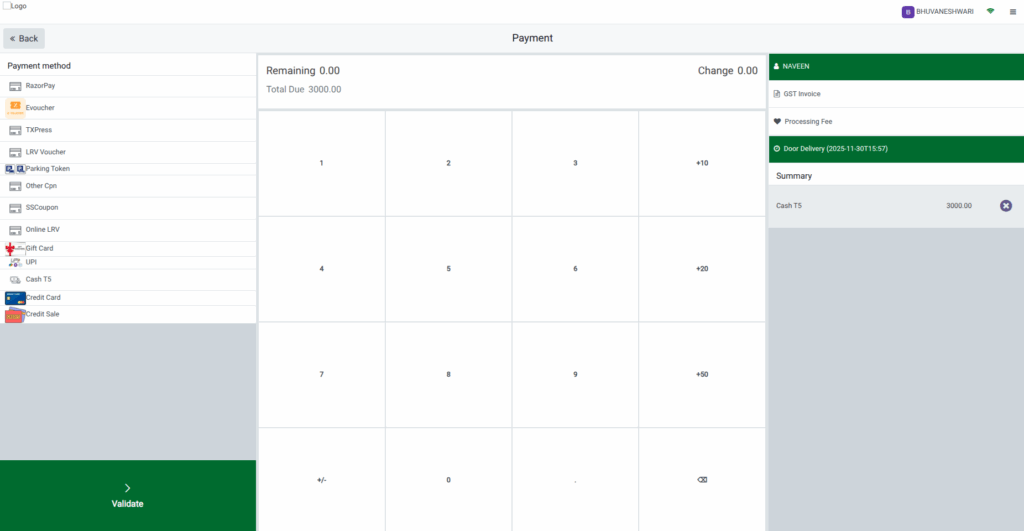
Finally, a customer must be selected before completing the payment. If no customer is added, the system will display the alert: Please select the customer. The customer’s delivery address must also be correct. If the address is missing or wrong, the system will display alert: Incorrect Address for Shipping and needed to be updated before moving forward.
Finalizing the Order and Printing Receipts
Once the customer details and delivery information are completed, choose the payment method such as cash or card and then click Validate to finish the order.
The System will automatically print two copies of the receipt—one marked as the Customer Copy and the other as the Delivery Copy.
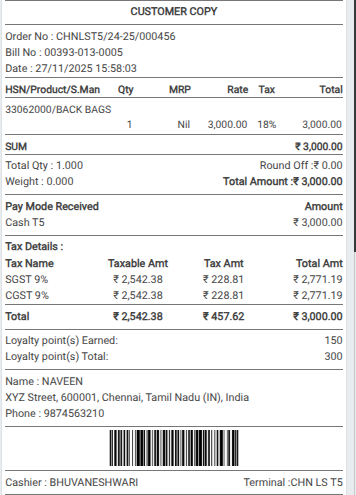


Both contain the same order details, including the Door Delivery label, the delivery date, the order type, and the customer information. These details help ensure smooth handling of the order for both the customer and the delivery team.
