How to Configure Odoo POS Interface Settings
Odoo provides flexible POS interface settings that help businesses control how products, employees, and orders are handled on the POS screen. These options improve usability, manage employee access, and streamline the selling process.
Accessing the POS Interface Settings
Start by opening the Point of Sale module. Go to the Configuration menu and click Settings. Then, choose the POS terminal you want to configure in the Point of Sale field. After selecting the terminal, scroll to the POS Interface section where all customization options are available.

Setting Start Category and Restricting Categories
You can control which product categories appear when the POS loads.Enabling Start Category lets you choose a default category that appears as soon as the POS opens. This is helpful for businesses selling mainly from one category, such as restaurants or mobile stores.
If you need to hide certain categories, enable Restrict Categories. You can then choose only the categories that should be visible on the POS screen. This is useful for special sales, promotions, or limiting what employees can access.

Setting Margins & Costs and Salesperson Assignment
Turning on Margins & Costs allows the POS to display the cost price and margin when selecting a product. This helps staff understand product profitability instantly.
To track performance, enable Allow Salesperson. This setting lets you assign a salesperson to each order line within the POS.

Setting Multi Employees per Session
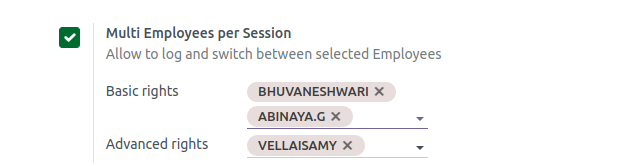
If multiple employees need access to the same POS terminal, activate Multi Employees per Session. You can set Basic Rights for employees who just place orders and Advanced Rights for those allowed to give discounts, handle returns, or perform other special actions.
Setting Large Scrollbars, Sharing Open Orders, and Enabling Order Types
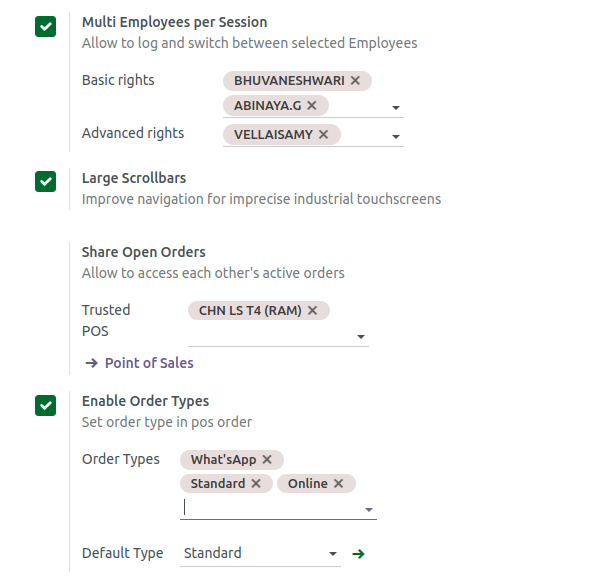
If your POS runs on industrial or less-sensitive touchscreen devices, turn on Large Scrollbars for easier navigation.
To allow employees to manage open orders started on other POS terminals, configure Share Open Orders and select the trusted POS terminals that can share order data.
You can also enable Order Types if your business handles different order categories like Standard, Online, or WhatsApp orders. After enabling, select which order types apply and set a Default Order Type for each new sale.
Saving the POS Interface Configuration
Once all the POS Interface settings are reviewed and selected based on your business needs, click Save at the top left of the screen. Your POS terminal will now run with the updated settings, improving accuracy and overall usability.
