How to Configure the Exact Search, Shortcut and Dynamic Tax in Odoo POS
Odoo POS offers several helpful features that make billing faster, more accurate, and easier for users. Settings like Exact Search, POS Shortcuts, and Dynamic Tax help improve the efficiency of the POS screen and create a smoother checkout experience. These settings can be enabled directly from the POS configuration menu and are simple to set up.
Opening the POS Configuration Menu
To begin, open the Point of Sale module on your Odoo system. At the top, click the Configurations menu and select Settings. Once the settings page opens, choose the specific POS terminal you want to modify by selecting it in the Point of Sale field. All configurations you make will apply only to the selected terminal.
Enabling Exact Search in POS
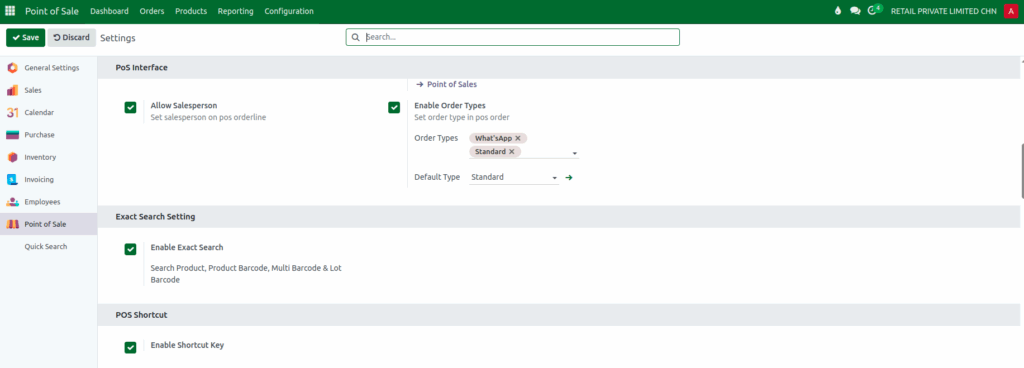
In the settings, you can enable the Exact Search option. When this setting is turned on, the POS search bar will return only exact matches when searching for items.
This applies to searches made using Product Name, Product Barcode, Multi Barcode, or Lot Barcode. Exact Search helps cashiers avoid wrong selections and improves accuracy, especially when products have similar names or codes.
Activating POS Shortcuts
The POS Shortcut feature can be enabled in the same settings area. Once activated, users can perform common actions much faster by using keyboard shortcuts.
These shortcuts help with tasks like applying discounts, validating orders, opening payment screens, and finishing the billing process quickly. This feature is especially useful during rush hours when speed is important.
Setting up POS Dynamic Tax
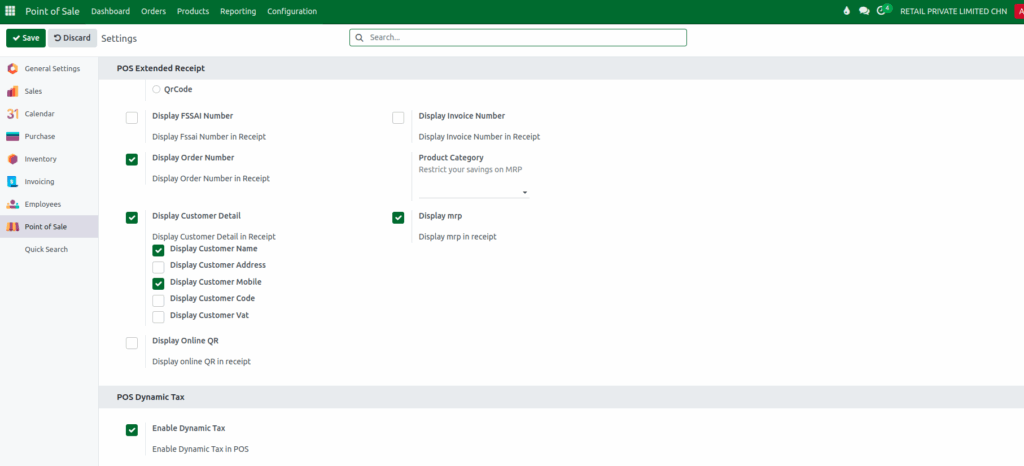
Another useful setting is POS Dynamic Tax, which you can enable with a simple toggle. When this feature is turned on, products that have been configured with dynamic tax rules will automatically apply the correct tax during billing. This ensures accurate tax calculations and helps stores follow tax rules consistently.