How to exchange multiple products in the same bill receipt in POS in Odoo
In a retail store, product exchanges commonly occur when a customer buys a product that is damaged or when the customer is not satisfied with the product and wants to exchange it. However, the retail store may have certain conditions, such as requiring that the exchange price must be greater than the original bill amount.
Product Entry and Payment Process in POS
Open the POS system. To exchange multiple products, enter or scan the product code or lot barcode of more than one product in the search bar. Set the quantity for each product. Click on the Payment button or use the shortcut key F4 to proceed to the payment screen.
Example:
In POS Cart add the two Product Product 1: 100123114, Product 2: 100123108 and Complete the payment.

How to Process a Refund in POS
Once you have completed the order, click Sales Return. Only the HeadCashier can process refunds, so switch to the HeadCashier role. Scan the bill or search the bill number in the Search Orders field.(00355-001-0001)
Refund thefull quantity for every billed product. For example, if two products were billed, a full refund should be issued for both. Then click the Refund to add the items to the POS cart.
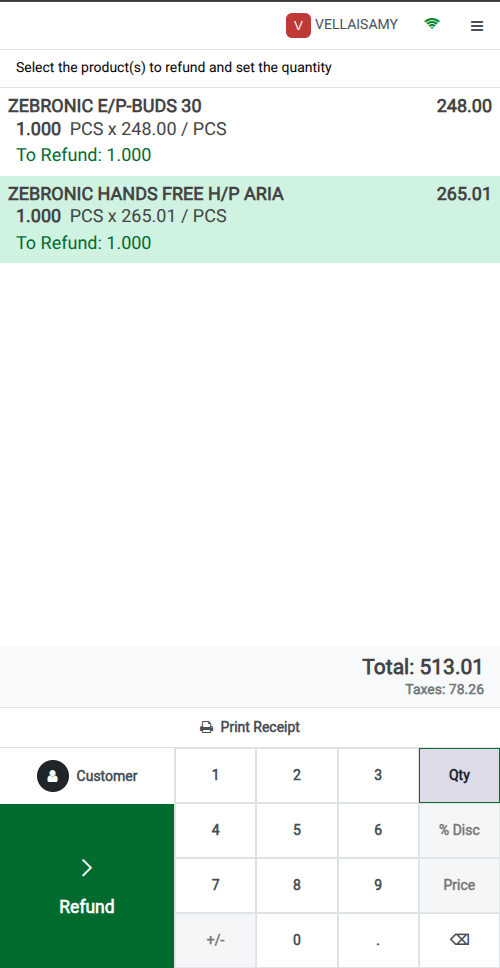
Exchanging Multiple Products
When exchanging products, add at least two or more products to the POS cart. The exchange product amount should be greater than or equal to the refund product amount. Switch back to the Cashier role, then click on Payment Mode or press the shortcut key F4 to proceed with the payment.
Example
In the POS cart, the refund products are:
    • Product 1: 100123114
    • Product 2: 100123108
Then add at least two or more exchange products, such as:
    • Product 1: 100123114
    • Product 2: 105431100
Complete the Payment for Exchange Product
On the payment screen, complete the exchange order by choosing a any payment option such as
Cash or UPI. Click Validate or use the shortcut Ctrl + v to complete the payment. The bill receipt
will then be generated.
