How to Filter, Search and Group the Bill count Report Data in Odoo POS
The Bill Count Report in Odoo POS helps businesses track the number of bills generated over a specific period. It provides detailed insights into sales activity across different POS terminals and companies. With search tools, filters, grouping options, and multiple views, users can easily analyze billing trends and patterns to make informed decisions.
Accessing the Bill Count Report
To access the Bill Count Report, go to the Point of Sale module from the main menu. Then click on Reporting → Basic Reports and select Bill Count. The report displays all bills created during the selected date range, giving you a clear overview of POS activity and helping you monitor billing performance over time.

Selecting Date Range and Applying Filters
Begin by choosing the From and To dates to define the period you want to analyze. The system will display all bills generated within that range. You can also use the search bar to filter results by POS terminal, Company, or Start and End Bill Number to focus on specific bills.

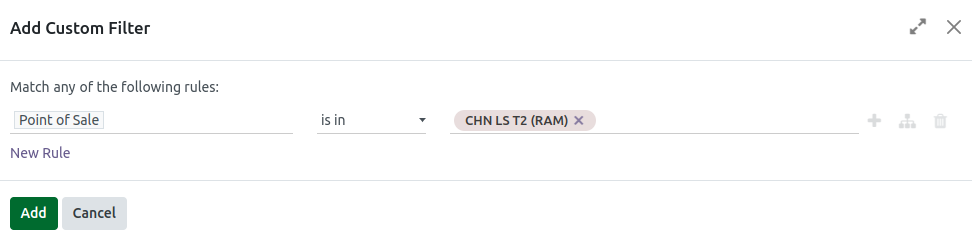
For more advanced filtering, click the dropdown icon in the search bar and select Date to choose options such as the last three months, specific quarters, or the last three years. Custom filters can be added by selecting Add Custom Filter, which opens a popup to set rules. Choose a field, pick an operation like “is equal to” or “contains,” and enter a value to refine your report. Once applied, the report updates instantly with the filtered data.
Grouping Report Data
Grouping helps organize your bill data for easier analysis. The default options include Point of Sale to group bills by terminal and Company to group by the business linked to the transactions. You can also add custom groups by clicking Add Custom Group, which displays a list of fields to choose from. This allows grouping by other relevant criteria, such as user or location. Grouping helps highlight trends and makes the report easier to read and interpret.

Saving Favorites
If you frequently use the same filters or groupings, Odoo POS allows you to save your search settings for quick reuse. Click the dropdown arrow in the search bar and select Save current search. Give your filter a name and optionally set it as the default or share it with other users. Saved filters can be accessed anytime, and if a filter is no longer needed, it can be deleted using the trash icon. This feature saves time, ensures consistent reporting, and allows you to quickly access frequently used reports without recreating the filters each time.

