How to Filter, Search and Group the Weekly Sales Report Data in Odoo POS
The Weekly Sales Report in Odoo POS helps businesses track how products perform during each week of the month. It offers clear insights into weekly sales totals, product performance, and trends. With search tools, filters, grouping options, and saved favorites, users can easily explore and manage sales data.
Accessing the Weekly Sales Report
To open the Weekly Sales Report, start from the Odoo main menu and enter the Point of Sale module. From there, click on Reporting and select Weekly Sales Report. This report shows detailed weekly sales data for every product, making it easy to compare how sales change from one week to another.
Searching and Custom Filters
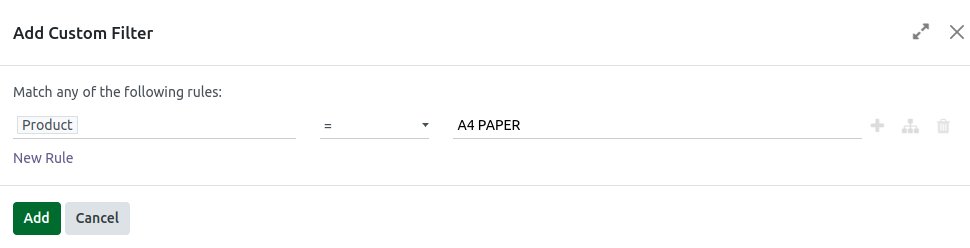
The report includes easy search options where you can type the product name to see sales for a specific item or enter a product code to quickly find a particular product. For deeper filtering, you can use custom filters found under the dropdown icon in the search bar. These filters let you narrow the report by week number, product name, product code, or total units sold. For example, you can filter to see only the sales where Week 1 has a certain quantity or show products that sold within a specific range. Just select the field, choose a condition, enter the value, and apply the filter to instantly update the report.


Grouping Sales Data
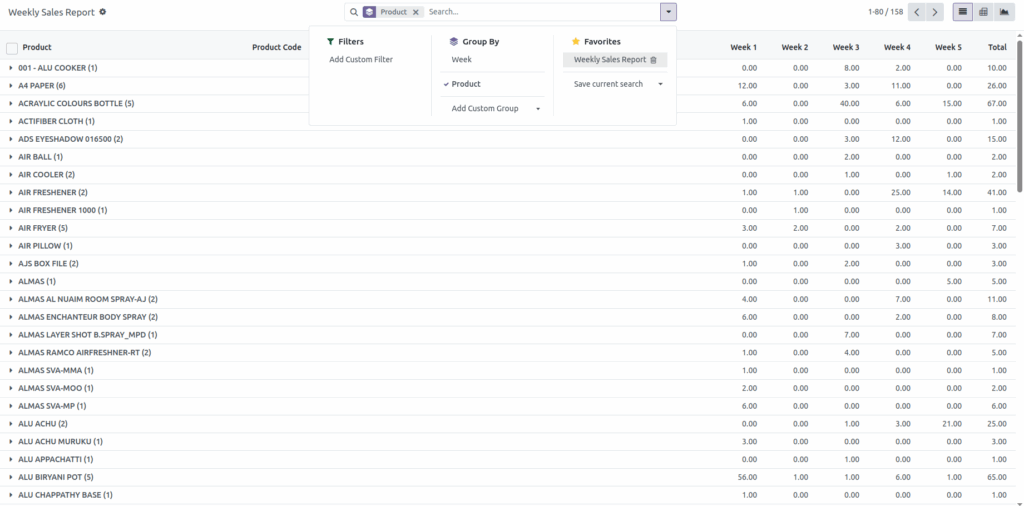
Grouping options help you organize information in a clearer way. By clicking the dropdown and choosing “Group By,” you can add custom groups such as product name, product code, month, or week. Grouping by week gives you a clear total for each week, while grouping by product helps you easily compare how each item performs across the month. These grouping features make large sales reports more structured and easier to understand.
Saving Favorites
If you use the same filter setup often, Odoo POS allows you to save your search settings so you don’t have to recreate them each time. You can click the dropdown arrow in the search bar and choose “Save current search.” After giving it a name, you can also choose to make it the default or share it with other users. Saved filters can be accessed anytime, and if they’re no longer needed, you can remove them using the trash icon. This feature saves time and helps maintain consistent reporting.

