How to Filter,Search and Group the Sales R Number Report Data in Odoo POS
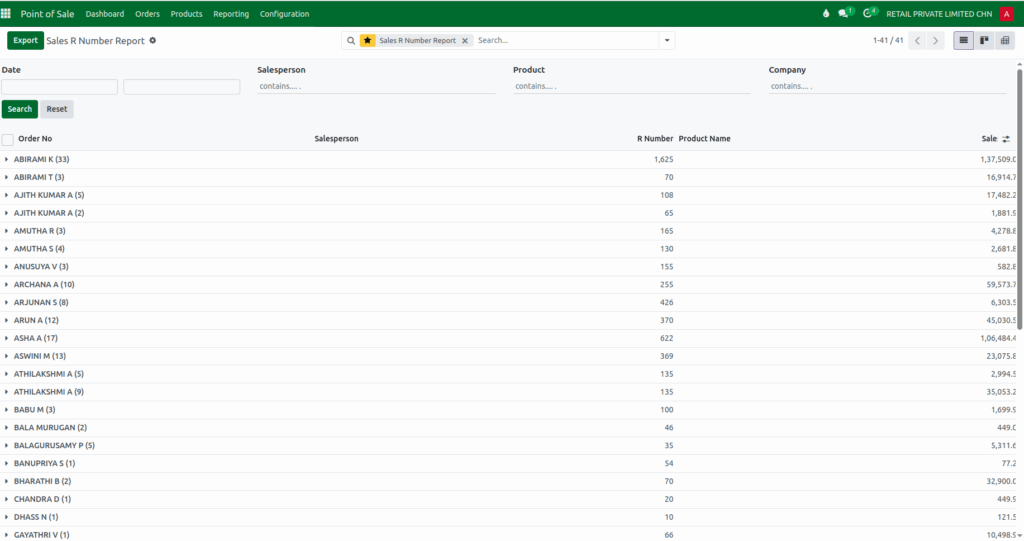
The Sales R Number Report in Odoo POS is a powerful tool that helps businesses track sales performance, analyze orders, and get insights into product movement. By using the search, quick search, custom filters, and grouping options, you can easily find the information you need and organize it in meaningful ways.
Accessing the Sales R Number Report
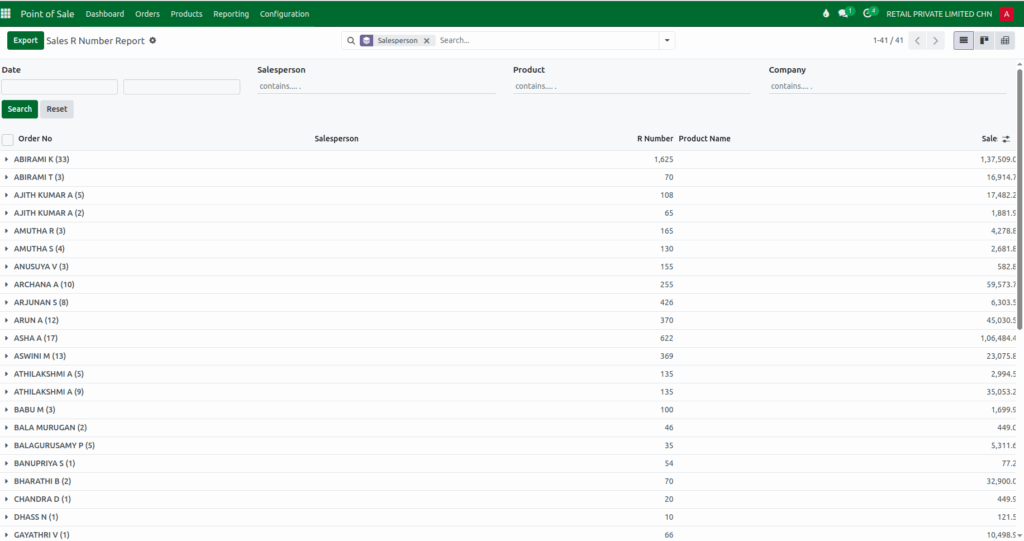
To open the Sales R Number Report , you simply need to navigate through the Point of Sale application. From the main menu, you enter the POS module and open the Reporting section, under the Advanced Reports select the Sales R Number Report. The report displays detailed information about product lots and their sales activity.
Choosing the Date Range for Analysis
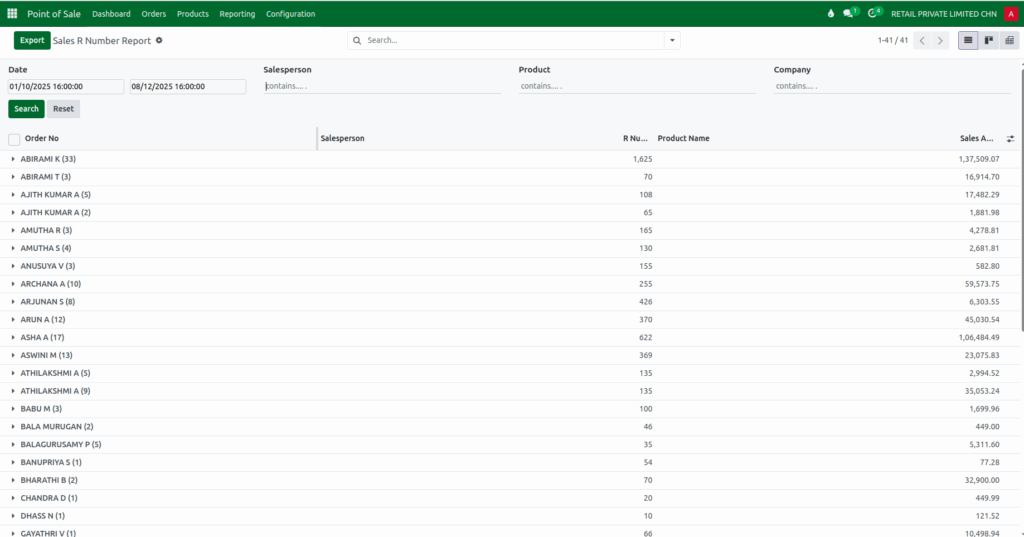
The report becomes meaningful when you define the time period you want to analyze. You can select a starting date and an ending date using the date range fields. After the dates are selected, Odoo automatically updates the report and displays all Sales R Number that occurred during that period. This allows you to focus on sales performance for any specific timeframe, whether it’s a day, a month, or an entire quarter.
Searching and Quick Search
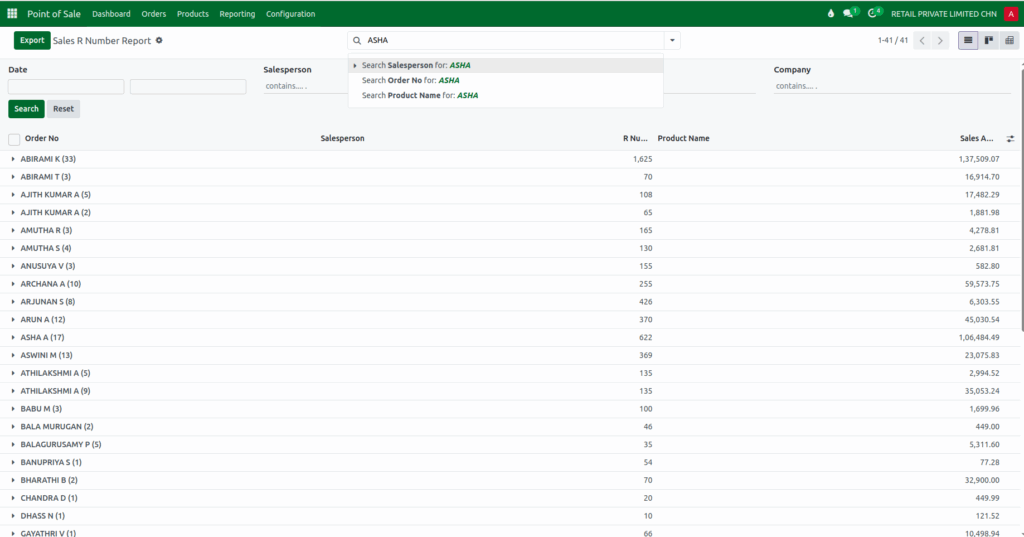
The report allows users to search for specific information using several criteria. You can look up sales data by salesperson to see how each team member is performing, search by order number to view the details of a particular order, or use the R Number associated with each transaction. Additionally, you can filter results by product name to see which items are selling and track their movement.
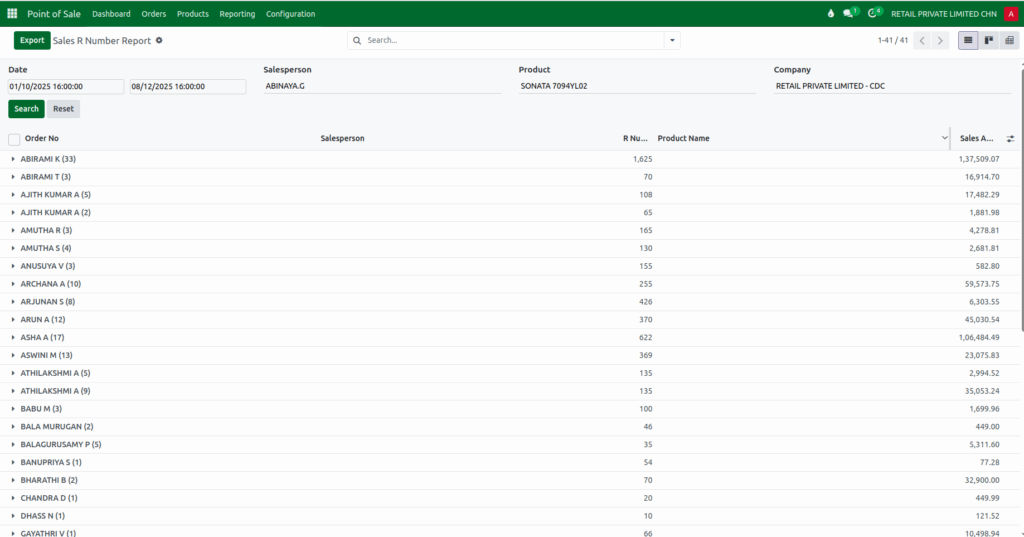
For faster access, the Quick Search feature lets you filter records by date, salesperson, product, or company. Simply enter a start date in the “From Date” field and an end date in the “To Date” field to narrow down the records. Selecting a specific salesperson, product, or company will further refine the results. Once the filters are set, clicking the Search button will display the filtered data. If you want to clear all selections, the Reset button makes it easy to start fresh.
Custom Filters
Odoo POS also provides custom filters for more advanced searching. By clicking the down arrow in the search bar, you can choose a field, condition, and value to filter data. For example, you might select the product field, set the condition to “is,” and choose a specific product value. You can add multiple rules using the “New Rule” option, and all rules are combined using AND logic, meaning all conditions must be met for a record to appear. Once your rules are set, clicking Add applies the filters to the report, making it easier to focus on the exact sales data you need.

Grouping Data
The Group By feature helps organize your sales data in a structured way. You can group records by salesperson to see individual performance or by date to track sales trends over time. When grouping by date, the report allows further options like year, quarter, month, week, or day. Other grouping options include linked sale orders, full product names, order references, products sold, R numbers, refunded order lines, taxes, and source sale order lines. You can also add custom groups to tailor the report to your business needs. Grouping helps you compare sales across different categories and quickly spot trends or patterns.
Saving Favorites
If you frequently use the same filters, Odoo POS lets you save your search settings for quick reuse. Simply click the down arrow, select “Save current search,” give your filter a name, and optionally set it as default or shared with other users. Saved filters can be reused anytime, and if you no longer need a saved filter, it can be deleted using the trash icon. This feature saves time and ensures consistent reporting.