How to Handle and Allow Negative Quantities in the Odoo POS
This feature allows you to sell products even when their stock level is zero or negative, preventing the POS system from blocking sales due to low inventory and ensuring smooth, uninterrupted sales transactions.
How to Enable Allow POS Negative Qty
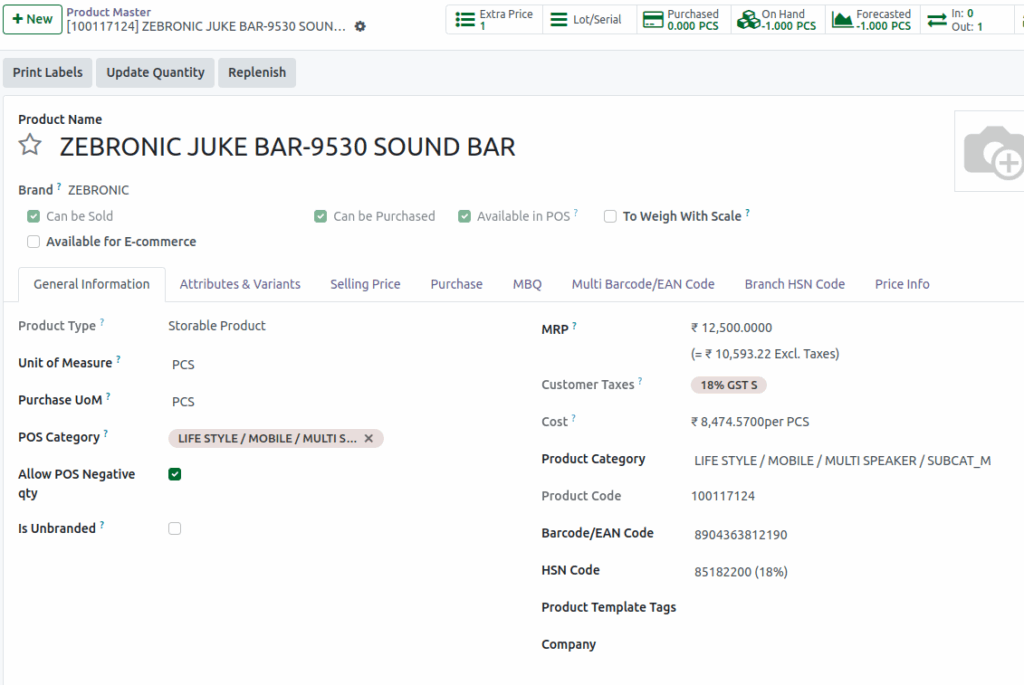
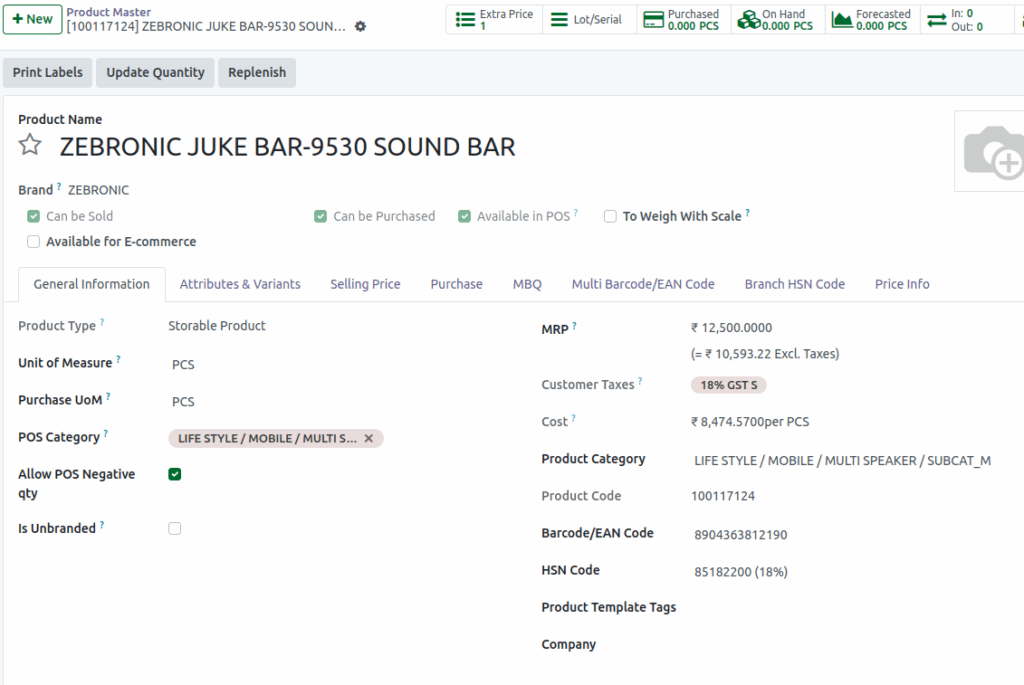
From the Main Menu, select Inventory, then navigate to Products and click Product Master to view all products. Search for the desired product by name or code, and click on the specific item. In the General Information section, enable the Allow POS Negative Qty checkbox.
Adding Products to the POS Cart
Open the POS system, Products can be added to the POS cart in three ways:
- Type the product code (e.g., /104339103)
- Scan the lot barcode
- Scan any of the multi barcodes
Displaying Lots with Insufficient Stock
- Search by product code to display lots with negative or zero quantity on hand.
- Scan the lot barcode which as negative or zero on hand quantity.
- Scan any of the multi barcodes, and lots with negative or zero quantity will be displayed.
- All results will show lots with insufficient stock (negative or zero quantity).

Selling Beyond Available Stock
Enter the required quantity in the POS cart. Even if the on-hand quantity is greater than zero, the system allows you to sell more than the available stock, and sales can still proceed when the on-hand quantity is below zero. This feature enables you to continue selling products beyond the inventory’s current available quantity.
Finalizing the Sale in POS
- Verify the pricing details.
- Enabling this feature removes the quantity limit warning during the transaction.
- Click Payment Mode, choose the appropriate payment method.
- Click Validate to complete the transaction, and the bill receipt will be generated.
Stock Update
The On Hand Quantity is updated automatically after each sale. If the sold quantity exceeds the available stock, the On Hand Quantity becomes negative, accurately reflecting the stock level in the system.