How to Handle Bill-Level Discounts in Odoo POS
Odoo Bill-Level Discounts in POS are a powerful way to provide customers with savings on their entire purchase rather than on individual items. This type of discount reduces the total payable amount for an order, making it simple for customers to understand and enjoy the benefit.
Bill-level discounts help businesses boost sales, encourage larger purchases, and maintain smooth, accurate billing in the POS system. By applying a percentage discount to the full bill, retailers can improve customer satisfaction while keeping transactions transparent and efficient.
Enabling Bill-Level Discounts in POS Configuration
To apply a bill-level discount in POS, you first need to enable Global Discounts in POS → Configuration → Settings. This checkbox can only be edited when the POS session is closed; once a session is open, it becomes read-only.
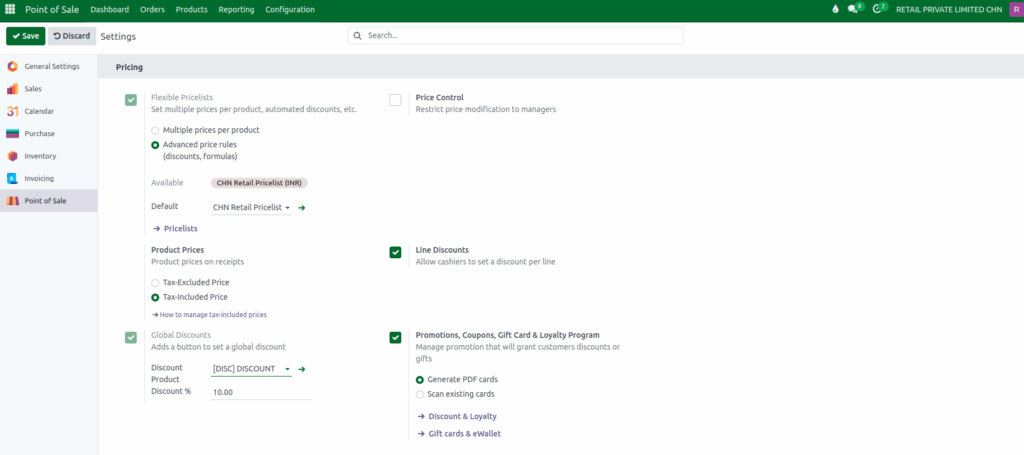
After enabling it, choose the appropriate discount product in the Discount Product field. When you enter a value in the Discount % field, that percentage will automatically appear by default in the number-pad popup inside the POS.
Applying Bill-Level Discount in Odoo POS
To add the product in POS Cart, use Product Code with a leading ‘/’, scan or enter Barcode/EAN Code, use Multiple Barcodes/EANs andscan Lot Barcode for tracked items. Quantity can be updated manually as needed.
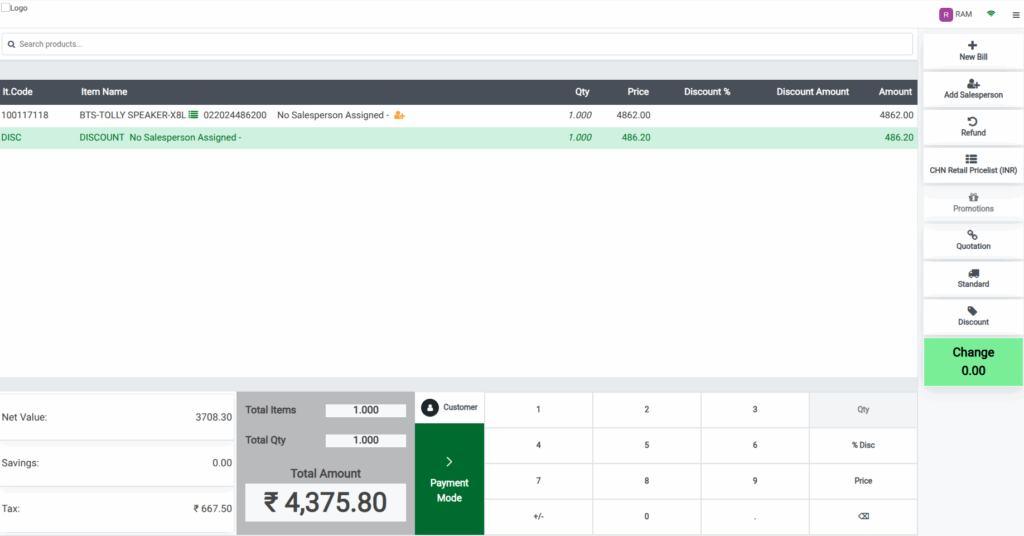
Only the Head Cashier can apply a Bill-Level Discount. Click the “Discount” button, a number pad popup appears, default discount is 10%and enter your desired discount percentage and click Confirm to apply. A new discount line is automatically added to the cart with quantity 1. The Price & Amount fields reflect the discount value.
Example: Product Price = ₹4862, Discount = 10%
Amount = ₹4862 × 10% = ₹486.2₹486.20 is shown in both Price and Amount fields of the discount line
Bill Level Discount Impact
Discount line does not affect Total Items and Total Quantity fields.
Total Amount = [Sum(Amount)] − Discount Amount
Total Amount = ₹4862 – ₹486.2 = ₹4375.8
Discount does affect Total Amount and Tax & Net Value Calculation. The Tax Field displays the total tax amount for all products in the cart. It reflects the combined tax across multiple products, even if they have different tax rates. Net Value Field is calculated as:
Net Value = Total Amount – Tax
Net Value = ₹4375.8 − ₹667.50 = ₹2905.13
Processing the Payment
Switch back to Cashier Role and click Payment Mode or press F4. Choose desired payment method and click Validate or press Alt + V. After completed the Payment, a bill receipt is generated. The discount line is clearly shown and final values reflect the applied bill discount.

