How to Manage No-Tracking and Lot Products in Odoo POS
Managing products in Odoo POS becomes easier when you understand how different tracking methods work. Some products don’t require tracking at all, while others need lot numbers for proper stock control. Odoo POS supports both types and ensures that each one is handled correctly during the billing process. This helps cashiers work faster while keeping inventory accurate in the backend.
Managing No-Tracking Products in POS
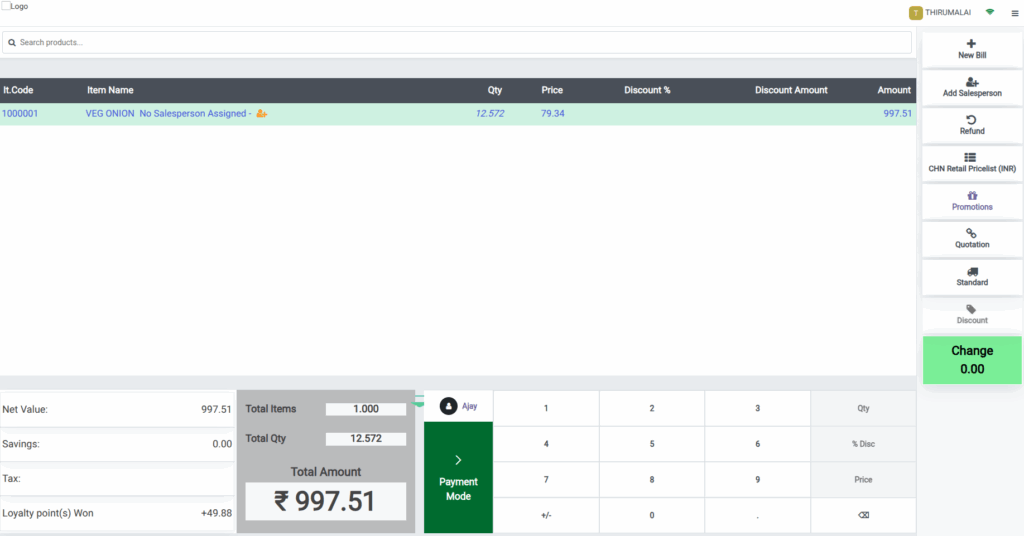
When a product is set to tracking as “No Tracking” in the Product Master, Odoo POS handles it as a regular item that does not require any serial or lot number.
When the cashier adds a No-Tracking product to the POS cart, they can enter the product code with a leading slash. Once the product is added, the quantity automatically defaults to one, and if needed, the cashier can increase the quantity. If the product has the “Weigh with Scale” option enabled, the system allows decimal quantities, which is useful for items sold by weight.
For every No-Tracking product added, the selling price appears clearly in the POS cart, and the total amount updates correctly when the quantity increases. Since No-Tracking products usually have GST 0%, the tax is not shown on the cart, making the billing process simple and clear.
Managing Lot Products in POS
When a product is configured tracking as “By Lots,” Odoo ensures that every quantity sold is linked to a specific lot number.
In POS, lot-tracked products can be added in multiple ways such as entering the product code with a leading slash, scanning a standard barcode or EAN code, using additional product barcodes, or scanning a lot barcode. Once the product is added, the cashier is prompted to select a lot from the available stock, ensuring complete traceability.
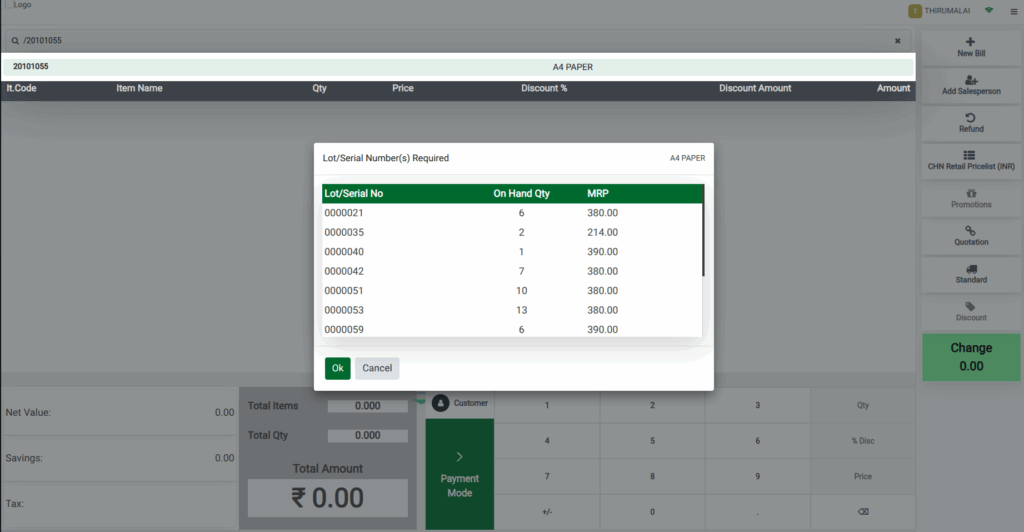
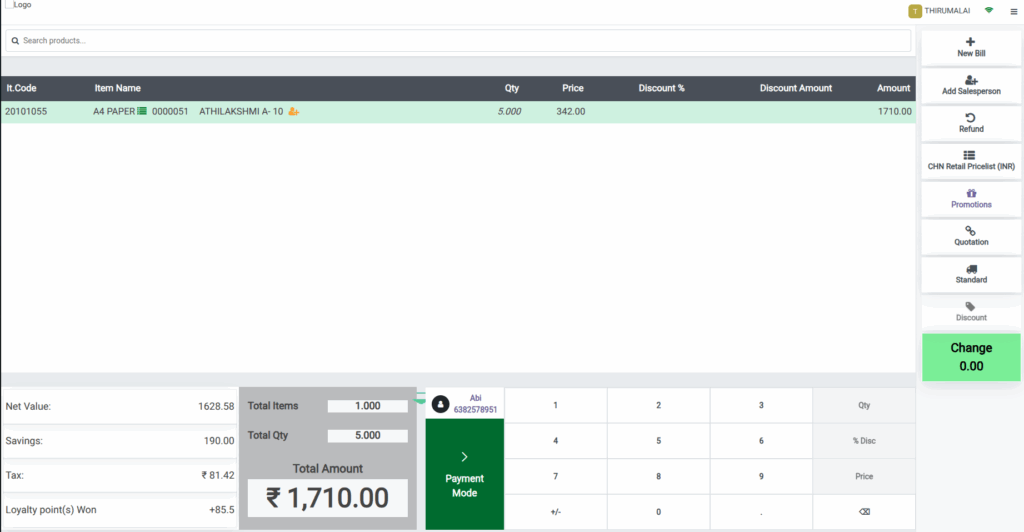
The quantity defaults to one, and Odoo does not allow decimal quantities for lot products. If the cashier tries to enter decimals, the system shows a validation message to maintain correct lot-based tracking.
The selling price is displayed clearly, and the total amount updates accurately as quantity increases. Some lot products may also use MRP based pricing, and if the MRP is higher than the selling price, the system automatically shows how much the customer is saving, giving full price transparency.
Completing the Payment in POS
After the cashier reviews all product details on the POS screen, they can proceed to payment by selecting a payment mode or using shortcut keys. Odoo POS supports multiple payment options, making the process quick and smooth. Once the preferred payment method is chosen, confirming the payment completes the order and moves the transaction to the next stage in the POS workflow.

Bill Receipt and Product Details
After the order is validated, Odoo POS generates a bill receipt with all the important information customers need. Each product line shows details such as the HSN code, product name, salesperson name if entered, and the quantity sold.
The pricing area clearly displays the Qty, MRP, Rate, Tax, and Total. MRP is displayed as Nil and Decimal quantity also correctly displayed in the Total Qty and Weight field in the bill receipt for No-tracking products. All necessary fields are included automatically, ensuring that the receipt is complete, transparent, and easy for customers to understand.


