How to Manage Pricelist and its Impact on selling Price in POS in Odoo
In the Point of Sale, pricelist enable you to modify selling prices according to the customer or the quantity ordered. Pricelist can also be configured to apply product-specific pricing rules.
Navigate to POS Pricing Settings
In the Point of Sale module, click Configuration, then select Settings. Next, choose the specific
POS Terminal and navigate to the Pricing section.
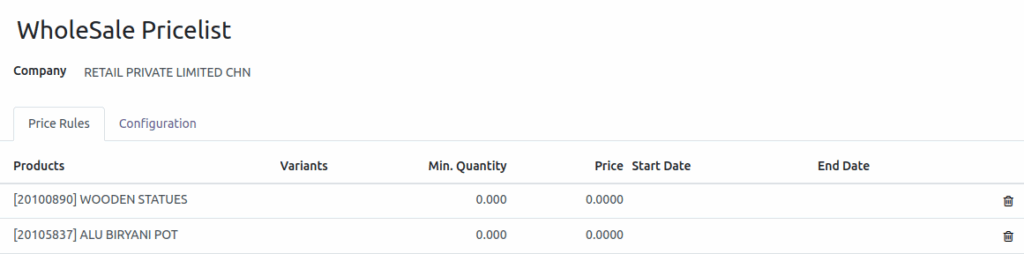
Setting a Pricelist in the POS Terminal
In the Pricing section, enable Flexible Pricelists to set multiple pricing options. Under Flexible Pricelists, select Advanced Price Rules to configure discounts and formulas. Choose the appropriate pricelist, such as CHN Retail or CHN Wholesale, and set the Default Pricelist to apply automatically on the POS terminal. Finally, click Save to apply the new settings.

Adding Products to the POS Cart
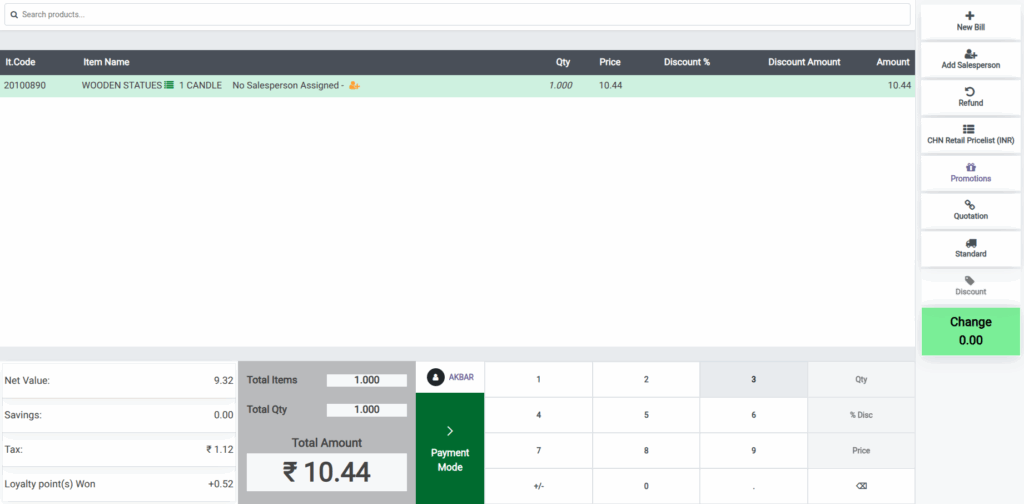
Add productsto the POS cart in the following ways:
- By typing the product code (e.g., /2010058).
- By scanning the lot barcode.
- By scanning barcode/EAN code or multi barcodes.
Once added, the product will automatically appear in the POS cart.
Select Customer in POS Cart
In the POS Cart, click the Customer Profile Button. In the Customer Screen, Search for a Customer Using:
- Customer Name
- Customer Mobile Number
- Customer Address
Select the customer to associate with the POS order.
Select Available Pricelist
- In the POS interface, locate the section on the right side where the current “CHN Retail Pricelist” is displayed.
- Click on it to open the selection dialog box.
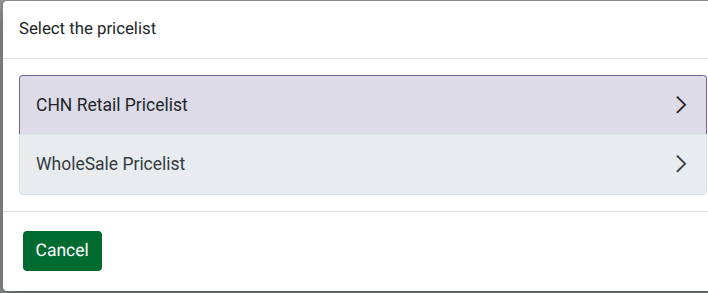
- The dialog box will show multiple pricelist options, such as the “CHN Retail Pricelist” and the “CHN Wholesale Pricelist”.
- Choose the pricelist that you want to apply.

Effect on Selling Price
For instance, switching from the retail to the wholesale pricelist will change the pricing. After selecting the “CHN Wholesale Pricelist”, you will notice that the selling price of the product in the POS interface
changes . The pricelist is applied only to the products that are configured within that specific pricelist.
Example
    • The product "AMERICAN TOURISTER BAYVIEW 67 BLACK" is priced at ₹12,587.50 under the retail pricelist.
    • The pricelist is switched to wholesale in the POS system.
    • The price updates to ₹11,925.00 under the wholesale pricelist.
    • The price reduction reflects the discount for wholesale purchases.
Finalize the Transaction
- Once you’ve selected the desired pricelist, the updated price will automatically reflect in the POS system.
- You can now proceed with the payment and complete the transaction based on the new selling price.
- Changing the pricelist enables more flexible pricing options within the POS system.
