How to Print a Credit Sale Print from the Orders Screen in Odoo POS
In Odoo, the Credit Sale Print is primarily used to print bills for Credit Sales customers. This bill can be printed from the POS Payment screen as well as from the POS Orders Details report screen. It is specifically designed for Credit Customers.
Product Entry and Payment Process
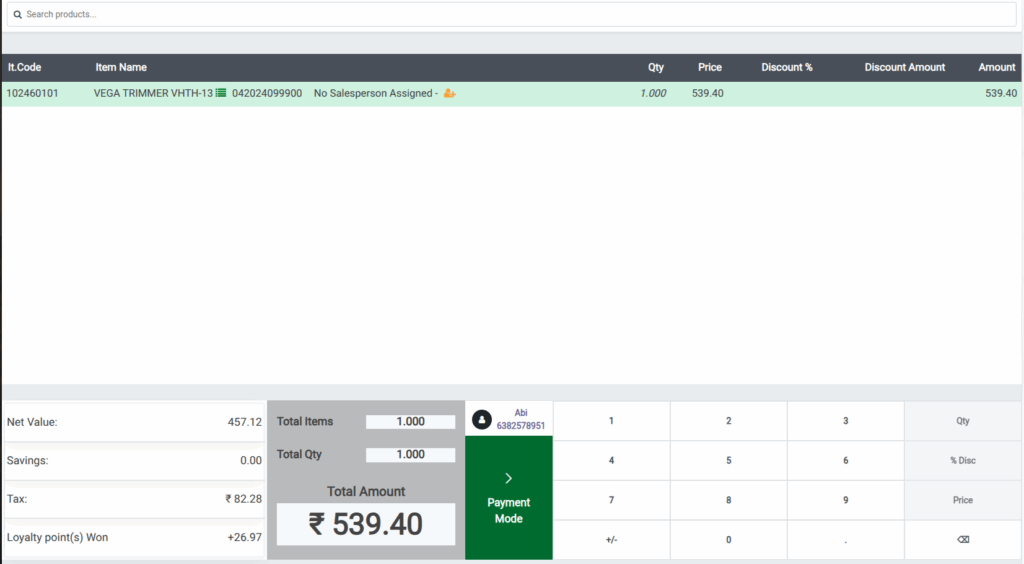
To process a sale in the POS system, first open the POS interface and enter or scan the product code or lot barcode in the search bar. Then, set the desired quantity of the product. Next, click on Customer and select the Credit Sale customer.
Finally, click on the Payment Mode button or use the shortcut key F4 to proceed to the payment screen.
Complete the Payment
When you select the Credit Sale customer, you can choose the Credit Sale payment mode or any other available payment option. After selecting the payment mode, click Validate or use the shortcut Ctrl + V to complete the payment, and the bill receipt will be generated.
How to Print the Credit Sale Print
- Login as Head Cashier and navigate to: Point of Sales → Order
- Use the Order No. to find the specific bill.
- Click Actions → Credit Sale Print to generate the printout.

Credit Sale Print Details
The POS bill displays Credit Sale and RETAIL PRIVATE LIMITED as the heading, with branch details shown in the Branch Address field and customer details in the Customer Addressfield. The Order Reffield lists the POS order number, while theBill No. field shows the POS bill number. Product information, including the name, barcode, and HSN code, appears in the Product/Barcode/HSNfield, with the quantity shown in the Quantity field, MRP in the MRP field, and unit price in the Unit Price field.
The applicable product tax percentage is displayed in the Taxes field. The Amount field shows the total amount for each product, while the Taxable Amount field reflects the value of goods or services before tax. Calculated GST components are shown in the SGST and CGST fields, and the Total Amount field reflects the final bill inclusive of all taxes. Additionally, the Cashier field identifies the person who processed the transaction, and the Terminal field indicates the POS system used for billing.

