How to Process a Percentage-Based Down Payment in Odoo POS
Processing a Percentage-Based Down Payment in Odoo POS are useful when customers want to pay only part of the amount upfront. This method is especially helpful for large purchases because it allows the payment to be split into stages. With Odoo POS, businesses can easily collect a percentage of the total amount while ensuring the payment is correctly linked to the customer and the Sales Order.
Accessing Sales Orders in Odoo POS
To begin, go to the Quotations section from the POS home screen. This list contains all completed Sales Orders. Choose the Sales Order for which you want to record the advance payment.

When you select the order, a pop-up will appear with three options: Settle the Order, Apply Down Payment (Percentage), and Apply Down Payment (Fixed Amount). To continue with a percentage-based advance, select Apply a down payment (percentage).

Entering the Percentage for Down Payment
After selecting this option, a numpad will appear on the screen. The top-left of the numpad displays “Down Payment,” and the top-right shows the Due Balance, which is the total amount the customer needs to pay. When you enter a percentage, Odoo automatically calculates the advance amount using the formula:
Advance Payment = Total Sales Order Amount × (Entered Percentage ÷ 100)
The calculated amount appears on the Confirm button. For example, if the order total is ₹13,000 and you enter 10%, the Confirm button will show Confirm (1300).

The system also prevents entering a percentage that results in an amount higher than the order total. If the amount is too high, an alert appears, and the system resets the value to the total order amount.
Adding the Percentage-Based Down Payment to the POS Cart
Once you enter the correct percentage, click Confirm. The calculated advance amount is automatically added to the POS cart as an Advance Payment line, shown in green. The price field displays the advance amount, and the customer linked to the Sales Order appears at the top of the cart.
This ensures the advance payment is recorded under the right customer. The Net Value of the advance payment is clearly shown. At this stage, no tax is added, as any applicable tax will be charged during the final settlement.

Completing the Advance Payment in Odoo POS
Before finishing, review the POS cart to confirm all details. Then click Payment Mode to choose how the customer wants to pay such as cash, card, or any available option. After selecting the payment method, pay the advance amount and click Validate.
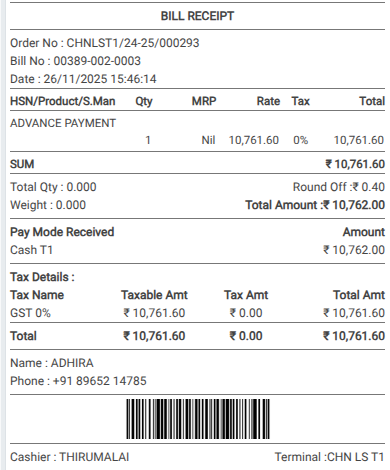
A bill receipt is automatically generated. On the receipt, the product name field will show Advance Payment, the rate field will show the amount paid, and the customer name and payment method will be clearly displayed. The advance amount will appear with 0% tax, as tax is added only during the final settlement process.