How to Verify a Sales Order after the Advance Payment has been Completed in Odoo
In Odoo, using advance payment, the bill can be paid either in a single installment or split into multiple payments, with the corresponding sales order and Point of Sale used to complete the payment process.
Creating a Sales Order
Click New to create a new Sales Order. Select the customer and click Save — the system will automatically generate a Sales Order number. Add the product, select the lot, and enter the required quantity. Finally, click Confirm to complete the Sales Order.

Processing Advance Payment
From the POS Home Screen, click the Quotations section. Choose a completed Sales Order from the list to process an advance payment. When you select a Sales Order, a pop-up will appear with the following options:
- Settle the order
- Apply a down payment (Percentage)
- Apply a down payment (Fixed Amount)

Generating Advance Payment Receipt
Select a down payment option (Percentage or Fixed Amount), enter the desired amount, and click Confirm. The calculated amount will be added to the POS cart as an Advance Payment line. Verify the details in the POS cart and proceed with the payment. The bill receipt will then be generated.
Accessing Sales Order After Advance Payment Completion
Go to the Sales Order screen and search for the corresponding Sales Order where the advance payment has been completed. Select the Sales Order to view its details.
Mapping Advance Payments to Sales Orders
Ensure that the advance payment in the POS is correctly mapped to the corresponding Sales Order. Verify that the unit price reflects the advance payment amount. The unit price will update automatically once the advance payment is mapped to the Sales Order.

Add Cost (After Tax) Display
The Add Cost (After Tax) field is calculated correctly after each advance payment. The taxable amount decreases when the advance payment is applied, and the Add Cost (After Tax) field reflects this updated amount. The decrease in the taxable amount is automatically adjusted based on the advance payment.
Invoiced Quantity Update and Displaying POS Order References
After the advance payment is completed, the invoiced quantity is updated to reflect the advance payment amount.
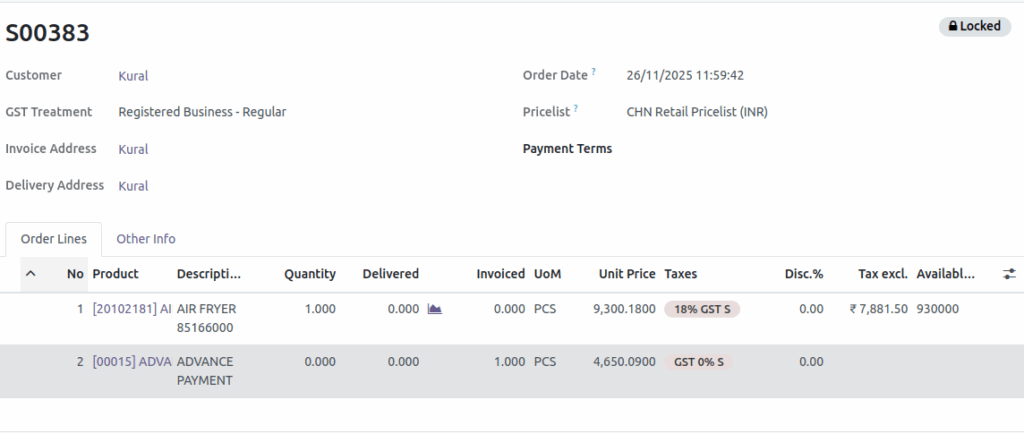
When Transferred to POS is selected, the POS order references appear on the Sales Order screen. The linked advance payments are displayed correctly, without any duplication or missing entries.

