How to View the Bill Count Report in Odoo
The Bill Count Report in Odoo gives a summary of how many sales bills or receipts were generated during a selected period. It helps track daily sales activity, review POS performance, and monitor cashier-wise or location-wise billing.
This report is useful for daily sales checks, shift closing summaries, and understanding billing patterns across different POS terminals. With built-in filters and grouping options, it becomes easy to analyze transactions and export data for further use.
Accessing the Bill Count Report
The Bill Count Report can be viewed by navigating through Point of Sale → Reporting → Bill Count Report. Only Head Cashiers have access to this screen. Once opened, the report displays bill counts for the selected time period and allows quick checks on POS activity and billing consistency.


Search, Filter, and Group Options
Filtering in the Bill Count Report allows selecting a specific date or a date range. This helps study billing patterns, identify peak sales periods, and compare activity between different days. Grouping options make the report more organized by letting data be arranged by Point of Sale or Company. Grouping by POS makes it easy to compare sales done at each terminal or outlet, while grouping by company supports businesses operating multiple legal entities.
Quick Search allows fast filtering based on dates without opening detailed filter options. Entering a date or selecting a preset range such as Today, This Week, or This Month instantly refreshes the report. This enables quick access to relevant sales information for immediate review.

Understanding Fields and Their Use
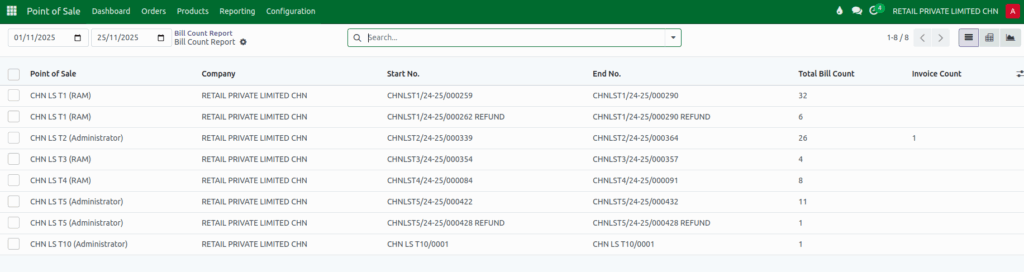
The Point of Sale field shows which terminal or location recorded the bills. The Company field displays the business entity responsible for the transactions. Start No. and End No. represent the first and last bill numbers generated during the chosen period, helping identify missing or skipped bills. The Total Bill Count shows how many receipts were created between these numbers, while the Invoice Count indicates how many of those bills were converted into official invoices. These fields help ensure proper tracking of sales, support audit requirements, detect missing documents, and maintain accurate revenue reporting across locations.
Views and Export Options
The List View displays the bill count data in a table with fields such as POS, company, start number, end number, total bills, and invoice count. It allows sorting and applying filters for detailed review.
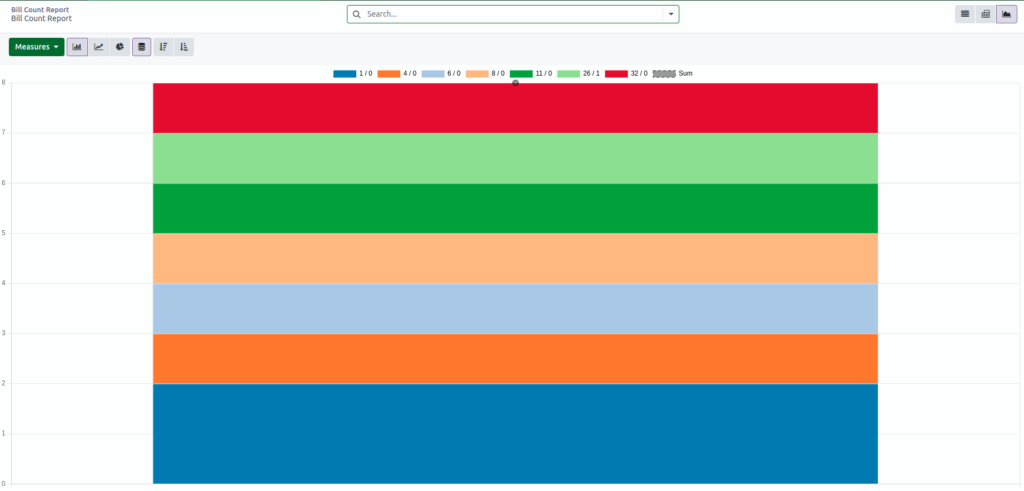
The Pivot View summarizes the report using grouping and totals, helping identify trends across dates, companies, or POS terminals. The Graph View presents the same information visually through bar charts or line charts, making it easier to spot peaks, drops, or patterns in sales activity.

The report can be exported to Excel or CSV from list or pivot views. Selected fields such as POS, company, start and end numbers, bill counts, and invoice counts can be included. Exported files are useful for analysis, sharing, or storing records for audit and reporting needs.

