How to View the Product-Wise Sales Report in Odoo
Understanding which products sell the most is important for every business. Odoo Product-Wise Sales Report helps in reviewing sales performance for each item, making it easier to plan inventory, pricing, and promotions. This blog explains how the report is accessed, what options are available, and how the data appears on the screen.
Accessing the Product-Wise Sales Report
The Product-Wise Sales Report can be opened by navigating to Point of Sale → Reporting → Sales Summary. This menu leads to the main report screen where detailed product-level sales information is shown. Only the Head Cashier is allowed to view this screen.
The report provides an overview of how each product or product group is performing, helping easily identify best-selling items, slow-moving products, and overall sales trends.
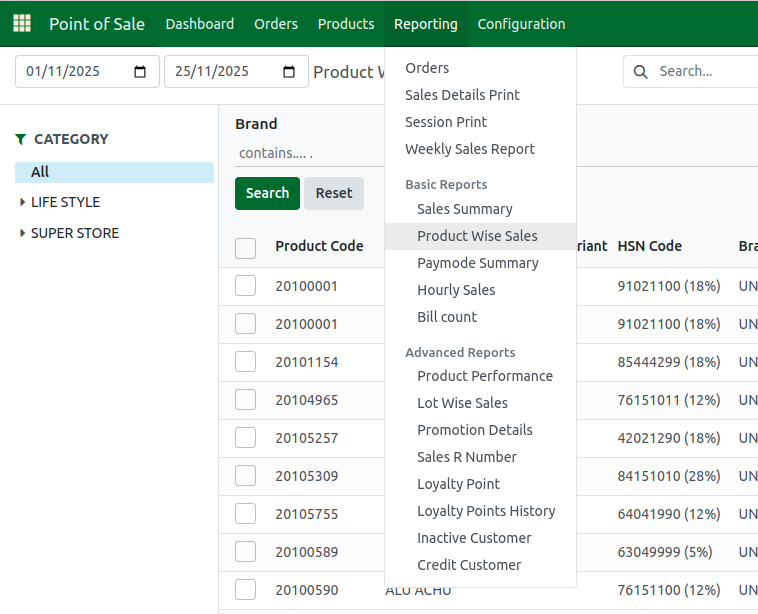
Filters, Grouping, and Quick Search Options
The report includes several filters designed to locate the exact information needed. Filters such as Lifestyle, Superstore, and HSN Code are available. Lifestyle and Superstore help separate product categories, while the HSN filter allows searching using tax codes.
Grouping options include Company, Brand, HSN Code, Division, Department, Category, Subcategory, Product, and Tax. Selecting any of these options will rearrange the data based on the chosen field. If a needed filter or grouping option is not visible, Add Custom Filter and Add Custom Group can be used to include additional fields like Pricelist, Tax Amount, GST Number, Sales Team, and more.
A Quick Search area is available to instantly locate information by Category, Brand, Company, or Date. This makes it simple to display data for a specific period or product group.


Important Fields in the Report
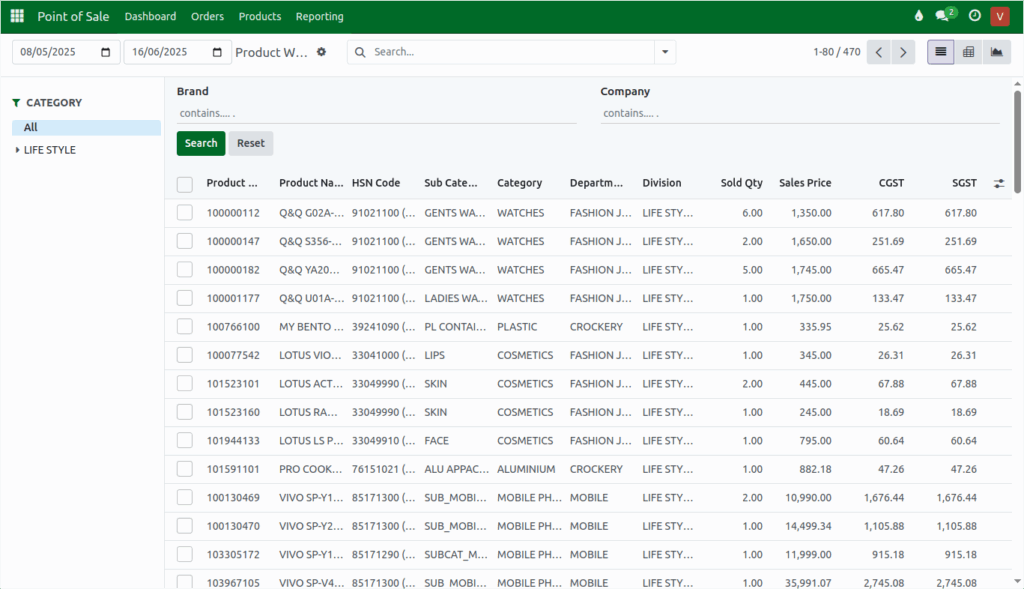
The Product-Wise Sales Report contains key details such as Product Code, Product Name, Brand, and HSN Code with tax information. It also includes financial fields like Taxable Amount, Tax Amount, Total Amount, Discount Percentage, Discount Amount, and Net Total.
Sales-related fields such as Sold Quantity, Average Quantity, and Order Count are shown clearly. Cost information such as Cost, Net Cost, Gross Total, Margin, Markup Percentage, and Markdown Percentage helps in understanding the profit earned from each product.
Promotion fields like Promotion Name and Promotion Discount appear when promotions are applied. Tax details—CGST, SGST, IGST, and CESS—are also displayed for each item.
Viewing and Exporting the Report
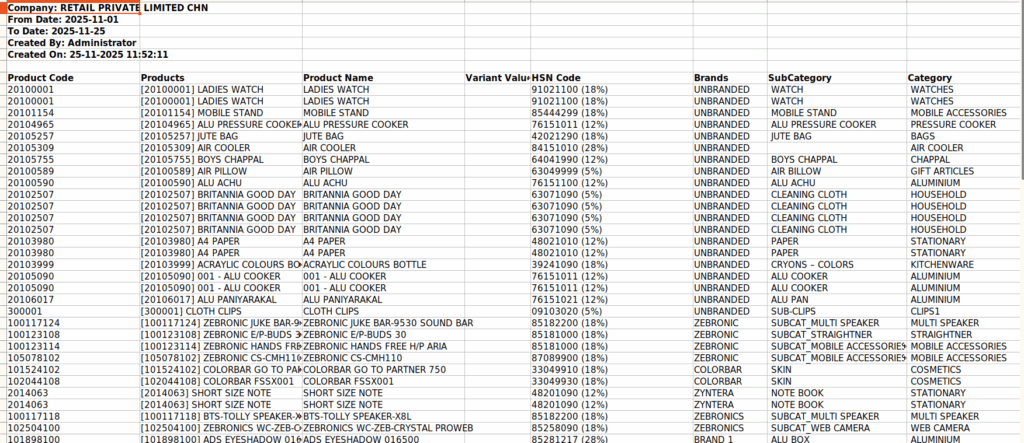
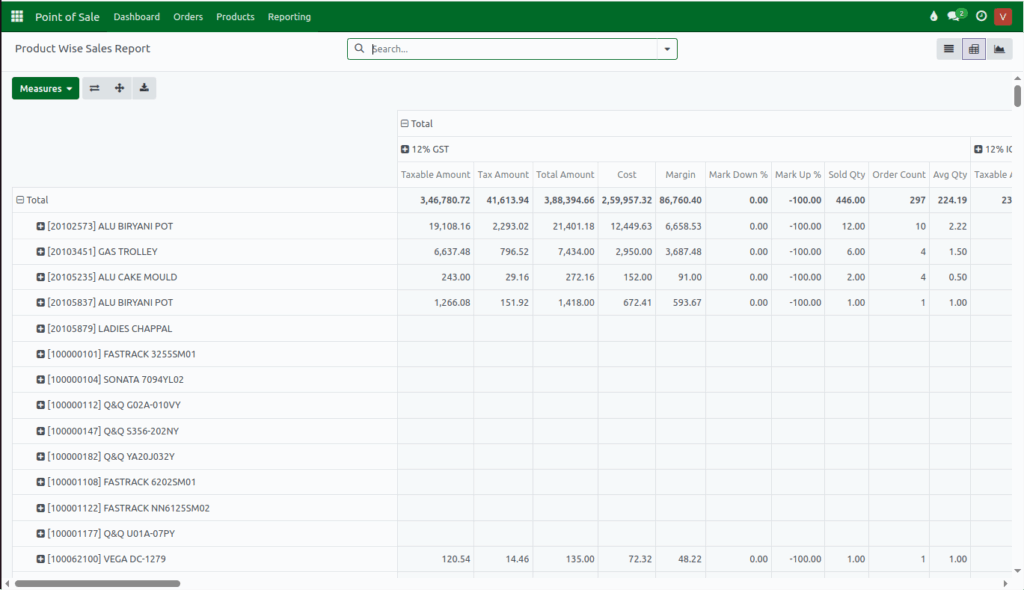
The report can be viewed in multiple formats.In List View, all information appears in a table format. Pivot View helps summarize and group data in different ways such as by date or cashier, making totals easier to review. Graph View presents the information visually using charts like bar graphs, line graphs, or pie charts.

For exporting, the report can be downloaded in Excel format. After applying the required filters or groupings, selecting the Export All option will generate the Excel file containing the displayed data.