How to Manage and Track Loyalty Points for a Customer in POS in Odoo
Most retail stores improve their relationship with customers by providing loyalty points, which help motivate customers to make repeat purchases. They also maintain customer loyalty by recording customer information such as name and phone number. Customers can redeem their loyalty points at any time.
Adding Products to the POS Cart
Add products to the POS cart in the following ways:
- By typing the product code (e.g., /2010058).
- By scanning the lot barcode.
- By scanning barcode/EAN code or multi barcodes.
Once added, the product will automatically appear in the POS cart.

Select Customer in POS Cart
Once the Product is added in the pos cart, choose the customer click the Customer Profile Button. Or using shortcut key ctrl+C to open the Customer page. In the customer screen, screen for a customer using.

- Customer Name.
- Customer Mobile Number.
- Customer Address.
Select the customer to associate with the POS order.

Loyalty Points in POS Cart
- Loyalty points are calculated only after selecting the customer in the POS system.
- The system calculates loyalty points based on the predefined setup (e.g., 0.05 points for every ₹1 spent).
- Loyalty points are calculated on the final amount after applying any discounts.
- The earned points will appear on the cart screen as “Loyalty Points Won”.
Example
A customer makes a purchase of ₹1800 with a 10% discount.
Original Total: ₹1800
Discount: ₹180
Final Amount: ₹1620
Points Calculation:
Loyalty Points Earned: ₹1620 * 0.05 = 81 Points
The 81 points will be shown as “Loyalty Points Won” on the POS cart.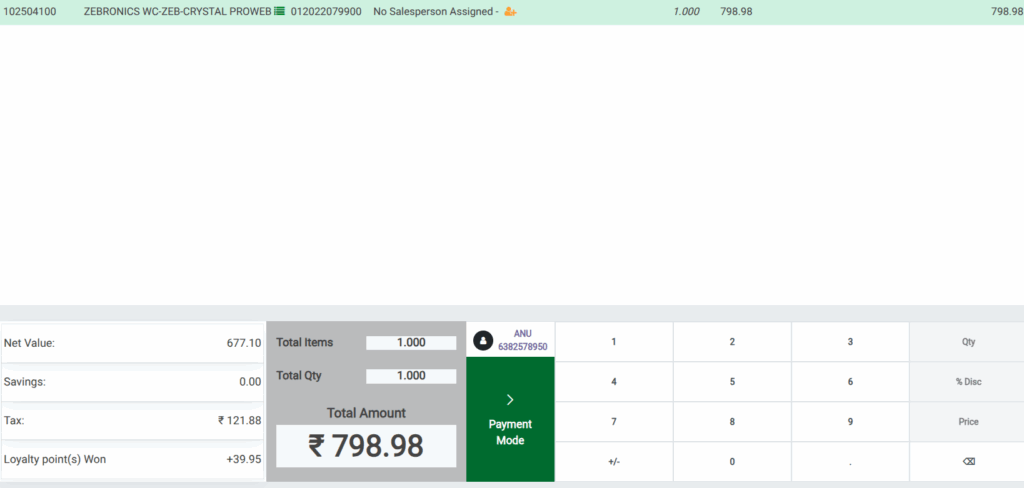
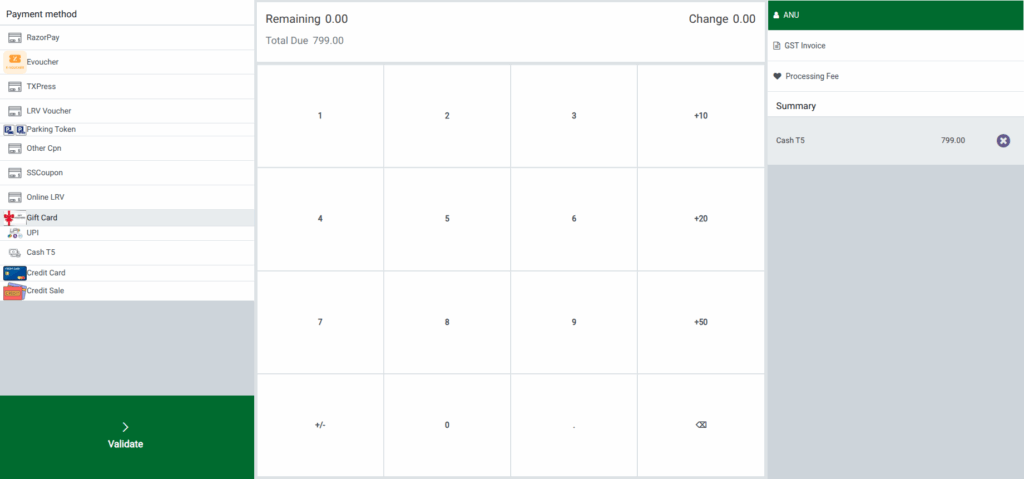
Completing the Transaction
- Verify all the details in POS Cart
- Then Click Payment Mode and choose the appropriate payment method.
- Click Validate to complete the transaction.
- Now the bill receipt will be generated.
Loyalty Points on the Bill Receipt
After payment, the original receipt shows Loyalty Point(s) Earned and Loyalty Point(s) Total for the selected customer. Delivery orders print the loyalty points on both the Customer and Delivery copies.
Loyalty Points Won are calculated based on the bill amount and are displayed on the receipt.

Loyalty Points on the Customer Screen
After completing the bill, points are added to the customer’s account. Open the POS customer screen
displays the current balance loyalty points for all customers. Employees can check balances and update customer information.
Example
Loyalty points update for ANU customer First loyalty points shows 243 points. Points added from the current bill: 40 points update balance is 283 points
Note: Refunds deduct loyalty points for returns, Exchanges add loyalty points only if the new item costs more.
