How to Process an Order for a CESS Product in Odoo POS
Processing an order for a CESS product in Odoo Point of Sale (POS) involves understanding how the system manages tax configurations and applies combined GST and CESS calculations. With the right setup, Odoo automatically handles all tax logic, ensuring accurate billing and compliance with Indian taxation rules.
CESS Tax Configuration in the Product
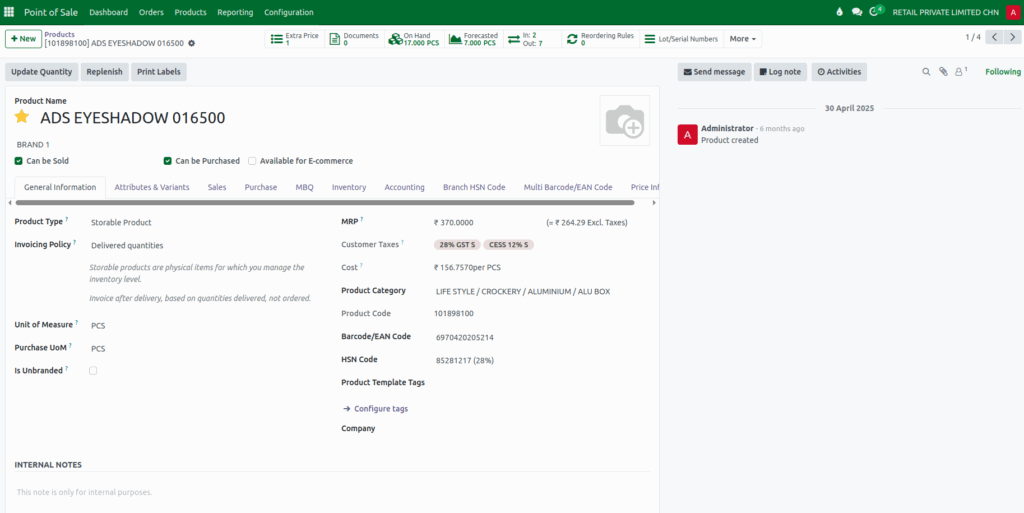
The process begins in the Inventory module, where you must open the product master of the CESS product and verify that both GST and CESS taxes are configured in the Customer Taxes field.
This setup is essential because Odoo POS relies on the product’s tax configuration to compute the correct tax amounts during billing. Without this configuration, the POS will not be able to apply the necessary GST and CESS components accurately.
Adding the CESS Product to the POS Cart
Once the CESS product is configured, the cashier can add it to the POS cart using different methods such as entering the product code with a leading slash, scanning a barcode or EAN, scanning additional barcodes linked to the product, or scanning the lot or serial barcode if the product requires tracking.
After the product is added, Odoo automatically sets the quantity to one, and the cashier can adjust it based on customer requirements. It is important to verify that the price and amount shown in the cart are correct and correspond to the configured tax settings.
CESS Tax Calculation in the POS Cart
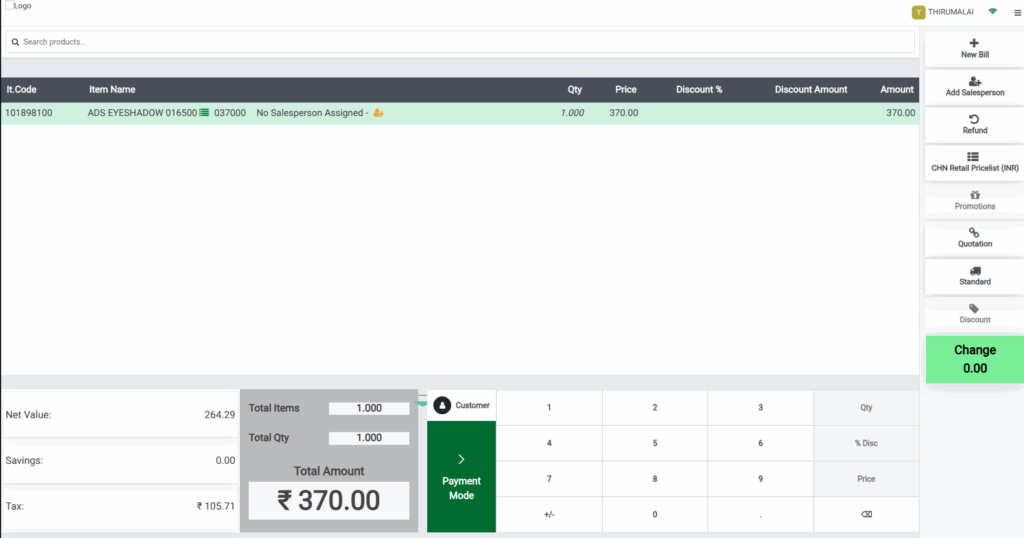
When the product appears in the POS cart, Odoo instantly calculates the total tax, which includes both GST and CESS, and displays it in the Tax field.
For example, if the product “Eyeshadow” carries a tax structure of 28% GST and 12% CESS, the combined tax rate becomes 40%. In this case, if the net value of the product is ₹264.29, Odoo calculates the total tax as ₹105.71 and the final payable amount as ₹370. These values help the cashier verify that the system is applying the correct tax rate and total amount for the product.
Completing the Payment
After confirming that the product details and tax calculations are correct, the cashier can proceed with the payment process. The POS supports multiple payment modes such as cash, card, UPI, or other configured methods, and shortcut keys can also be used for faster processing.
Once the preferred payment method is selected and confirmed, the order is completed successfully and recorded in the system.

CESS Tax Details in the Bill Receipt
Once the payment is processed, Odoo generates a bill receipt that contains all essential transaction information. On the receipt, the Tax field clearly displays the combined tax rate of 40%, which includes 28% GST and 12% CESS.
In the Tax Details section, Odoo provides a further breakdown, showing the 28% GST divided into SGST at 14% and CGST at 14%, while the 12% CESS is listed separately. This transparent breakdown ensures compliance with Indian tax regulations and provides customers with a clear understanding of the tax components applied to their purchase.

